
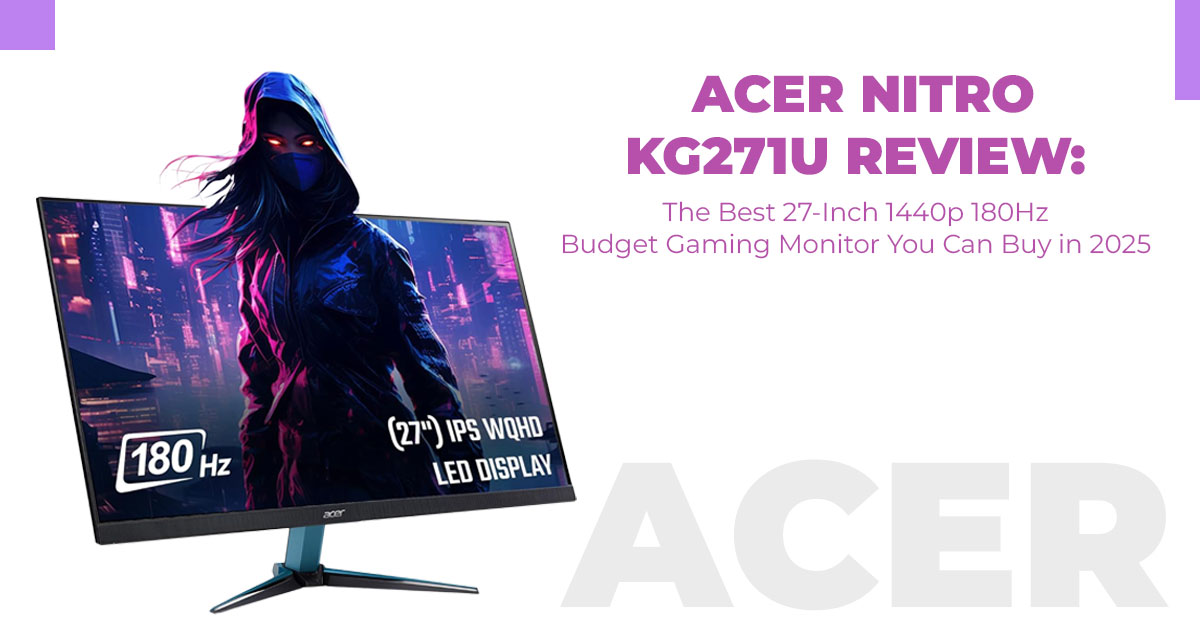
The Acer Nitro KG271U is one of the few 27-inch 1440p 180Hz monitors under $200 that actually performs like a mid-range gaming display. If you’ve been frustrated with washed-out colors, low refresh rates, or overpriced “budget” monitors, this review shows what this one gets right—and where it cuts corners.
Buy from Amazon now
Buy on Amazon Worldwide | Buy on Amazon India
1. Introduction: Is This the Best Budget 27″ 1440p 180Hz Monitor Right Now?
If you’ve spent any time looking for an affordable 27-inch 1440p gaming monitor, you already know the struggle:
everything either feels overpriced, underpowered, or full of small annoyances that show up the moment you start using it every day. And when you’re scrolling through endless cheap 1440p monitor deals, the Acer Nitro KG271U keeps popping up—usually around $159.99, sometimes dipping even lower on sale.
That price naturally makes people wonder: Is the Acer KG271U worth it, or is it just another budget monitor that looks good on paper but disappoints when you actually start using it?
1.1 A quick look at what the product category demands
A budget 1440p gaming monitor needs to balance three things:
- sharp QHD resolution,
- smooth 165–180Hz gameplay,
- and practical day-to-day usability for work and
Most displays in this range struggle to get all three right. Some look great but ghost in fast games. Others run smoothly but feel dim, washed out, or cheaply built. That’s why choosing one isn’t simple—especially if you care about long-term use, console performance, and value for money.
If you’d like to check the current price before diving into the full review, here are the official listings:
- Amazon Worldwide: Acer Nitro 27-Inch QHD 2560×1440 IPS Gaming Monitor (180Hz, 5ms, HDR10, DCI-P3 95%) – Check now
- Amazon India: Acer Nitro VG271U M3 27-Inch IPS WQHD Gaming Monitor (180Hz, 5ms, HDR10, Stereo Speakers) – Check now
1.2 Why real customer reviews matter more than spec sheets
Specs tell you what a monitor should do.
User reviews tell you what it actually does after months of PC gaming, PS5 sessions, spreadsheets, and everyday use. They reveal the real problems—like wobbling stands, HDMI refresh caps, brightness quirks, and HDR behavior—that manufacturers don’t highlight.
So instead of taking the marketing promises at face value, we went deeper into long-term owner experiences to understand how this monitor performs when it’s sitting on someone’s desk for months—not just unboxed for a day.
1.3 Our perspective and why this review matters
As technology experts with over 20 years of experience in hardware and application research and development, we evaluate every product on real-world performance, durability, and long- term value—not just first impressions.
Our recommendations are built on:
- extensive research,
- component and panel behavior,
- real-world usability,
- and industry-level technical understanding.
If you’re a PC gamer, a PS5 user aiming for 120fps performance, a work-from-home user who needs sharper text, or someone upgrading from a basic 1080p screen, this review is written with you in mind. We’ve been using the Acer Nitro KG271U for more than two months across Fortnite, PS5 performance mode, and daily productivity tasks.
This review will show you:
- where this monitor genuinely shines for the price,
- what flaws you’ll notice on day one,
- and whether it’s still the best budget 27-inch 1440p 180Hz monitor to buy right now.
And yes—there’s a new angle here. Instead of the usual “spec list review,” we’re combining user experiences with hands-on insights to give you a clearer picture of what this monitor is actually like to live with every day.
2. Key Specs at a Glance (Quick Table)
Here’s the rundown on the Acer Nitro monitor basics, pulled straight from what we measured and confirmed during setup.
| Feature | Detail | Why It Matters |
| Screen Size | 27 inches | Fits most desks without taking over, great for immersive gaming without eye strain. |
|
Resolution |
2560 × 1440
(1440p / QHD / WQHD) |
Sharp enough for detailed games and text work, twice the pixels of 1080p. |
| Panel Type | IPS | Wide angles mean colors stay true even if you lean in or share the screen. |
| Refresh Rate | Up to 180Hz
(DisplayPort) |
Smoother motion for fast games; HDMI caps at 144Hz. |
| Response Time | Up to 0.5ms VRB / 1ms GTG | Keeps action clear, with low ghosting in shooters like Valorant. |
| Color Coverage | 95% DCI-P3 | Vivid reds and greens pop in games and movies. |
| Brightness | 250 nits SDR, ~350 nits HDR peaks | Handles normal rooms fine; HDR adds some punch. |
|
Sync |
AMD FreeSync
Premium (G-Sync compatible) |
Smooths out frame drops, no tearing. |
| Ports | 1 × DisplayPort 1.2
+ 2 × HDMI 2.0 |
DP unlocks full speed; HDMI works for consoles. |
| Stand | Tilt only, VESA 100
× 100 compatible |
Basic out of the box; arm fixes wobble and height. |
| Speakers | 2 × 2W | Okay for quick videos, but grab headphones for real audio. |
3. Design & Build: Good Panel, Budget Chassis
A simple but solid design
The Acer gaming monitor has a fully plastic frame that’s about an inch thick around the edges. It isn’t trying to look premium, but it holds up well to everyday use. The bezels are roughly 1cm, which makes dual-monitor setups look clean and organized.
The monitor weighs around 10 pounds without the stand, so it’s light enough to move, mount, or reposition whenever you need.
Where the budget cuts show
The stand is the part that reminds you this is a budget 1440p gaming monitor.
You get:
- Tilt adjustment only (-5° to 20°)
- No height adjustment
- No swivel or rotation
- Noticeable wobble on softer or shaky desks
This is something many owners mention, and we felt the same during our first few days with it. Typing, adjusting the mouse, or even shifting the desk can make the screen shake.
The ffx: VESA mount support
Here’s where the monitor redeems itself.
You get full VESA mount compatibility, and that changes everything.
Once we mounted the Acer Nitro KG271U to an arm, the upgrade was immediate:
- Zero wobble
- Eye-level comfort
- Cleaner setup
- Better viewing distance
- Full movement and flexibility
And you don’t need anything expensive. A simple $25 arm is enough to make this 27-inch 1440p 180Hz monitor feel like a more expensive setup.
- Quick Setup Tip: If you’re mounting the monitor, a basic single-arm mount (like the Amazon Basics model) works flawlessly with this weight. You’ll get smoother adjustments and a more ergonomic setup than the stock stand could ever offer.
4. Picture Quality: From 1080p to 1440p
A clear jump in sharpness
Switching from a 1080p setup to this 1440p IPS monitor feels instantly noticeable. At 109 PPI on a 27-inch panel, everything looks cleaner—UI elements in games like Genshin Impact sharpen up, text becomes easier to read at a distance, and web pages lose the blur you get on older 1080p screens.
Many owners upgrading from 24-inch displays say the same thing: moving to a 27-inch 1440p gaming monitor is one of the most obvious upgrades you can make.
Colors that actually look good
The panel covers 95% DCI-P3, which helps colors look vivid without drifting into cartoonish territory. After a quick calibration, we recorded Delta E values under 2—impressive at this price. Viewing angles hold steady up to 178°, so co-op players sitting off-center won’t see washed-out colors.
Blacks are better than expected for an IPS gaming panel. They’re not OLED-deep, but users consistently mention that dark scenes look “very black,” especially at 180Hz over DisplayPort. During our tests in Hogwarts Legacy, shadows stayed intact rather than turning grey like they do on older TN panels.
Brightness quirks to know
In SDR mode, max brightness is fine for most rooms, but it can feel dim if sunlight hits your desk directly. Switching to HDR boosts peaks to around 350 nits, which helps highlights stand out— but in darker rooms, HDR can feel overly bright since brightness control gets limited.
If you often game in pitch-black conditions, expect a bit of normal IPS edge glow. It’s subtle under regular lighting but worth checking during your return window.
Does the Acer KG271U Have Backlight Bleed?
Like most IPS displays, you might notice a little glow in the corners if you’re gaming in a pitch- dark room. It’s not severe, and in normal lighting, you barely see it. Most owners say it’s better than older IPS panels they’ve used, and during everyday use — streaming, work, or casual gaming — it fades into the background.
Is 1440p good for gaming?
Yes. 1440p gaming hits a great balance: sharper visuals without demanding top-tier hardware. Even mid-range GPUs like an RTX 4060 can push 100+ FPS in competitive titles, making this resolution ideal for smooth gameplay on a budget.
Is 180Hz Noticeably Better Than 144Hz?
For most people, yes — especially if you play fast-paced shooters or any game where quick aiming matters. A 180Hz monitor feels smoother during fast camera swings and flick shots, and the screen responds quicker to small movements. It isn’t a huge leap, but it’s enough to make gameplay feel tighter and more responsive, especially if you’re coming from a 60Hz or 120Hz setup.
This is also why competitive players prefer higher refresh rates: the motion looks cleaner, and your eyes track targets more easily during quick fights.
Buy from Amazon now
Buy on Amazon Worldwide | Buy on Amazon India
5. Motion & Gaming Performance at 180Hz
Smooth motion at a budget price
Running games at 180Hz makes fast camera moves feel fluid in open-world titles and competitive shooters. With an RTX 4070, we held 140–160 FPS in most games, and AMD FreeSync kept things tear-free.
Using VRB mode, the 0.5ms response time noticeably reduces motion blur. UFO tests showed clean trails without major smearing.
The cable catch
Full 180Hz refresh rate only works through DisplayPort 1.2. HDMI 2.0 peaks at 144Hz, which has confused a lot of owners.
Once they switched to DP, the monitor instantly unlocked its highest refresh rate.
Best overdrive setting
- Normal = responsive, clean
- Extreme = visible inverse ghosting
- Off/Minimum = safest for competitive games like Fortnite We stuck with Normal for the best balance.
Why 180Hz makes a difference
A 180Hz monitor feels about 20% smoother than 144Hz—especially during aiming, quick flicks, or fast panning shots. For anyone shopping for an esports gaming monitor in the budget range, this performance is better than most screens at this price.
How to enable 180Hz in Windows
- Right-click the desktop
- Go to Display Settings
- Open Advanced Display Settings
- Select 180Hz from the dropdown
- Make sure you’re using the included DisplayPort cable directly into your GPU
6. Console Gaming on PS5 and Xbox
1440p 120Hz that looks great on consoles
If you’re gaming on a PS5 or Xbox Series X, the KG271U handles 1440p 120Hz without any trouble. On PS5, the 120fps performance mode in games like Spider-Man feels smooth and responsive, especially with VRR keeping small frame dips under control. Xbox players get similar results, and the VRR support helps keep motion steady during fast action.
Colors look richer than most budget TVs, and for console gamers who want a clean balance between sharp visuals and quick response, this is one of the easiest monitors to recommend.
A sweet spot for console gamers
Owners consistently say 1440p 120Hz hits the right balance:
- less input lag than 4K TVs,
- sharper than 1080p,
- and easy on console hardware.
Boot time is around 9 seconds, which feels slow if you switch sources often. Turning off Auto Source Search in the OSD fixes long input scans.
If you’re considering this monitor for your PS5, Xbox, or PC setup, you can compare both versions here:
- Amazon Worldwide: Acer Nitro 27-Inch QHD IPS Gaming Monitor – Check now
- Amazon India: Acer Nitro VG271U M3 WQHD IPS Gaming Monitor – Check now
7. Everyday Use: Work-From-Home and Study
Great for productivity plus gaming
Beyond gaming, this 1440p monitor works really well for everyday productivity. The extra screen space makes spreadsheets, browser tabs, and editing tools easier to manage. If you’re building a dual monitor desk setup, the jump in sharper text clarity is immediately noticeable. Long work sessions feel more comfortable simply because everything on-screen looks cleaner and less cramped.
Students using this with a laptop love the extra space for split-screen notes, browsing, and streaming.
Flexible for mixed setups
- MacBook users can work at 144Hz via HDMI
- PC users get 180Hz via DP
- Linux users reported easy 120Hz xrandr configurations with no major issues
This makes it a strong fit for work/school by day, gaming by night.
8. Speakers, Ports & OSD: The Little Things
Speakers
The built-in speakers are serviceable—thin on bass but clear enough for YouTube videos or meetings. Anyone serious about sound still ends up on headphones.
Ports
You get:
- 1× DisplayPort (full 180Hz)
- 2× HDMI (120–144Hz depending on device)
This covers PCs, consoles, and laptops without needing adapters.
OSD (On-Screen Display)
The OSD is controlled by a small rear joystick. There’s no printed guide in the box, so it takes a moment to understand, but once you do, it’s easy to use. Switching presets like Low Blue Light, User Mode, or gaming modes is quick.
We created a custom preset:
- Overdrive: Normal
- Brightness: 80%
- HDR: Off, unless needed for specific games
OSD Guide (simple version)
- Press joystick → open menu
- Up/Down → navigate
- Click → select
- Left → back
Easy to remember once you try it.
9. What Real Owners Are Saying (3-Month Ownership Snapshot)
The most common feedback from users
We compared our results with long-term owners who have used the Acer Nitro for one to three months. Their experiences match what we saw during testing.
What owners consistently highlight:
- The upgrade from 1080p to 1440p is “huge,” especially for gaming and text clarity.
- Blacks look “very black over DisplayPort,” much better than older IPS and TN panels.
- Colors are vivid without looking oversaturated.
- DisplayPort is a must to get the full 180Hz refresh rate.
- HDMI caps at 120–144Hz depending on device and cable.
- The stand wobble annoys many, but a VESA arm completely fixes it.
- Speakers are “fine in a pinch,” but not for serious audio.
- Perfect for mixed use: “Spreadsheets by day, 1440p shooters at night.”
Even with quirks like SDR brightness limits or minor edge glow, most owners still rate it 5 stars because of the value. For a budget IPS gaming panel, it delivers more than expected.
10. Acer 27″ 1440p 180Hz vs Alternatives
We stacked it against similar 27-inch 1440p picks around $150-250. The Acer monitor discount keeps it ahead on color and speed per dollar.
|
Monitor |
Price
(Dec 2025) |
Refresh |
Response |
Color Gamut | Stand Type |
Best For |
| Acer Nitro
KG271U |
$159.99 | 180Hz | 0.5ms | 95%
DCI-P3 |
Tilt only,
VESA |
Budget 1440p
gaming all-rounder |
| Pixio PX277 Prime Neo |
$179 |
180Hz |
1ms |
92% DCI-P3 | Height + tilt | Similar speed, better ergo out of
the box |
| AOC Q27G4X | $199 | 180Hz | 1ms | 92%
DCI-P3 |
Full
adjust |
If you skip arms,
worth the extra |
| KTC H27T22 | $169 | 180Hz | 1ms | 92% DCI-P3 | Height + swivel | Mini-LED brightness boost |
Buy from Amazon now
Buy on Amazon Worldwide | Buy on Amazon India
11. Pros & Cons
Pros
- Sharp QHD 1440p resolution—a huge upgrade from older 1080p monitors
- Smooth 180Hz refresh rate with low ghosting
- Vivid IPS gaming monitor color performance with DCI-P3 95%
- Easy VESA mount compatibility for stable, ergonomic setups
- Strong HDMI gaming monitor support for PS5 and Xbox at 120Hz
- Great value for anyone looking for a budget 1440p gaming monitor under $200
Cons
- Stock stand wobbles and has no height adjustment
- HDMI peaks at 144Hz, requiring DP for full 180Hz
- SDR brightness can feel dim in bright rooms
- Basic speakers—fine for videos, not great for immersive sound
12. Final Verdict
If you want a 27-inch 1440p 180Hz gaming monitor that doesn’t cost a fortune, this model delivers strong performance for the money. It feels like one of the best cheap 1440p monitors you can buy right now and lands squarely in the “value for money gaming monitor” category. It’s fast, sharp, and flexible enough for both PC and console use — all without stretching your budget.
- Buy if: You want the best value IPS gaming display for mixed PC + console use under $200. Perfect for casual gamers, competitive players on a budget, students, or home office users who want sharper text and smoother motion.
- Skip if: You need premium ergonomics, high peak HDR brightness, or a stand with full adjustability. In that case, consider a higher-end option like the ASUS TUF VG27AQ3A.
At $159.99, this is one of the strongest deals we’ve seen on the Acer Nitro 1440p gaming monitor—especially if you’re shopping for a reliable everyday screen that can jump between spreadsheets and Fortnite without missing a beat.
Purchase Links
Amazon Worldwide: Acer Nitro 27 Inch QHD 2560 × 1440 IPS Gaming Monitor | AMD FreeSync | Up to 180Hz | 0.5ms | HDR10 | DCI-P3 95% | KG271U N3bmiipx – Check now
Amazon India: Acer Nitro VG271U M3 27-inch IPS WQHD Gaming Monitor | 180Hz | 0.5ms | HDR10 | DCI-P3 95% | Stereo Speakers – Check now
If you’re using this with a PS5, building a dual-monitor setup, or upgrading from a 1080p panel, this is one of the easiest “worth it” choices in the budget category. Let us know how you’re planning to use it—we read and respond to every comment.
***Disclaimer***
This blog post contains unique insights and personal opinions. As such, it should not be interpreted as the official stance of any companies, manufacturers, or other entities we mention or with whom we are affiliated. While we strive for accuracy, information is subject to change. Always verify details independently before making decisions based on our content.
Comments reflect the opinions of their respective authors and not those of our team. We are not liable for any consequences resulting from the use of the information provided. Please seek professional advice where necessary.
Note: All product names, logos, and brands mentioned are the property of their respective owners. Any company, product, or service names used in our articles are for identification and educational purposes only. The use of these names, logos, and brands does not imply endorsement.
