
People don’t forget passwords because they’re careless—they forget because they have too many. Most office users juggle dozens of logins every day, and even now, many still reuse the same passwords just to keep things manageable. That small shortcut creates real risk. And the constant typing, lock screens, and reset requests quietly drain time.
That’s where a fingerprint mouse like the Dell MS526C fingerprint mouse steps in. It’s not trying to reinvent your setup. It simply replaces repeated password typing with a quick fingerprint tap using Windows Hello. Same mouse, one extra function.
Summary
- The Dell MS526C fingerprint mouse combines a regular mouse with biometric authentication
- It helps reduce password fatigue and speeds up login on shared or office systems
- Best suited for enterprise users, IT teams, and shared workstations
- Not a full replacement for passwords, but a practical step toward passwordless login
1. Introduction
You step away for a minute, come back, and your screen is locked again. You type your password. Then again. And again. On shared systems, it gets worse—multiple users, constant switching, more delays.
That’s the everyday problem a biometric mouse tries to fix.
Instead of adding another device, the Dell fingerprint mouse builds fingerprint authentication into something you already use all day. Tap your finger, and you’re back in. No typing, no guessing, no reset requests.
As technology experts with over 20 years of experience in hardware and application research and development, we deeply analyze each product based on real-world performance, durability, and value for money. Our goal is to help you find the best product in every category—budget, performance, reliability, and long-term usage.
This review is for office workers, IT teams, enterprise users, and anyone using shared computers or looking for a simple passwordless login device. Our recommendations are based on extensive research, component analysis, real-world usability, and industry expertise.
And here’s the real reason this matters: product pages and launch articles tell you what a device claims to do. But real user experience shows how it actually behaves during a full workday— when sensors fail, when systems lag, or when convenience either saves time or becomes another small annoyance.
This review looks at the Dell MS526C fingerprint mouse from that angle. Not hype. Just how it fits into daily work, where it helps, and where it doesn’t.
2. What Is the Dell MS526C Fingerprint Mouse? (Quick Answer)
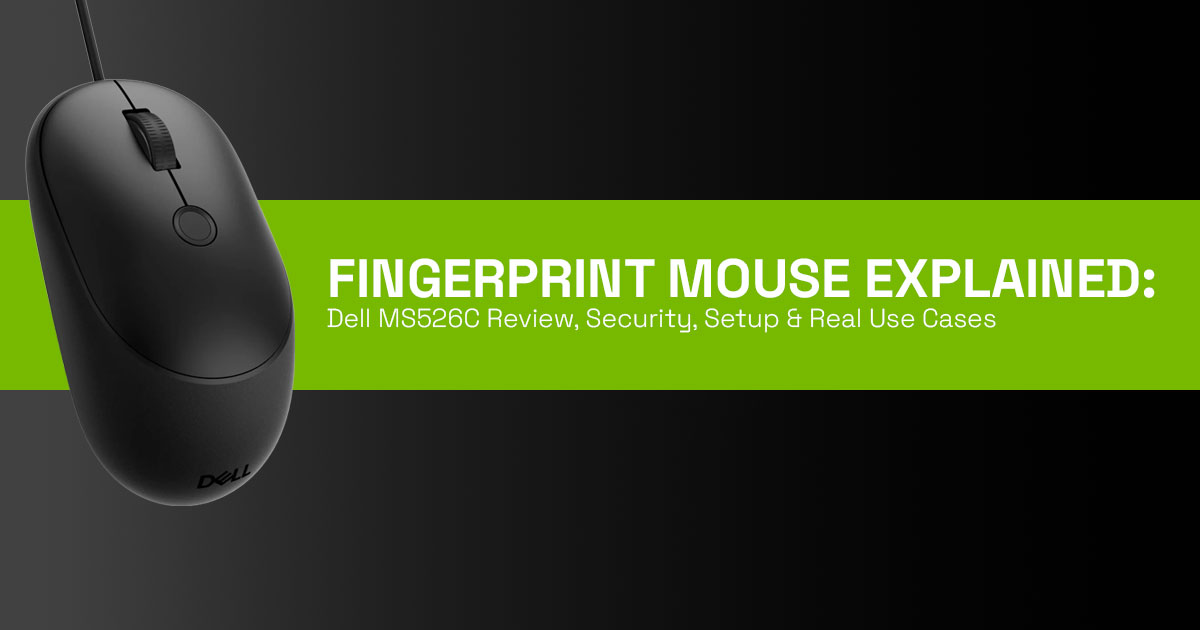
The Dell MS526C fingerprint mouse is a full-size wired biometric mouse with a built-in fingerprint sensor that works with Windows Hello. You plug it into a Windows PC, register your fingerprint, and unlock your system with a tap instead of typing a password.
Who it is for:
- Office workers dealing with frequent lock/unlock cycles
- IT teams managing shared systems
- Businesses using hot desks or shared workstations
A secure computer mouse with fingerprint that blends everyday use with fast passwordless authentication—no extra hardware needed.
This USB fingerprint mouse keeps everything simple and local. No complicated setup, no new habits. Just faster access with less friction.
3. Technical Specifications at a Glance
Here’s what you get with the Dell MS526C speciffcations:
| Feature | Details |
| Connectivity | Wired USB for a stable and reliable connection |
| Fingerprint Sensor | Integrated sensor with support for Windows Hello biometric login |
| Sensor Type | Optical sensor with adjustable DPI up to 6000 |
| Design | Full-size, symmetrical, ergonomic design for long usage |
| Weight | Lightweight design (exact weight may vary by region or specification) |
| Compatibility | Optimized for Windows 10 and Windows 11 systems |
| Buttons | Standard button layout with scroll wheel |
| Other Benefits | Reliable tracking and consistent day-to-day performance |
The wired biometric mouse approach is intentional. It removes wireless risks and keeps performance steady—something many enterprise security mouse setups prefer.
4. Why This Review Is Essential
Passwords are still a problem. Not because people don’t care—but because managing them is tiring.
In offfces, this leads to:
- Reused credentials
- Frequent reset requests
- Slower workflows
A fingerprint mouse for office productivity targets that gap.
Most laptops already have biometric authentication devices, but desktops and shared systems don’t. That’s where this device fits. It adds fingerprint login to desktop PCs without changing your setup.
But the real question is simple:
Does it actually help in daily work—or is it just another gadget?
This review answers:
- How fingerprint mouse works with Windows Hello in real use
- Whether biometric authentication feels reliable
- If the wired vs wireless biometric mouse security tradeoff matters
- And whether it improves productivity or delivers real value in daily use
5. What You Will Learn from This Review
- A simple breakdown of how fingerprint login works using Windows Hello
- A practical way to evaluate passwordless authentication systems using a clear model
- Real use cases for a fingerprint mouse for shared computers and offices
- Step-by-step fingerprint mouse setup Windows 11 guidance
- Honest insights into fingerprint authentication pros and cons
- When to choose this over tools like password managers vs biometric login
The goal is simple: help you decide if a biometric authentication device like this fits your workflow—or if you’re better off with something else.
And that’s the key shift here.
This isn’t about replacing passwords completely.
It’s about reducing friction in the places where passwords slow you down the most.
6. How Fingerprint Mouse Works with Windows Hello (Biometric Authentication for Computers)
A fingerprint mouse like the Dell MS526C uses Windows Hello to replace typed passwords with
biometric authentication.
Here’s how it works in simple terms:
- The sensor reads the unique ridges of your finger
- It converts that into a secure mathematical template, not an image
- This template stays stored locally on your PC (not sent over the internet)
Setup Flow (Windows Hello Fingerprint Login)
- Plug in the USB fingerprint mouse
- Go to Settings > Accounts > Sign-in options
- Set a PIN (required for backup)
- Register your fingerprint from different angles
- Test the scan
Daily Use
When your PC locks:
- Place your finger on the sensor
- The system compares the live scan with the stored template
- If it matches, access is granted
This fingerprint login device for PC keeps the process fast and familiar. After a short adjustment period, it feels like part of normal mouse use.
Why It Matters
- No password typing for routine unlocks
- Local storage reduces network-based risks
- Works smoothly in office productivity security mouse setups
7. 3-Layer Access Model for Passwordless Authentication Systems (Biometric Security Explained)
To understand where a biometric mouse ffts, it helps to break login security into three layers:
Layer 1: Identity (Who you are)
Handled by fingerprint authentication
- Confirms the user through biometric authentication device
- Fast and convenient for daily access
Layer 2: Device (Where you log in)
Handled by the trusted wired biometric mouse + PC
- Physical connection improves stability
- Fits well in enterprise security mouse environments
Layer 3: Context (When and why access happens)
Not handled by the mouse
- Includes location, behavior, and risk signals
- Part of broader systems like the Zero Trust security model
What This Means in Practice
The Dell ffngerprint mouse strengthens:
- Identity verification (Layer 1)
- Device trust (Layer 2)
But it does not cover:
- Behavioral or risk-based checks (Layer 3)
So, it works best as part of a larger secure login methods strategy, not as a complete replacement.
8. Fingerprint Mouse for Office Productivity: Real-World Use Cases
Office Workers (Assigned Desks)
A ffngerprint mouse for productivity helps during:
- Frequent lock/unlock cycles
- Short breaks or meetings
Result: Faster access, fewer interruptions
Shared Workspaces and Hot Desks
For ffngerprint mouse for shared computers:
- Multiple users can register fingerprints
- Switching between users becomes smoother
Result: Reduced login friction in team environments
Remote Work and Home Offices
A ffngerprint mouse for remote work adds value when:
- Using desktop setups without built-in biometrics
Less useful if:
- Your laptop already has biometric authentication
IT and Enterprise Environments
- Fewer password reset requests
- Better control in enterprise login security solutions Result: Lower support workload and smoother operations
9. Fingerprint Mouse Setup Windows 11: Step-by-Step Guide
Setting up this biometric mouse is straightforward:
Setup Steps
- Connect the USB fingerprint mouse
- Open Settings > Accounts > Sign-in options
- Enable Fingerprint recognition (Windows Hello)
- Set a backup PIN
- Scan your finger from multiple angles
- Save and test
Daily Use Tips
- Use clean, dry fingers for better scans
- Apply consistent pressure on the sensor
- Keep PIN/password as fallback
This keeps the passwordless login device reliable for everyday use.
10. Is Fingerprint Mouse Secure? Biometric Authentication vs Passwords (Security Reality Check)
A fingerprint mouse improves convenience, but security needs a balanced view.
What It Does Well
- Reduces password exposure
- Keeps biometric data stored locally
- Works well for secure login for office computers
Known Limitations
Fingerprint Spooffng Risks
- Possible with physical access and advanced methods
- Not common in everyday office scenarios
Accuracy Issues
- False acceptance rate: rare but possible
- False rejection rate: more common with:
- Dirty sensors
- Dry skin
- Minor cuts
Biometric Limitations
- You cannot change your fingerprint like a password
- Always require a backup login method
Wired vs Wireless Security Advantage
The wired biometric mouse:
- Avoids wireless attack surfaces
- Provides stable, consistent connection
Best Practice Setup
For stronger protection, combine:
- Biometric authentication device
- Backup PIN/password
- System updates and encryption
- Optional multi-factor authentication devices Bottom Line
The Dell MS526C fingerprint mouse improves daily login speed and reduces friction. But it works best as part of a broader overall device and system security setup, not as a standalone solution.
11. Wired vs Wireless Biometric Mouse Security: Why Wired Still Wins
The Dell MS526C fingerprint mouse uses a wired USB connection for a reason.
Why Wired Works
- No batteries or charging
- No signal drops during login
- Lower risk of wireless interception
- Preferred for enterprise security mouse setups
Tradeoff
- Cable on desk
- Less movement flexibility
Bottom Line
A wired biometric mouse is better for secure login for office computers. Wireless adds convenience, but also risk.
12. Dell MS526C Fingerprint Mouse Features: What It Gets Right
The Dell MS526C fingerprint mouse keeps things simple and reliable.
Key Strengths
Windows Hello Integration
- Works as a Windows Hello compatible mouse
- Quick setup, minimal software
Enterprise Focus
- Ideal for fingerprint mouse for shared computers
- Reduces password reset requests
Comfort and Usability
- Ergonomic design
- Adjustable DPI up to 6000
- Works like a normal mouse first
Why It Matters
This office productivity security mouse focuses on consistency over extra features.
13. Dell MS526C Limitations: Where It Falls Short
Main Gaps
- Limited multi-device support
- Best with Windows Hello (basic use outside Windows)
- Not suited for gaming or precision work
- No deep integration with passwordless authentication systems Who Feels It
- Laptop users with built-in biometric authentication devices
- Users relying on password managers vs biometric login
Summary
The Dell fingerprint mouse is focused, which limits flexibility.
14. Should You Buy Dell MS526C Fingerprint Mouse?
Buy If You Need
- Fingerprint mouse for business use
- Shared desktops or hot desks
- Faster login on fixed systems
Best for:
- Enterprise and IT-managed environments
Skip If You Need
- Wireless flexibility
- Multi-device workflows
- Cross-platform login
Decision
Should I buy Dell MS526C depends on your setup. Shared desktops → yes. Personal laptop →
less value.
15. Fingerprint Mouse vs Password Manager vs Built-in Biometrics
| Feature | Fingerprint Mouse | Built-in Sensor | Password Manager |
| Speed | Quick tap login | Fast fingerprint scan | Instant autofill |
| Multi-Device | Limited flexibility | Device-dependent | Strong cross-device support |
| Shared Use | Strong (multiple users supported) | Limited sharing | Moderate (account-based) |
| OS Support | Windows Hello supported | Varies by device | Broad (multiple platforms) |
Key Takeaways
- Fingerprint authentication vs face recognition → fingerprint works in all lighting
- Password manager vs biometric login → managers handle accounts, biometrics unlock devices
Best setup combines both.
16. Passwordless Authentication Systems and Zero Trust Security Model
More systems now use passwordless authentication systems.
Why the Shift
- Lower phishing risk
- Faster access
- Better compliance
Role of This Mouse
- Adds biometric authentication for enterprise devices
- Helps desktops match laptop security
Insight
The future blends biometrics, device trust, and context—not one solution.
17. Fingerprint Mouse Security Mistakes to Avoid
Avoid
- Using only fingerprint login
- Skipping backup PIN/password
- Ignoring updates and encryption
Do Instead
- Use multi-factor authentication devices
- Keep sensor clean
- Secure physical access
18. Fingerprint Sensor Reliability and Edge Cases
Common Issues
- Dirty or dry fingers
- Cuts or bandages
- Lotion or moisture
Other Factors
- Temperature changes
- Shared system delays
Tip
Always keep a backup login. A fingerprint login device for PC works best with fallback options.
19. Fingerprint Mouse FAQ: Setup, Security, and Real-World Use
If you’re considering a fingerprint mouse like the Dell MS526C fingerprint mouse, these quick answers cover the most common questions around biometric authentication, setup, and daily use. This section is designed to match real search queries and help you decide faster.
Q. What is a ffngerprint mouse?
- A fingerprint mouse is a computer mouse with a built-in fingerprint sensor that enables
Windows Hello login for faster, password-light access on PCs.
Q. How does biometric authentication work on a ffngerprint mouse?
- Biometric authentication scans your fingerprint, converts it into a secure local template, and matches it during login for quick verification.
Q. Is ffngerprint login safe for offfce and home use?
- Fingerprint login is secure for daily use with local storage, but works best with backup PIN/password due to biometric security risks.
Q. Can a ffngerprint mouse be hacked or spoofed?
- Remote hacks are rare in a wired biometric mouse, but physical spoofing is possible, so overall device-level security still matters.
Q. How accurate is a ffngerprint mouse sensor in daily use?
- Biometric authentication accuracy is high with proper setup and clean fingers, though results can vary with skin condition or sensor quality.
Q. Is the Dell MS526C ffngerprint mouse worth buying for offfce use?
- The Dell MS526C fingerprint mouse is a strong choice for shared desktops and enterprise setups, less useful for single-user laptops.
Q. How to set up ffngerprint mouse on Windows 11 step by step?
- Plug in the USB fingerprint mouse, go to Windows Hello sign-in options, add fingerprint, and scan your finger to complete setup.
20. Final Verdict: Dell MS526C Fingerprint Mouse for Office and Shared Desktops
The fingerprint mouse is not here to replace passwords everywhere. But in the right setup, it solves a real problem—too many logins, too much friction.
The Dell MS526C fingerprint mouse brings biometric authentication to Windows desktops in a simple way. No extra device, no change in workflow. Just tap and unlock using Windows Hello.
Where It Works Best
- Fingerprint mouse for business use
- Shared desktops and hot desks
- Teams dealing with frequent login cycles
It reduces small delays, cuts down password resets, and fits neatly into secure login for office computers.
What It Gets Right
- Smooth Windows Hello compatible mouse integration
- Reliable wired biometric mouse design
- Comfortable for daily use
- Focus on stability over extra features
Where It Feels Limited
- Limited multi-device support
- Works best within Windows ecosystem
- Less useful for personal laptops with built-in biometric authentication devices Practical Take
Used with the 3-layer access model, this biometric authentication device strengthens identity and device trust. But it still needs backup methods and good security habits.
Availability and Buying Status
The Dell Pro 5 Wired Fingerprint ESS Mouse (MS526C) launched on March 25, 2026, and availability depends on region:
Amazon US
- Currently rolling out into listings
- Available on Dell US site for around $44.99
Amazon India
- Not officially listed yet
- Expected to arrive after regional rollout
Alternatives for Immediate Purchase
- Check current deals on Amazon (Worldwide)
- Check availability on Amazon India Should You Buy?
- Yes, if you manage shared desktops or work in enterprise setups
- No, if you use a personal laptop with built-in biometrics or need wireless flexibility
Final Thought
The Dell MS526C fingerprint mouse is not flashy. It’s practical. It removes small daily friction and fits into real office workflows without effort.
Have you used a biometric mouse or dealt with password fatigue in shared environments? Share your experience, setup tips, or questions. It helps others make better decisions around biometric authentication devices and IT security hardware solutions.
***Disclaimer***
This blog post reflects our own research, testing, and personal opinions. It should not be taken as the official position of any brand, manufacturer, or company mentioned here. While we aim to keep information accurate and up to date, product details, pricing, and availability can change. We recommend double-checking important details before making a purchase.
Some links in this article may be affiliate links. If you choose to buy through these links, we may earn a small commission at no extra cost to you. This helps support our work and allows us to keep publishing in-depth, unbiased reviews. Our recommendations are never influenced by affiliate partnerships.
Comments shared by readers reflect their own views and not ours. We are not responsible for outcomes resulting from the use of information on this site. Please seek professional advice where appropriate.
All product names, logos, and brands mentioned are the property of their respective owners. These names are used for identification and informational purposes only and do not imply endorsement.
