
1. Introduction
Most people check their Apple Watch dozens of times a day. And yet, many waste time just trying to find the right app. A few seconds of scrolling may not seem like much, but over time, those small delays add up.
The promise of a smartwatch is simple: faster access, fewer distractions, less dependence on your phone. But when your Apple Watch Home Screen layout feels crowded or confusing, the whole experience slows down. Instead of saving time, you lose it.
This is where Apple Watch app organization makes a real difference. Not cosmetic tweaks. Not technical tricks. Just practical changes that match how you actually use your watch.
As technology experts with over 20 years of experience in hardware and application research and development, we deeply analyze each product based on real-world performance, durability, and value for money. Our goal is to help you find the best product in every category—budget, performance, reliability, and long-term usage.
This guide is designed for:
- Everyday Apple Watch users
- Runners and fitness enthusiasts
- Busy professionals
- Parents managing constant notifications
- First-time smartwatch buyers
Our recommendations are based on extensive research, component analysis, real-world usability testing, and industry expertise.
We also study real user reviews, because they reveal what specifications cannot. Reviews show where the Apple Watch interface causes friction, where navigation slows people down, and which layout choices genuinely improve daily performance.
This article shows what works, who it works for, and how to adjust your watch layout setup for better speed and clarity. If your watch feels cluttered or slower than it should, the solution is simpler than you think.
If you are using an older model and feel that scrolling or touch response is slower than expected, hardware may also play a role. Newer models offer smoother navigation, brighter displays, and improved performance. You can check current models here:
Latest Apple Watch Models
Buy on Amazon Worldwide | Buy on Amazon India
Quick Summary
- A cluttered Apple Watch app layout wastes
- Switching between Grid View and List View changes navigation
- Smart Apple Watch customization improves everyday
- The right layout depends on how you use your
- Small changes can make your smartwatch experience faster and
2. Technical Specifications at a Glance
Before adjusting your Apple Watch Home Screen layout, confirm compatibility.
| Aspect | Details |
| Compatible Models | Series 4 and later, including Ultra models |
| Required Software | watchOS 9 or newer |
| Navigation Controls | Touchscreen + Digital Crown |
| Setup Time | Under 10 minutes for basic changes |
No third-party apps required. No complex configuration. Everything happens directly within watchOS settings.
3. Why This Guide Is Essential
Many online articles explain how to switch between Grid View and List View. Few explain which layout actually improves Apple Watch usability in real-world situations.
With more apps installed than ever before—fitness tracking, payments, messaging, health monitoring, productivity tools—the default layout often becomes cluttered. Without thoughtful Apple Watch customization, navigation slows down.
Real-world feedback highlights common issues:
- Small icons in Grid View are difficult to tap while moving.
- Frequent scrolling interrupts workouts.
- Important apps get buried in crowded layouts.
- Users rely on their iPhone because the watch feels inefficient.
In 2026, organizing Apple Watch apps is not optional. It directly affects navigation speed, task completion time, and overall satisfaction.
This guide connects layout choices to real usage scenarios. Instead of listing steps without context, it explains why certain setups work better for runners, office workers, parents, or casual users.
The goal is simple: make your Apple Watch interface faster and easier to use every day.
4. What You Will Learn from This Guide
This guide provides:
- Clear steps to switch between Grid View and List View
- Methods to reorganize apps for quicker access
- A comparison of layouts based on daily routines
- Practical strategies to reduce scrolling time
- Ways to improve overall smartwatch usability
- Solutions to common layout frustrations
- How to combine layout changes with other watchOS features
You will also learn how to build a layout based on your personal habits. The best Apple Watch setup is not the most popular one. It is the one that matches how you move through your day.
5. The Real Problem: Cluttered Screens Slow You Down
The default Apple Watch app grid looks clean at first. But as more apps are installed, it turns into a cluster of small icons. Finding a specific app becomes a visual search exercise.
On a small display, precision tapping is not always easy. This becomes more noticeable when:
- Running or cycling
- Wearing gloves
- Carrying bags
- Managing tasks with one hand
Repeated scrolling, zooming, and tapping creates friction. Many users report:
- Missing quick replies because they cannot locate messaging apps fast enough
- Delayed workout tracking
- Increased dependence on their phone
These are small interruptions, but they accumulate. Fifteen seconds spent searching for an app several times a day becomes minutes lost each week.
A well-organized Apple Watch Home Screen removes that friction. It shortens the path between intent and action.
And that is the real advantage of smart Apple Watch app organization: less searching, fewer taps, and smoother daily use.
6. Apple Watch App Layout Optimization: Make Your Home Screen Work for You
Most users stick with the default watch layout setup without thinking much about it. But the default setup is not built around your habits. It is generic.
The smarter approach is to treat your watch like a quick-access dashboard.
There are two main layout choices:
- Grid View on Apple Watch
- List View on Apple Watch
Each affects Apple Watch navigation speed, tap accuracy, and daily usability.
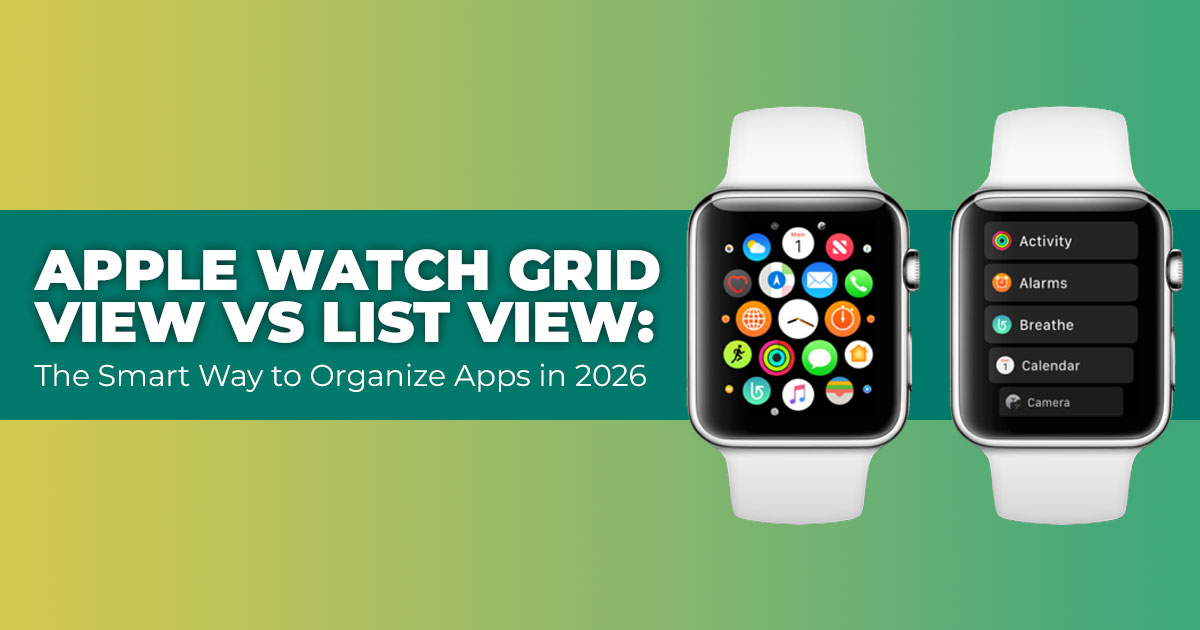
Grid View spreads apps visually across the screen.
List View arranges apps alphabetically in a vertical scroll.
The right choice depends on how you interact with your watch:
- If you rely on visual memory and recognize icons quickly, Grid View may
- If you want predictable scrolling and easier targeting, List View often feels
This is not just cosmetic customization. It is about reducing taps, shortening search time, and improving smartwatch efficiency.
If fitness apps matter most, place them at the top.
If reminders and timers dominate your day, prioritize those.
When your app arrangement system reflects how you actually use the watch, everything feels faster and easier.
7. How to Change Apple Watch App Layout and Rearrange Apps (Step-by-Step Guide)
These changes require no technical skill. Everything happens either on the watch or through the iPhone’s Watch app.
7.1 Switch Between Grid View and List View on Apple Watch
On the Watch:
- Press the Digital Crown to open the Home Screen.
- Press and hold the Home Screen until the view options
- Select List View or Grid View.
On the iPhone:
- Open the Watch app.
- Tap My Watch.
- Select App View.
- Choose between Grid View and List View. What is List View on Apple Watch?
It displays apps in a clean alphabetical list. You scroll using the Digital Crown, which improves precision and reduces missed taps.
For users who struggle with small icons, List View usually improves Apple Watch usability immediately.
7.2 Rearrange Apple Watch Apps for Faster Access
Once you select your layout, organization becomes the next step.
In Grid View:
- Press and hold any app icon until it enters edit
- Drag icons to reposition
- Place high-priority apps near the center for quicker
In List View:
- Open the Watch app on your
- Tap Edit next to the app
- Drag apps up or down to change
Best practices for organizing your apps:
- Place daily-use apps at the
- Group by function: fitness, communication,
- Remove unused apps to reduce A shorter list means faster scrolling.
7.3 Test and Refine Your Apple Watch Home Screen Setup
After reorganizing:
- Scroll through the list several
- Open your top three apps
- Evaluate how many turns of the Digital Crown are If apps feel buried, adjust again.
If you installed new apps recently, review placement.
Quick recap:
- Switch
- Rearrange
- Remove
- Test navigation flow. Total time: under 10
8. Real-World Benefits of Apple Watch App Organization
Real-world use matters more than theory.
8.1 Morning Routine Optimization with Apple Watch Layout Customization
Mornings demand speed.
Keeping Weather, Calendar, and Timers near the top in List View reduces unnecessary scrolling. For parents managing breakfast, school prep, and messages, fewer taps matter.
A well-organized Apple Watch Home Screen removes friction during busy hours.
8.2 Workplace Efficiency with Better Apple Watch Navigation
Professionals often rely on:
- Reminders
- Notes
- Messages
- Silent Mode
Placing these apps at the top reduces distractions and cuts down device handling time. A structured Apple Watch app layout keeps productivity tools within reach.
8.3 Safer Commuting with Simplified Apple Watch Interface
While commuting, users benefft from:
- Quick access to Maps
- Faster message viewing
- Less zooming and tapping
List View often improves tap accuracy in motion because scrolling the Digital Crown is steadier than tapping small icons.
Cleaner navigation improves safety and convenience.
8.4 Fitness Performance and Apple Watch Organization for Runners
Runners face unique challenges:
- Sweaty hands
- Gloves in cold weather
- Quick mid-run adjustments
List View on Apple Watch allows scrolling with the Digital Crown, which reduces missed taps.
Placing Workout, training apps, and hydration trackers at the top supports faster interaction during training sessions.
For marathon preparation or interval tracking, streamlined Apple Watch customization supports consistency.
9. Advanced Apple Watch Customization: Combine App Layout with Automation
Basic app placement improves speed. Adding automation turns your watch layout setup into a system that works with you.
Using Shortcuts and Focus Modes:
- Activate fitness-focused layouts during gym
- Prioritize work apps during office
- Reduce visibility of low-priority apps during focus
This turns basic app placement into a smarter smartwatch interface setup that adapts to your day.
The benefit is simple: fewer decisions, fewer searches, smoother transitions between activities. Start small. Adjust one area. Test for a week. Then refine.
Key Takeaways
- Apple Watch customization extends beyond
- Smart placement reduces navigation
- Automation supports multi-app
- Minimal layouts improve long-term
10. Apple Watch App Layout Performance and Limitations
Changing layouts does not meaningfully affect battery life.
However:
- Older models may show a brief lag when rearranging many
- Grid View becomes difficult to manage with 50+
- List View requires scrolling if too many apps remain
If you notice consistent lag, delayed scrolling, or slower touch response even after reorganizing apps, your hardware may be the limiting factor. Newer Apple Watch models offer stronger processors and smoother interface performance, which can improve overall navigation speed. You can compare available models here:
Latest Apple Watch Models
Buy on Amazon Worldwide | Buy on Amazon India
Touch accuracy varies by condition:
- Dry conditions improve touchscreen
- Sweat reduces tap
- Gloves reduce icon targeting
In some situations, voice commands may be faster than manual navigation.
Understanding these trade-offs ensures realistic expectations when optimizing your Apple Watch Home Screen.
11. Common Apple Watch App Organization Mistakes and How to Fix Them
Several mistakes reduce the beneffts of customization:
- Installing too many apps
Too many apps create clutter. Remove unused ones. - Ignoring alphabetical flow in List View
If reorganizing manually, maintain logical order. - Forgetting to update the layout after new downloads
New apps often drop to the bottom, increasing scroll length. - Skipping the iPhone Watch App controls
The iPhone provides better precision for ordering apps. - Over-customizing
Excess movement and constant rearranging disrupt muscle memory.
If navigation feels chaotic:
- Reset layout in Settings.
- Restart the
- Begin again with essential apps
Final Thought on Apple Watch Home Screen Optimization
A well-structured app layout reduces friction, shortens interaction time, and improves daily usability.
The goal is not aesthetic perfection.
The goal is faster access, clearer structure, and fewer wasted movements.
When your watch matches your habits, it becomes a tool instead of a distraction.
12. Alternative Methods Compared to Standard Layouts
Not sold on one view? Weigh these options.
| Method | Pros | Cons | Best For |
| Grid View | Visual, quick for a few
apps |
Cluttered with many,
hard to pinpoint |
Casual users with
minimal installs |
| List View | Alphabetical, easy scroll | Less visual, longer lists | Frequent searchers, gloved hands |
| Complications | Direct from face | Limited slots, no full
app access |
Glanceable info |
| Siri
Commands |
Voice-activated | Needs quiet, privacy
issues |
Hands-busy scenarios |
Apple Watch Grid View vs List View boils down to preference—list for speed, grid for looks.
13. How to Design Your Personal Apple Watch Workflow
Ask yourself: What apps do I hit daily? Where do frictions pop up, like during runs? What do I search for most?
Our simple framework:
- List top repeats.
- Pick a view and arrange.
- Use for a week.
- Tweak based on annoyances.
This leads to easy Apple Watch organization that sticks.
14. Does This Setup Work for Everyone?
This setup works for beginners, older users, runners, and busy professionals alike. Elderly users appreciate less tapping. Busy parents save seconds on kid duties. Runners benefit from glove- friendly scrolling during marathon training. Office folks boost Apple Watch daily life hacks.
The benefits of Apple Watch List View shine for precision seekers, while the grid suits visual types.
15. Safety & Privacy Considerations
Organizing doesn’t risk much, but watch for accidental app opens if icons are too close. Secure health apps with passcodes and proper privacy settings. Organized access also helps protect personal data.
16. Future Potential (watchOS Evolution)
In future watchOS updates, AI could auto-arrange apps based on usage, or adaptive views could switch layouts on the fly. This keeps the smartwatch app layout evolving with your needs.
17. Quick Setup Checklist (Scannable Section)
- Check model and update
- Switch to preferred
- Rearrange via phone or
- Test scrolls in real
- Add shortcuts for
- Review after a
18. Frequently Asked Questions About Apple Watch App Layout and Organization
Before wrapping up, here are clear answers to common questions people search for when trying to improve their app layout setup or navigation speed, or switch views. These quick explanations focus on real user intent—how to change settings fast, improve productivity, and fix scrolling issues.
Q. How to switch to List View on Apple Watch?
- Press the Digital Crown to open the Home Screen, then press and hold anywhere on the screen and choose List View. You can also open the Watch app on iPhone, tap My Watch > App View, and select List View there. This layout shows apps in an alphabetical scrollable list, which many users find faster than Grid View for everyday navigation.
Q. What is the difference between Grid View and List View on Apple Watch?
- Grid View on Apple Watch displays apps as clustered icons that you zoom and tap. List View on Apple Watch shows apps in a vertical alphabetical list that you scroll using the Digital Crown. Grid View works well for users who recognize icons quickly. List View is often better for speed, precision, and reducing missed taps.
Q. What are the best Apple Watch productivity hacks for faster navigation?
- The most effective Apple Watch productivity tips include organizing apps by usage frequency, placing daily-use apps at the top of List View, removing unused apps, and using the Digital Crown instead of tapping small icons. Grouping apps by task—fitness, work, communication— also improves workflow and reduces scrolling time.
Q. How do I rearrange apps on Apple Watch for better organization?
- In Grid View, press and hold an app icon until it enters edit mode, then drag it to a new position. In List View, open the Watch app on iPhone, tap Edit, and drag apps into your preferred order. Prioritize apps you open daily to improve Apple Watch navigation speed.
Q. Why is my Apple Watch app scrolling slow or frustrating?
- Slow or frustrating Apple Watch scrolling usually happens when too many apps are installed or when the layout does not match your usage style. Switching to List View, removing unused apps, and reorganizing frequently used apps near the top can improve responsiveness. On older models, restarting the watch can also reduce temporary lag.
Q. Which Apple Watch layout is best for runners or workouts?
- Many runners prefer List View on Apple Watch because scrolling with the Digital Crown is easier than tapping small icons during movement. Placing the Workout app and training apps near the top improves access during runs and reduces mid-workout interruptions.
Q. Does changing the Apple Watch app layout affect battery life?
- Switching between Grid View and List View does not significantly impact battery life. Layout changes affect navigation style, not power consumption. Performance differences mainly relate to usability, not battery drain.
19. Conclusion: A Smarter Apple Watch Starts with a Cleaner Layout
Organizing your Apple Watch apps is simple. But the impact shows up every single day.
When your Apple Watch Home Screen layout matches how you actually use the device, everything feels faster. Fewer scrolls. Fewer missed taps. Less frustration. Whether you are a runner checking workouts mid-stride, a parent managing timers, or a professional jumping between reminders and messages, the right setup removes friction.
We covered how to switch between Grid View and List View, how to rearrange apps for faster access, and how to avoid common mistakes that bring clutter back. These small changes improve Apple Watch navigation speed and overall smartwatch usability without adding complexity.
Now the next step is simple:
Open your watch. Adjust the layout. Test it for a few days. Refine it again if needed.
A few minutes of setup can improve how your watch feels for months.
Looking to Upgrade Your Apple Watch?
If you are considering a newer model with improved performance, brighter displays, or enhanced health tracking, you can explore the latest options below:
Latest Apple Watch Models
Buy on Amazon Worldwide | Buy on Amazon India
Newer models often deliver smoother scrolling, better touch response, and stronger battery performance, which further enhances your Apple Watch customization experience.
If you have reffned your layout and noticed a difference, share what worked. What view did you choose? What apps moved to the top?
Your real-world setup may help someone else improve theirs.
***Disclaimer***
This blog post reflects our own research, testing, and personal opinions. It should not be taken as the official position of any brand, manufacturer, or company mentioned here. While we aim to keep information accurate and up to date, product details, pricing, and availability can change. We recommend double-checking important details before making a purchase.
Some links in this article may be affiliate links. If you choose to buy through these links, we may earn a small commission at no extra cost to you. This helps support our work and allows us to keep publishing in-depth, unbiased reviews. Our recommendations are never influenced by affiliate partnerships.
Comments shared by readers reflect their own views and not ours. We are not responsible for outcomes resulting from the use of information on this site. Please seek professional advice where appropriate.
All product names, logos, and brands mentioned are the property of their respective owners. These names are used for identification and informational purposes only and do not imply endorsement.
