
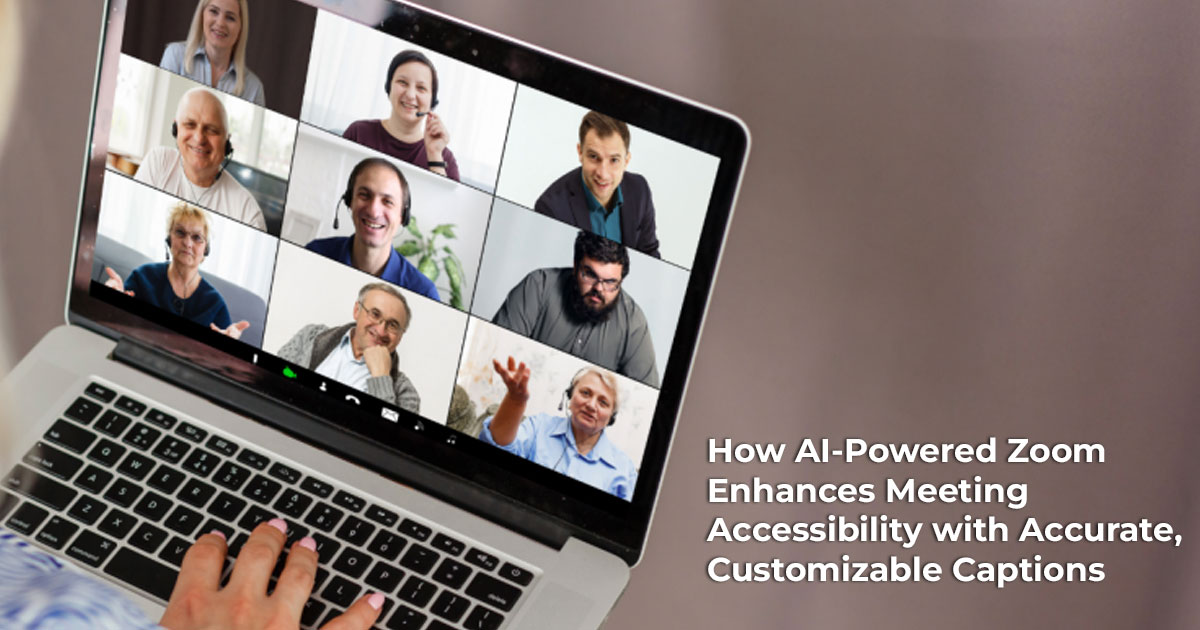
Zoom’s AI-powered captioning and accessibility tools go far beyond basic subtitles. From real- time multilingual translation to personalized caption views, these features are a game-changer for everyone—not just people with hearing challenges. Whether you’re remote working, studying, or hosting a global team, accessible meetings mean clearer conversations and better results.
1. Introduction: Bridging the Communication Gap in Our Virtual World
Why This Blog Matters
Online meetings are now part of our daily routine—but just because we’re used to them doesn’t mean they’re easy for everyone. This blog is for remote workers, students, business professionals, and anyone who spends a chunk of their life in virtual calls. We’ll show you how smarter tools— like Zoom’s AI captions—make a big difference when it comes to clarity, productivity, and feeling connected. If you’ve ever struggled to catch what someone just said, you’re not alone—and this guide will help you fix that.
What You’ll Learn from This Blog
- Why even the best video calls can still fall short of real communication
- How Zoom’s AI captioning features work behind the scenes
- Real-world examples showing how these features help everyone—not just people with hearing differences
- Tips to set up your Zoom for clearer, more inclusive communication
- Why smart captions aren’t just a nice-to-have—they’re a productivity tool
1.1 The Rise of Virtual Meetings: A New Normal
Here’s a stat that puts things into perspective: more than 300 million people use Zoom every day. And for many of us, it’s not just for work—it’s for school, family catch-ups, job interviews, doctor visits, and everything in between.
Not long ago, a “video call” meant glitchy audio, frozen screens, and a lot of shouting, “Can you hear me now?” But today, jumping into a virtual meeting is almost second nature. Platforms like Zoom have made it easier to stay connected, whether you’re dialing in from your kitchen table or halfway around the world.
Still, the ability to connect doesn’t always mean communication is working. And that’s where things get interesting. For anyone relying on Zoom for remote work, these AI tools can reduce misunderstandings and boost productivity.
1.2 The Unseen Challenges: When Communication Isn’t Seamless
Let’s be real: even with HD video and fast internet, virtual meetings can still be frustrating. Maybe the speaker’s accent is hard to follow, or someone’s background noise is louder than their voice. Even a slight internet lag can turn your manager’s update into robotic gibberish. Or maybe you’re trying to follow a complex presentation while juggling messages, emails, and that pinging notification you forgot to mute.
These aren’t just small annoyances. For many, they’re real obstacles that make meetings harder to follow—and easier to tune out. And when that happens, people get left out of the loop, decisions stall, and teams fall out of sync.
That’s why accessibility isn’t just for people with disabilities—it’s for anyone who’s ever struggled to hear, follow, or focus during a virtual call.
1.3 The Overlooked Advantage: How Zoom’s Smart Captions Help Everyone
Here’s the part most people miss: Zoom has been quietly rolling out tools that tackle these exact issues, and they’re better than you might think. Their AI meeting assistant and smart captions don’t just spit out generic subtitles—they’re built to help everyone follow along, regardless of language, hearing ability, or distraction level.
Imagine being able to re-read a tricky sentence someone just said. Or catching everything in a noisy environment, even if your audio isn’t crystal-clear. That’s the power of real-time captioning and smart accessibility tools.
Product Overview: Zoom AI Captions and Accessibility Tools
Zoom isn’t just a video calling app anymore. It’s evolved into a full communication platform with AI-powered meeting captions, live transcription, multi-language support, and accessibility settings that make virtual collaboration smoother for everyone.
The Why of User Reviews: Why Real Feedback Matters
You don’t know how good—or frustrating—a feature is until you’ve used it in the middle of a real meeting. That’s why user reviews are so important. They tell us what actually works, where tools fall short, and how different types of users—remote workers, students, global teams— experience these tools in the wild.
Our Take: Why You Can Trust This Review
As technology experts with over 20 years of experience in hardware and application R&D, we don’t just skim specs and call it a day. We test, we stress, and we evaluate each product based on real-world performance, durability, and value for money. Our recommendations are grounded in deep research, usability testing, and industry-level expertise—whether you’re shopping on a tight budget, prioritizing long-term reliability, or need something that just works.
Who This Blog Is For
This guide is built for anyone who relies on virtual meetings to get things done—remote employees, freelancers, educators, support staff, students, and even family tech-support heroes trying to make Grandma’s video call smoother. If you’ve ever said, “Wait, what did they say?”— you’re in the right place.
2. Understanding the Foundation: What Are Captions and Why Do They Matter So Much?
2.1. More Than Just Words on a Screen: Defining Captions
Think of captions as your meeting’s safety net. They’re the text that appears on your screen, showing you exactly what people are saying as they speak. Unlike subtitles in movies (which are usually prepared in advance), real time meeting subtitles happen in the moment, appearing just seconds after someone says something.
The technology behind this seems almost magical – an invisible AI caption generator listening to every word and instantly translating speech into readable text. But the real magic happens when you realize how this simple feature can completely change your meeting experience.
2.1.1. Live Captions vs. Transcripts: Knowing the Difference
Live captioning software creates text that appears and disappears as the conversation flows. They appear for a few seconds, then fade to make room for the next part of the conversation. They’re perfect for following along in the moment.
Zoom live transcription, on the other hand, creates a complete written record of the entire conversation after your meeting ends. This becomes incredibly useful when you need to remember exactly what someone said about that project deadline or when you want to share key points with a colleague who missed the meeting.
Both features rely on the same AI transcription software, but they serve different purposes in your Zoom meeting enhancements toolkit.
| Feature | Live Captions | Live Transcript | Translated Captions |
| Timing | Real-time (as people speak) | Post-meeting (entire conversation saved) | Real-time (with brief delay) |
Purpose | Helps follow the conversation instantly | Reference, review, or share details later | Breaks language barriers during the meeting |
| Accessibility Use Case | Focus support, noisy environments, mild hearing loss | Documentation, summaries, catching up on missed points | Multilingual teams, non-native speakers |
| Availability | Free in most Zoom plans | Free in most Zoom plans | Paid add-on for Pro+ accounts |
Customizable? | Yes – font size, color, placement, opacity | No (view-only text record) | No, but appears automatically in the selected language |
2.2. Why Captions Are a Game-Changer for Everyone (Not Just Those with Hearing Differences)
Here’s where things get interesting. While captions were originally developed for people with hearing difficulties, they’ve become valuable for a much broader audience. It’s similar to how curb cuts (those sloped sidewalk edges) were designed for wheelchair users but ended up helping parents with strollers, travelers with luggage, and delivery workers with heavy carts.
2.2.1. For the Hearing Impaired: A Gateway to Participation
For individuals who are deaf or hard of hearing, closed captioning Zoom transforms meetings from frustrating guessing games into fully accessible virtual meetings. Instead of trying to piece together partial information or relying on others to fill in the gaps, they can follow every word, catch every joke, and contribute their ideas with confidence.
The psychological impact goes beyond just understanding what’s said. When someone can participate fully in a discussion through AI for accessibility features, they feel valued and included. They can build stronger professional relationships, advance their careers, and contribute their unique perspectives without communication barriers holding them back.
2.2.2. For the Neurodiverse: Enhancing Focus and Comprehension
People with ADHD often struggle with auditory processing, especially in environments with multiple distractions. Automated transcription tools provide a visual anchor that helps them stay focused on the conversation instead of getting pulled away by background noise or wandering thoughts.
For individuals on the autism spectrum, speech-to-text Zoom capabilities can reduce the cognitive load of processing speech in real-time. When someone speaks quickly or uses complex vocabulary, seeing the words on screen provides extra processing time and reduces anxiety about missing important information.
The visual reinforcement works like having study notes that appear automatically – it engages different parts of the brain and can significantly improve comprehension and retention.
2.2.3. For Non-Native Speakers: Breaking Down Language Barriers
If English isn’t your first language, video conferencing accessibility features become your secret weapon for confident participation. They help you catch words you might have missed due to unfamiliar accents or rapid speech. More importantly, seeing words spelled out helps you learn new vocabulary and phrases that you can use in future conversations.
When captions include translations (more on this powerful feature later), they become bridges that connect people across language barriers. Suddenly, a global team meeting becomes accessible to everyone, regardless of their English proficiency level.
2.2.4. For Everyone Else: Noisy Environments, Multitasking, and Learning Styles
Even if you have perfect hearing and speak the meeting language fluently, Zoom accessibility options can improve your experience in countless ways. Working from a noisy coffee shop?
Captions let you follow the discussion without cranking up your volume to uncomfortable levels. Need to keep your audio low because your partner is sleeping nearby? Live transcription Zoom has you covered.
For visual learners, seeing information reinforces what they hear, leading to better understanding and memory retention. It’s like having your own personal note-taker who never misses a word and never gets tired.
Many people discover that these Zoom inclusivity features make it easier to multitask. Whether you’re taking notes, scanning a document, or replying to a quick message, you can stay in sync with the conversation by following along through the text display.
3. The “Smart” Behind the Screen: How Artificial Intelligence Elevates Captions
3.1. Beyond Basic Speech-to-Text: The Power of Smart Technology
Remember those early voice recognition systems that could barely understand “call mom” without you repeating it five times? Today’s AI transcription software is light-years ahead of those primitive systems. Modern automated transcription tools learn from massive amounts of conversation data, making them incredibly good at understanding human speech in all its messy, real-world complexity.
Think of it as the difference between a tourist with a basic phrasebook and a fluent local guide. The tourist might get the general idea, but the local guide understands context, slang, cultural references, and all the subtle nuances that make communication truly effective.
3.1.1. Understanding Nuances: Accents, Punctuation, and Context
Here’s where the technology gets impressive. These smart systems have been trained on conversations from around the world, helping them recognize the difference between a Scottish accent and a Southern drawl, or understand when someone from Boston drops their R’s. For example, they’ve learned that “there,” “their,” and “they’re” sound identical but mean completely different things depending on context.
The AI caption generator also figures out where to put punctuation, even though nobody actually says “comma” or “period” when they speak. They can tell when someone is asking a question based on their tone and speech patterns, not just the words they use. They can even identify different speakers, so you know who’s talking even when you can’t see their video.
This contextual understanding means captions read more like natural conversation and less like a robot’s interpretation of human speech.
3.1.2. Filtering the Noise: Smart Technology in Challenging Audio Environments
One of the most impressive capabilities is how modern live captioning software can focus on human voices while filtering out distractions. They can distinguish between your voice and the construction noise outside your window, ignore the sound of typing on keyboards, and even handle interruptions like dogs barking or phones ringing.
This audio intelligence means you get clean, accurate captions even when your meeting environment is less than perfect. The system essentially acts like a professional sound engineer, automatically adjusting to give you the clearest possible interpretation of what people are actually saying.
3.2. Why Modern Systems Make Zoom’s Captions Stand Out
Zoom hasn’t just implemented basic caption technology – they’ve invested heavily in making their Zoom AI companion particularly accurate and user-friendly.
3.2.1. The Journey to Near-Perfect Accuracy: Continuous Learning
The Zoom AI Companion leads tested competitors in speech recognition and AI-generated meeting intelligence quality, with impressive Zoom live transcription accuracy that continues to improve over time. The system learns from billions of conversations, constantly refining its ability to understand different speaking styles, industry terminology, and regional variations.
The partnership with research institutions means Zoom’s AI meeting assistant benefits from cutting-edge academic research, translating university breakthroughs into practical improvements for everyday users. This commitment to accuracy means fewer misunderstandings and more reliable communication.
3.2.2. Laying the Groundwork for Future Innovations (Like Summaries!)
Highly accurate captions serve as the foundation for other powerful Zoom AI companion features like automatic meeting summaries and action item generation. When the system understands exactly what was said, it can identify key decisions, extract important deadlines, and highlight action items that need follow-up.
This creates a comprehensive meeting experience where captions aren’t just helpful in the moment – they become part of a larger productivity ecosystem that saves time and reduces the chance of important details falling through the cracks.
4. Zoom’s Toolkit for Accessible Meetings: Diving Deep into Caption Features
4.1. Real-Time Captions: Your Instant Communication Partner
The most immediate benefit of Zoom’s best closed captioning for the Zoom system is seeing words appear on your screen just moments after they’re spoken. This real-time feedback creates a more engaging and inclusive meeting experience.
4.1.1. How to Turn Them On: A Simple Guide for Beginners
Getting started with Zoom closed captioning options couldn’t be simpler. If you’re wondering how to enable captions on Zoom, it only takes a couple of clicks. If you’re joining a meeting as a participant, look for the “Live Transcript” button in your meeting toolbar – it usually appears near the chat and record buttons. Click it, then select “Show Subtitle” to see captions appear on your screen.
For meeting hosts, you have additional control options through Zoom accessibility settings. You can enable captions for the entire meeting by clicking “Live Transcript” and then “Enable Auto- Transcript.” This makes captions available to all participants who want to use them.
The beauty of this system is that each person can choose whether to display automated captions without affecting anyone else’s experience. Some participants might use them throughout the entire meeting, while others might turn them on only during complex discussions or when audio quality becomes challenging.
4.1.2. The Magic of Live Transcription: Seeing Words as They’re Spoken
Watching Zoom live transcription appear in real-time creates an almost hypnotic effect – you start to rely on this visual confirmation of what you’re hearing. It’s particularly helpful during fast-paced discussions where ideas bounce quickly between participants, or during presentations with dense technical information.
The timing is carefully calibrated to appear quickly enough to be helpful without being distracting. Words appear smoothly, giving you time to process information both auditorily and visually, which often leads to better comprehension and retention.
4.2. Making Captions Your Own: Personalizing Your Viewing Experience
You can now adjust the font size, text and background color, opacity, and on-screen placement through Zoom accessibility options to suit your individual needs. This flexibility supports a broad range of accessibility needs and empowers participants to engage in meetings with greater ease and autonomy.
4.2.1. Adjusting Font Size: Big Enough for Comfort
Whether you’re using a large desktop monitor or trying to follow along on a tablet, font size flexibility ensures real-time meeting subtitles remain readable. Larger text helps people with visual impairments or those who prefer a more prominent text display, while smaller fonts work well for users who want captions to take up minimal screen space.
The key is finding the sweet spot where text is large enough to read comfortably without obscuring important visual content like shared screens or presentation slides.
4.2.2. Color Your World: Text and Background Options
Caption customization through Zoom accessibility settings goes beyond just making text bigger or smaller. You can adjust text color and background combinations to create optimal contrast for your eyes and viewing environment. High contrast combinations reduce eye strain during long meetings, while subtle color schemes might work better for users who find stark contrasts distracting.
These options are particularly valuable for people with specific visual needs, but they also help everyone optimize their viewing experience based on lighting conditions, screen type, and personal preferences.
4.2.3. Finding the Right Spot: Where Do You Want Them on Your Screen?
Caption placement might seem like a minor detail, but it can significantly impact your meeting experience. Some users prefer Zoom webinar captions at the bottom of their screen, similar to movie subtitles. Others find it helpful to position captions in a floating window that they can move around based on what’s being shared on screen.
The flexibility to position captions where they work best for your workflow means you never have to choose between following the conversation and viewing important visual content.
4.2.4. Opacity Control: Blending Seamlessly
Opacity settings let you make automated captions more or less transparent, creating a subtle background effect that’s easy to read without being visually overwhelming. This feature helps integrate captions naturally into your meeting interface, reducing visual clutter while maintaining readability.
Finding the right opacity level often involves some experimentation, but once you discover your preferred setting, captions become a seamless part of your meeting experience.
4.3. Breaking Language Barriers: Real-Time Translated Captions
This feature represents one of the most significant advances in making accessible virtual meetings truly global and inclusive.
4.3.1. Connecting Across Cultures: The Power of 35+ Languages
The Zoom Translated Captions feature is now available as an add-on for paid Zoom accounts and supports captioning in 35 languages. This extensive language support means teams can collaborate effectively across continents, classrooms can include international students, and organizations can host truly inclusive global events.
Imagine a product development meeting where team members in Tokyo, São Paulo, Munich, or Bangalore can all follow the discussion in their preferred language, contributing ideas without language barriers limiting their participation. This AI for accessibility technology makes such scenarios not just possible, but practical for everyday business operations.
4.3.2. How Translated Captions Work: A Glimpse Behind the Scenes
The process involves two sophisticated systems working together seamlessly. First, speech-to- text Zoom recognition technology converts spoken words into text in the original language.
Then, translation technology converts that text into the participant’s chosen language, maintaining context and meaning as much as possible.
This dual-step process happens in near real-time, so participants see translated captions appearing just seconds after someone speaks. The system handles complex challenges like idiomatic expressions, technical terminology, and cultural references, though, like any translation system, it works best with clear, well-structured speech.
4.3.3. Accessing Translated Captions: What You Need to Know (Plans and Add-ons)
Only the meeting or webinar host needs to purchase the translated captions add-on through Zoom accessibility options, not all participants. This makes the feature economically practical for organizations – one purchase enables multilingual accessibility for entire meetings.
The feature is available as an add-on for paid Zoom accounts, making it accessible for businesses, educational institutions, and organizations that regularly host international participants. The investment often pays for itself quickly through improved communication efficiency and more inclusive participation.
5. Beyond Captions: Zoom’s Broader Commitment to Inclusivity
5.1. Other Accessibility Features You Might Not Know About
Zoom’s approach to video conferencing accessibility extends far beyond captions, creating a comprehensive environment that addresses various needs and preferences.
5.1.1. Keyboard Shortcuts: Navigating with Ease
Features like keyboard shortcuts, interpreter video pinning, spotlighting, screen reader support, and voicemail transcription are just some of the ways Zoom helps enable a more equitable communications experience. Keyboard shortcuts allow users to control meeting functions without relying on mouse navigation, which benefits people with motor impairments and power users who prefer keyboard efficiency.
These shortcuts cover everything from muting and unmuting to switching between different views, making Zoom meeting tools more accessible and efficient for users with diverse physical abilities and preferences.
5.1.2. Screen Reader Support: Hearing What’s on Screen
Zoom integrates seamlessly with screen-reading software, providing audio descriptions of on- screen elements for users with visual impairments. This means participants can navigate meeting controls, understand who’s speaking, and access chat messages through auditory feedback.
The screen reader compatibility extends to mobile apps as well, ensuring accessibility across different devices and platforms through comprehensive Zoom accessibility settings.
5.1.3. High Contrast Themes: Reducing Eye Strain
Visual accessibility options include high-contrast themes that make interface elements more distinguishable. These themes help users with visual sensitivities, reduce eye fatigue during long meetings, and improve visibility in various lighting conditions.
The themes are designed to maintain Zoom’s intuitive interface while providing enhanced visual clarity where it’s needed most.
5.1.4. Pinning and Spotlighting: Focusing on What Matters
These Zoom meeting enhancements allow users to control whose video feed receives prominence on their screen. For sign language interpretation, participants can pin the interpreter’s video to ensure it remains visible regardless of who’s speaking. For presentations or specific speakers, spotlighting ensures the most important visual content stays front and center.
This control over visual layout helps users create personalized viewing experiences that support their specific communication needs.
5.2. Why a Holistic Approach to Accessibility Matters
True inclusion requires addressing multiple types of barriers simultaneously. Zoom’s comprehensive approach recognizes that Zoom inclusivity features aren’t just about one feature or one type of need – it’s about creating an environment where everyone can participate effectively regardless of their abilities, language background, or technical preferences.
When all these features work together, they create meeting experiences that are not just accessible but genuinely welcoming and productive for diverse participants.
6. The Real-World Impact: How Accessible Meetings Change Lives and Work
6.1. Fostering True Participation: Everyone Has a Voice
When communication barriers disappear through AI meeting assistant capabilities, something remarkable happens – quieter voices start speaking up, diverse perspectives emerge, and meetings become richer sources of ideas and collaboration. People who previously struggled to follow fast-paced discussions suddenly find themselves contributing valuable insights.
The psychological impact of full participation extends beyond individual meetings. When team members feel heard and understood through Zoom accessibility features, they develop stronger connections with their colleagues and greater investment in shared goals.
6.2. Boosting Productivity and Understanding: Less Miscommunication, More Clarity
Clear communication through live transcription on Zoom saves time and prevents costly misunderstandings. When everyone can follow discussions accurately, decisions get made faster, tasks are completed correctly the first time, and follow-up meetings become less necessary.
Clear communication means fewer follow-ups, less confusion, and faster decision-making. Accessible meetings aren’t just fairer—they’re more efficient. This versatility makes Zoom one of the best video conferencing software platforms for remote work, education, and global collaboration.
6.3. Creating a More Inclusive Culture: Beyond Compliance, Towards Connection
Adopting accessible meeting practices through Zoom meeting tools sends a powerful message about organizational values. It demonstrates genuine commitment to inclusion rather than just checking compliance boxes. This cultural shift often attracts diverse talent and creates more innovative, empathetic work environments.
When video conferencing accessibility becomes standard practice rather than special accommodation, it benefits everyone and creates more thoughtful, considerate communication habits across the organization.
6.4. Personal Stories: When Captions Made a Difference (Examples)
Consider Sarah, a marketing manager who developed hearing loss after a childhood illness. With accurate Zoom AI captions, she can lead client presentations confidently, catching every question and concern without asking for repetition. Her career advancement accelerated once communication barriers were removed through best closed captioning for Zoom features.
Or think about Miguel, whose team spans four countries and three languages. Translated captions through Zoom AI companion features allow him to participate fully in strategy sessions, contributing insights from the Latin American market that have influenced major product decisions. His ideas now reach decision-makers without language barriers diminishing their impact.
Then there’s Alex, a college student with ADHD who struggled with online classes until discovering automated transcription tools. The visual reinforcement helps him stay focused during lectures, and his grades improved dramatically once he could follow complex discussions without getting distracted by background noise.
7. Conclusion: Empowering Every Voice in the Virtual Room
7.1. Recap: The Journey to Seamless Communication
We’ve explored how AI transcription software transforms virtual meetings from potentially exclusionary experiences into truly inclusive conversations. The combination of accurate speech recognition, customizable display options, and multi-language support creates communication tools that benefit everyone, not just specific groups.
These Zoom meeting enhancements work best when they become standard practice rather than special exceptions, creating meeting environments where all participants can contribute their best work without technical or communication barriers holding them back.
7.2. Your Role: Embracing and Advocating for Accessibility
You have the power to make meetings more inclusive, starting with your very next video call. Try enabling automated captions during your next meeting – you might be surprised by how much they improve your own experience. Share these Zoom accessibility options with colleagues who might benefit from them.
Consider advocating for accessible meeting practices in your workplace or organization. When you normalize live captioning software use and other AI for accessibility features, you create more welcoming environments for current and future team members with diverse needs.
7.3. The Future of Meetings: Smarter, Kinder, More Connected
Technology continues evolving toward more natural, inclusive communication experiences. As these AI meeting assistant systems become even more accurate and feature-rich, the barriers between people in virtual meetings will continue diminishing.
The goal isn’t just better technology – it’s better human connection. When we can all communicate clearly and participate fully through Zoom inclusivity features, we create stronger teams, more innovative solutions, and more empathetic communities.
Ready to discover what you’ve been missing? Enable Zoom live transcription in your next Zoom meeting and experience firsthand how these features can transform your virtual conversations. Share this guide with colleagues who might benefit from more accessible virtual meetings, and help create meeting environments where every voice can be heard clearly.
What communication challenges have you faced in virtual meetings? Have you tried using Zoom webinar captions or other Zoom accessibility settings? Share your experiences and help others discover automated transcription tools that could improve their meeting participation.
***Disclaimer***
This blog post contains unique insights and personal opinions. As such, it should not be interpreted as the official stance of any companies, manufacturers, or other entities we mention or with whom we are affiliated. While we strive for accuracy, information is subject to change. Always verify details independently before making decisions based on our content.
Comments reflect the opinions of their respective authors and not those of our team. We are not liable for any consequences resulting from the use of the information provided. Please seek professional advice where necessary.
Note: All product names, logos, and brands mentioned are the property of their respective owners. Any company, product, or service names used in our articles are for identification and educational purposes only. The use of these names, logos, and brands does not imply endorsement.
