
Introduction
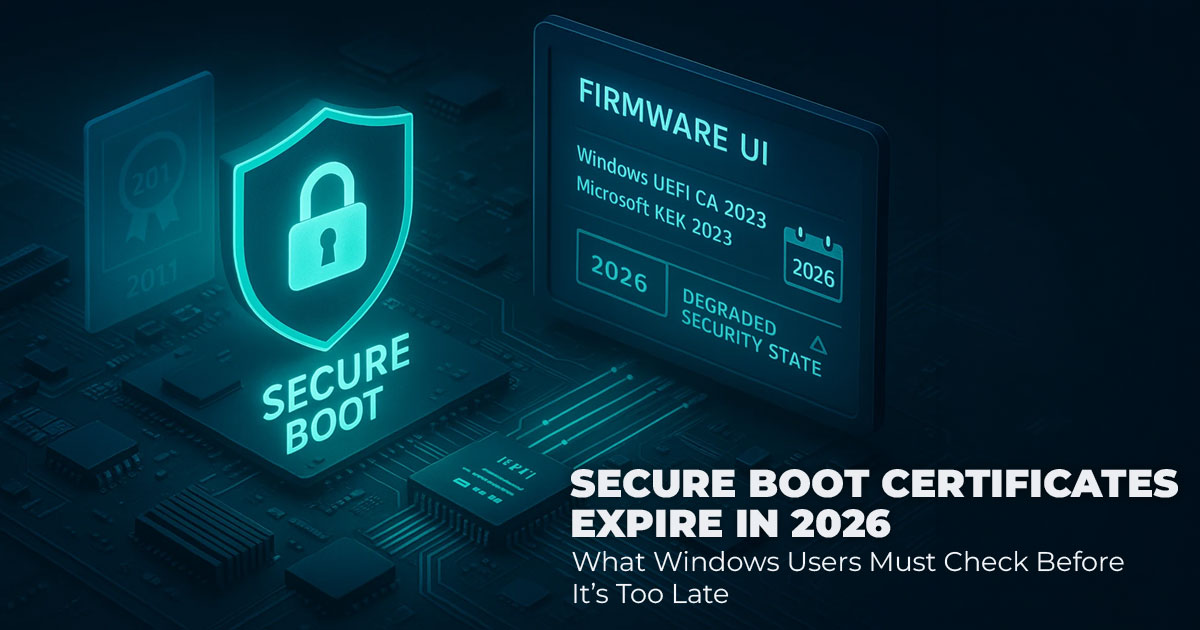
Millions of Windows PCs still rely on aging Secure Boot 2011 keys, and those certificates begin expiring in June 2026. Most systems will continue to run. But some may gradually lose important boot-level malware protection if the Microsoft Secure Boot certificates are not updated.
Click here to buy from Amazon
That is the part many users overlook.
This guide explains the Secure Boot update 2026 in clear language. No technical overload. No panic. Just what the change means, who needs to act, and how to make the right decision for your system.
As technology experts with over 20 years of experience in hardware and application research and development, we analyze every update based on real-world performance, durability, and long-term value. Our goal is to help readers make smart decisions across budget, performance, reliability, and long-term usage.
This guide is written for home users, gamers, small business owners, and IT teams who want clarity before taking action. Our recommendations come from research, component analysis, usability testing, and industry experience.
Why This Matters Now
The Secure Boot certificate expiration is not a sudden failure event. It is a shift in how Windows verifies trust during startup.
Every time a PC turns on, it uses a trusted boot chain built on digital signature verification. That chain depends on certificates issued years ago. With the upcoming Secure Boot key rollover and Microsoft root certificate change, systems that do not update may miss future security protections tied to the new trust structure.
Daily use may look normal. But long-term pre-boot environment security could weaken if systems remain on expired certificates.
That is the real risk.
What This Guide Covers
- How Secure Boot 2026 explained affects real-world usage
- How to quickly check the Secure Boot status on Windows
- The realistic boot security vulnerability risk if nothing is updated
- Clear steps for a UEFI firmware update or BIOS security update
- When to consider upgrade old PC Secure Boot support
- Practical advice tailored to different user groups
1. Understanding Secure Boot and the 2026 Certificate Change
Before deciding whether to update or replace anything, it helps to understand what is actually changing. Secure Boot is the built-in protection that checks your system during startup using trusted certificates. Those original Secure Boot 2011 keys are now approaching expiration, which is why the Secure Boot update 2026 matters.
This section explains how the trust system works, why the Microsoft Secure Boot certificates are being replaced, and what the certificate change means for your PC’s long-term boot-level security.
1.1 How Secure Boot Works in Simple Terms
Before Windows loads, the system runs a trust check.
The motherboard firmware verifies the bootloader. The bootloader verifies system components.
Each step depends on certificates inside a public key infrastructure certificate expiration Windows chain.
This structure protects against tampering at the earliest stage. It strengthens Windows bootloader security, secure firmware validation, and overall kernel launch integrity.
When certificates expire, the system still boots. But it may not validate new security updates tied to updated trust anchors.
1.2 Why Microsoft Is Updating Secure Boot Certificates
The original certificates from 2011 have reached the end of their lifecycle. Security standards have evolved. Attack methods have changed.
The Secure Boot 2011 certificate update replaces outdated keys through a structured Secure Boot key rollover. This strengthens the hardware root of trust and maintains integrity in the trusted boot chain.
Newer systems already include updated certificates, such as Windows UEFI CA 2023 certificates. Older systems may require:
- A manufacturer-issued Windows firmware security patch
- Manual UEFI Secure Boot changes
- A full UEFI firmware update
If firmware updates are no longer provided, the system remains functional but may lack future boot-level protections.
1.3 Who Should Pay Attention
Not every user faces the same level of impact. The following groups should check their systems:
- Home users with PCs older than six to eight years
- Gamers running Secure Boot disabled gaming PC configurations
- Small businesses without structured enterprise firmware update planning
- IT managers overseeing a device fleet firmware lifecycle
- Organizations monitoring Secure Boot compliance risk
Systems purchased in recent years with ongoing firmware support are usually prepared. Older devices without active vendor updates deserve attention.
1.4 What Happens If Nothing Is Updated
The system continues to boot. Applications continue to run. Nothing appears broken.
But over time, systems without updated certificates may not receive new protections designed to prevent boot-level vulnerability exploits. That increases exposure within the firmware attack surface.
For most home users, the immediate risk is low. For businesses managing sensitive data, long- term integrity matters more.
Security gaps rarely cause instant failure. They create gradual exposure.
1.5 How to Check Your System
Checking takes only a few minutes.
- Open System Information in Windows.
- Look for Secure Boot State.
- Confirm whether it shows Enabled.
- Visit your motherboard or laptop manufacturer’s support page to check for available BIOS security updates or UEFI firmware update releases.
If updates exist, review the release notes carefully. Follow the official instructions to update the BIOS safely on a Windows PC.
If no updates are available and the device is aging, it may be time to evaluate the upgrade- versus-replace PC decision.
1.6 Update or Replace?
This depends on the support status.
If your system still receives firmware updates, applying the latest UEFI Secure Boot changes is often enough.
If the manufacturer has stopped releasing updates, long-term protection becomes uncertain. In that case, evaluating hardware with long-term firmware support for Windows devices may be a safer path.
For businesses, this is part of normal device fleet firmware lifecycle planning.
The Bottom Line
The Secure Boot update 2026 is not a crisis. It is a maintenance checkpoint.
Systems with updated certificates maintain strong startup protection. Systems left on expired keys may gradually lose compatibility with future trust updates.
A quick check now avoids confusion later.
And staying ahead of security shifts is always easier than reacting after a problem appears.
2. Realistic Boot Security Vulnerability Risk After Secure Boot Certificate Expiration 2026
Understanding the Secure Boot certificate expiration 2026 timeline helps separate fear from facts. Many users searching for “what happens when Secure Boot expires” expect system failure. That is not what occurs.
This section explains the real-world impact of the Microsoft Secure Boot certificates rollover, what changes after June 2026, and where the actual risk exists.
2.1 What Actually Happens After June 2026 Secure Boot Deadline
When the original Secure Boot 2011 keys begin expiring:
Your PC will still boot. Windows will still load. There is no sudden crash.
However, the long-term security model changes.
Here is what realistically happens:
- Systems that do not receive the updated Secure Boot key rollover may not recognize newer boot components signed with updated certificates once revocation begins.
- Future fixes for advanced boot-level vulnerability threats may not apply
- The overall firmware attack surface becomes slightly more exposed in edge-case attack scenarios
- Enterprise systems may trigger internal alerts related to Secure Boot compliance risk
- Devices missing updated trust anchors may fail certain validation checks tied to boot manager trust update policies
In simple terms, the system works. But it slowly falls behind the updated trusted boot chain structure.
This affects long-term secure startup protection, not everyday app performance.
2.2 Common Questions About Secure Boot Expiration Impact on Windows
These are the questions users are actively searching for. Here are clear answers.
What happens when Secure Boot expires?
The older trust certificates are phased out. Systems without updated certificates cannot validate newer boot components signed under the updated authority. That creates a boot trust anchor gap for future protections.
It does not stop the PC from starting.
Will my PC stop working after the Secure Boot certiffcate expiration?
No.
Startup continues. Windows runs normally. Files and programs remain unaffected.
The concern is not immediate failure. The concern is the gradual weakening of kernel launch integrity and future secure firmware validation updates.
Can hackers exploit expired Secure Boot certiffcates?
Only under very specific conditions.
An attacker would need advanced access targeting the hardware root of trust or pre-boot layer. Typical threats such as phishing, browser malware, or common viruses are still handled by Windows security tools.
This is about targeted root-of-trust compromise, not everyday malware.
Will my PC become insecure after 2026?
Not overnight.
For most home users, risk remains low. The issue is that systems without updated certificates may miss future fixes addressing boot-level vulnerability scenarios.
If no UEFI firmware update or Windows firmware security patch is available, the system stays functional but does not evolve with the updated trust framework.
Who Faces Higher Secure Boot Compliance Risk?
Risk is greater in environments that depend on strict validation:
- Corporate networks enforcing Secure Boot compliance policies
- Businesses managing a large device fleet firmware lifecycle
- Systems handling sensitive data requiring strong pre-boot environment security
- Older hardware no longer receives official firmware maintenance
For everyday home users with supported systems, the impact is usually minimal.
The Practical Takeaway
The Secure Boot update 2026 is not about system shutdown. It is about staying aligned with the updated Microsoft Secure Boot certificates and maintaining long-term integrity in the trusted boot chain.
If your system supports updated certificates through a BIOS security update or UEFI Secure Boot changes, applying them keeps your protection current.
If it does not, planning ahead avoids future compatibility and validation issues.
That is the realistic view: no panic, no sudden failure — just a security checkpoint worth reviewing.
3. How to Check If Your PC Is Affected (Simple Steps Anyone Can Follow)
Before thinking about a UEFI firmware update, hardware upgrade, or worrying about Secure Boot certificate expiration, the first step is simple: check your current status.
Most users searching for “how to check Secure Boot status Windows” want a fast answer. The good news is that Windows already includes built-in tools that show whether Secure Boot is enabled and whether your system is aligned with the updated Microsoft Secure Boot certificates.
This section walks through clear steps to conffrm:
- Whether Secure Boot State is enabled
- Whether your PC is using updated trust keys
- Whether further action, like a BIOS security update, may be needed
It takes only a few minutes. And once you check, you’ll know exactly where your system stands before the Secure Boot certificate expiration 2026 timeline moves closer.
3.1 Quick Ways to Check Secure Boot Status in Windows
- Press Windows + R, type msinfo32, and press Enter. Look under System Summary for “Secure Boot State” — it should say On.
- Open PowerShell as administrator and run:

If it returns True, Secure Boot is enabled.
- To check whether your system supports updated Secure Boot keys, run:

If the command runs without errors and shows certificate details, your system is recognizing the Secure Boot database.
3.2 How to Check If My Motherboard Supports New Secure Boot Keys
Enter UEFI settings during restart (usually Del, F2, or F10) and look under Boot → Secure Boot. Options to view or manage keys indicate potential support for updates.
3.3 Is My Computer at Risk from Secure Boot Update?
Only if checks show old certificates and no firmware updates are available from your manufacturer.
Click here to buy from Amazon
4. Should You Update Firmware or Replace Hardware? Secure Boot Update 2026 Decision Guide
Once you confirm your Secure Boot status on Windows, the real question begins: Is a UEFI firmware update enough, or is it time to replace the system?
Many readers are asking:
- Should I upgrade BIOS or buy a new PC?
- Is a firmware update enough for Secure Boot 2026?
- Is it safer to replace old hardware?
The answer depends on support status, system age, and how long you plan to keep the device.
4.1 When a BIOS Security Update or UEFI Firmware Update Is Enough
If your device manufacturer still provides updates, that is a strong sign your system remains supported.
A proper BIOS security update can:
- Apply the latest Secure Boot key rollover
- Maintain full digital signature verification
- Preserve secure firmware validation
- Keep the trusted boot chain aligned with the updated Microsoft Secure Boot certificates
To reduce risk:
- Download firmware only from the official support site
- Follow the best way to update BIOS safely — stable power, no shutdowns
- Confirm after reboot that Secure Boot status in Windows remains enabled
For systems three to five years old with active support, updating is usually sufficient. There is no need to replace working hardware if it still receives security maintenance.
4.2 When Replacement Makes More Sense After Secure Boot Certificate Expiration 2026
If your device has not received firmware updates in years, the situation changes.
Searches such as Should I replace my old PC because of Secure Boot changes? And which systems will stay secure after 2026? are common for a reason.
When support ends:
- No new Windows firmware security patch will be released
- Future platform key revocation updates may not apply
- Long-term cryptographic key rollover support may be unavailable
- The system’s hardware root of trust remains tied to aging keys
In that case, updating is no longer an option. Replacement becomes a long-term security decision.
Devices with active long-term firmware support for Windows devices and ongoing UEFI maintenance provide stronger continuity.
4.3 Comparison: Update Firmware vs Replace Hardware
| Situation | Update Firmware | Replace Hardware | Best For |
| PC 3–5 years old, updates available | Yes — apply the
latest UEFI firmware update |
Not required |
Home users keeping the current setup |
| 7+ years old, no
updates |
Not possible | Recommended | Users prioritizing
long-term security |
|
Gaming system with custom BIOS |
Possible, but carries firmware update risk for gaming
motherboard |
More stable long- term |
Gamers concerned about compatibility |
|
Business fleet |
Patch supported devices first |
Phase out unsupported systems |
IT teams managing Secure Boot certificate
management |
The goal is not to upgrade early. The goal is to remain on supported firmware.
4.4 Is It Safer to Replace Old Hardware?
For users already considering an upgrade, replacement often simplifies the process.
Modern systems ship with:
- Updated Microsoft Secure Boot certificates
- Ongoing UEFI Secure Boot changes support
- Stronger hardware root of trust implementation
- Clear lifecycle policies
If your device still receives updates, replacing it is optional.
If support ended years ago, replacement improves long-term reliability.
5. Target Audience Benefits and Practical Guidance
Different users face different priorities. Here is what matters most by group.
5.1 Home Users — Maintain Trusted Platform Security Update Protection
For everyday use, such as banking, photos, and browsing, keeping systems aligned with the latest trusted platform security update protects the startup layer.
A simple firmware update keeps the trusted boot chain intact without changing daily workflow.
5.2 Gamers — Enabling Secure Boot Safely Without Breaking Compatibility
Many gaming setups run with Secure Boot disabled in gaming PC configurations.
Before re-enabling:
- Apply the latest firmware
- Review motherboard documentation
- Test system stability
Newer boards marketed as the best motherboard with Secure Boot support often provide smoother rollback options and fewer compatibility issues.
5.3 Small Businesses and IT Teams — Reduce Secure Boot Compliance Risk
Organizations managing multiple devices should:
- Inventory supported and unsupported hardware
- Prioritize updates for active systems
- Align lifecycle planning with the June 2026 Secure Boot deadline
- Monitor Secure Boot certificate management across fleets Planning early prevents rushed purchases later.
5.4 Buyers Shopping for Future-Proof Systems
If replacement is under consideration, look for:
- Best Windows laptop for security updates
- Best business laptop for firmware longevity
- Devices described as firmware-supported Windows PC
- Clear statements about long-term UEFI maintenance
If your system lacks support today, it may be practical to buy a new PC before 2026 instead of waiting for certificate enforcement to tighten.
6. Common Myths About Secure Boot Certificate Expiration
- “Antivirus covers boot threats.”
Antivirus loads after startup. Boot-level vulnerability protection begins before the operating system. - “Only very old PCs are affected.”
Any system missing the latest Secure Boot revocation update may lose future protections. - “Windows Update handles firmware automatically.”
Windows can deliver certificates. Firmware must still accept and apply them.
Understanding these differences prevents confusion.
7. Your Personalized Secure Boot 2026 Action Plan
| Your Setup | Do This Now | Watch For | Revisit By |
| Recent PC with
updates |
Nothing urgent | Regular Windows
updates |
Not required |
| Mid-age PC,
firmware available |
Apply the latest UEFI
firmware update |
Confirm updated
certificates |
End of 2026 |
| Older PC, no support | Run full checks | News on boot-level vulnerability trends | Mid-2027 |
| Business mixed
fleet |
Inventory devices | Secure Boot
compliance risk gaps |
June 2026 |
| Gaming system with Secure Boot
off |
Test re-enabling after update | Stability and compatibility |
Before major releases |
The Secure Boot update 2026 is a checkpoint, not a failure event.
If updates are available, apply them. If support ended, plan ahead.
Strong security depends on supported systems and an intact trusted boot chain.
8. Clearing Common Doubts About Secure Boot Certificate Expiration 2026
Many readers searching for Secure Boot update 2026, what happens when Secure Boot expires, or Secure Boot deadline June 2026, are not looking for deep technical theory. They want clear answers before deciding whether to run a UEFI firmware update or consider replacing hardware.
Below are direct, search-focused answers written to match real user intent.
Q. What is the Secure Boot certificate expiration?
- Secure Boot certificate expiration refers to the phased revocation of the original Secure Boot 2011 keys starting in June 2026. These older trust certificates are being replaced as part of the Microsoft Secure Boot certificates rollover to maintain a secure and updated trusted boot chain.
Q. Why is Microsoft updating Secure Boot?
- Microsoft is performing a Secure Boot key rollover to strengthen the hardware root of trust and improve digital signature verification against modern boot-level threats. Updating the certificate chain ensures continued secure firmware validation and long-term platform security.
Q. How urgent is the Secure Boot update?
- The Secure Boot update 2026 is not an emergency. Your PC will continue to boot normally. However, handling updates this year helps prevent future gaps in boot-level vulnerability protection and keeps your system aligned with current security standards.
Q. Do I need to update firmware now?
- If your system still receives a BIOS security update or UEFI firmware update, it is recommended to apply it. Updating ensures your device accepts the new certificates and maintains full secure startup protection.
Q. Will my PC stop working after the Secure Boot certificate expiration?
- No. Startup will continue as usual. The concern is not system failure, but the possibility of missing future boot manager trust update improvements if certificates are not updated.
Q. Can hackers exploit expired Secure Boot certificates?
- Exploitation would require advanced access targeting the pre-boot environment security layer. Everyday threats remain blocked by Windows security tools. The risk relates to long-term root-of-trust compromise scenarios, not common malware.
Q. Secure Boot deadline June 2026 — what is the exact timeline?
- The Secure Boot deadline in June 2026 marks the beginning of phased certificate revocation. The impact builds gradually as new boot components rely on updated trust anchors. Systems that apply firmware updates remain aligned with the new certificate chain.
9. Frequently Asked Questions About Secure Boot Update 2026
Readers searching for Secure Boot certificate expiration impact on Windows 10, how to update UEFI firmware safely at home, or whether my PC is affected by Secure Boot update usually want short, clear answers before taking action. Below are direct responses written to match real search intent and help you decide your next step.
Click here to buy from Amazon
Q. How to update UEFI firmware safely at home?
- Download the latest UEFI firmware update or BIOS security update only from your device manufacturer’s official support page. Ensure stable power during the update process and back up important files beforehand. After installation, confirm that the Secure Boot status in Windows remains enabled.
Q. What is the Secure Boot certificate expiration impact on Windows 10?
- The impact on Windows 10 is the same as on Windows 11. Systems that do not receive the updated Microsoft Secure Boot certificates may continue working, but could miss future boot- level vulnerability fixes tied to the new certificate chain.
Q. Should I upgrade the BIOS or buy a new PC?
- If your device still receives a BIOS security update, upgrading is usually enough. If firmware support has ended, replacing the system ensures continued secure startup protection and alignment with the updated trusted boot chain.
Q. What happens if I do not update Secure Boot certificates?
- Your PC will still boot normally. However, without the Secure Boot key rollover, the system may gradually lose the ability to apply new protections for emerging boot manager trust update vulnerabilities.
Q. Is my PC affected by the Secure Boot update?
- The fastest way to check is to verify the Secure Boot status of Windows through System Information or PowerShell. If Secure Boot is enabled and your firmware is current, your system is likely aligned with the updated certificates.
Q. How does Secure Boot work in Windows?
- Secure Boot verifies digital signatures at each startup stage using trusted certificates stored in firmware. This maintains a secure, trusted boot chain and prevents unauthorized code from loading before the operating system.
Q. What does Secure Boot revocation mean?
- Secure Boot revocation means older trust keys are marked untrusted. After revocation, the system accepts only newer certificates issued under the updated Microsoft Secure Boot certificates framework.
If your system still receives firmware updates, applying them keeps you aligned with the Secure Boot update 2026 changes. If support has ended, planning ahead avoids long-term security gaps.
10. Final Thoughts: Stay Protected Without Stress
The Secure Boot update 2026 and the Microsoft Secure Boot certificates rollover are part of routine platform security maintenance. This is not a crisis. It is a structured update to strengthen the trusted boot chain and maintain long-term boot-level malware protection.
What matters is clarity.
Checking your system takes only a few minutes. Open System Information and confirm the Secure Boot status Windows shows Enabled. Then review whether your device manufacturer provides ongoing UEFI firmware updates or BIOS security update support.
If updates are available, apply them using official instructions. That keeps your secure startup protection aligned with the latest certificate requirements.
If updates are no longer offered, that does not mean your PC stops working. It simply means that future boot security vulnerability risk could increase over time. At that stage, planning a hardware refresh becomes practical rather than reactive.
For users considering a replacement, focus on devices known for long-term firmware support, such as Windows devices. Businesses evaluating a secure business laptop purchase should prioritize vendors with clear lifecycle policies and consistent firmware maintenance.
You can explore current options here:
- Amazon US – Explore Windows Laptops here
- Amazon India – Explore Windows Laptops here
Look for updated UEFI support, modern security features, and documented firmware update history.
Security works best when it is handled early. A simple check today avoids confusion later.
If you have already reviewed your system, share what you found. Questions about your setup or next steps are welcome. We are here to help you make a steady, informed decision.
***Disclaimer***
This blog post reflects our own research, testing, and personal opinions. It should not be taken as the official position of any brand, manufacturer, or company mentioned here. While we aim to keep information accurate and up to date, product details, pricing, and availability can change. We recommend double-checking important details before making a purchase.
Some links in this article may be affiliate links. If you choose to buy through these links, we may earn a small commission at no extra cost to you. This helps support our work and allows us to keep publishing in-depth, unbiased reviews. Our recommendations are never influenced by affiliate partnerships.
Comments shared by readers reflect their own views and not ours. We are not responsible for outcomes resulting from the use of information on this site. Please seek professional advice where appropriate.
All product names, logos, and brands mentioned are the property of their respective owners. These names are used for identification and informational purposes only and do not imply endorsement.
