
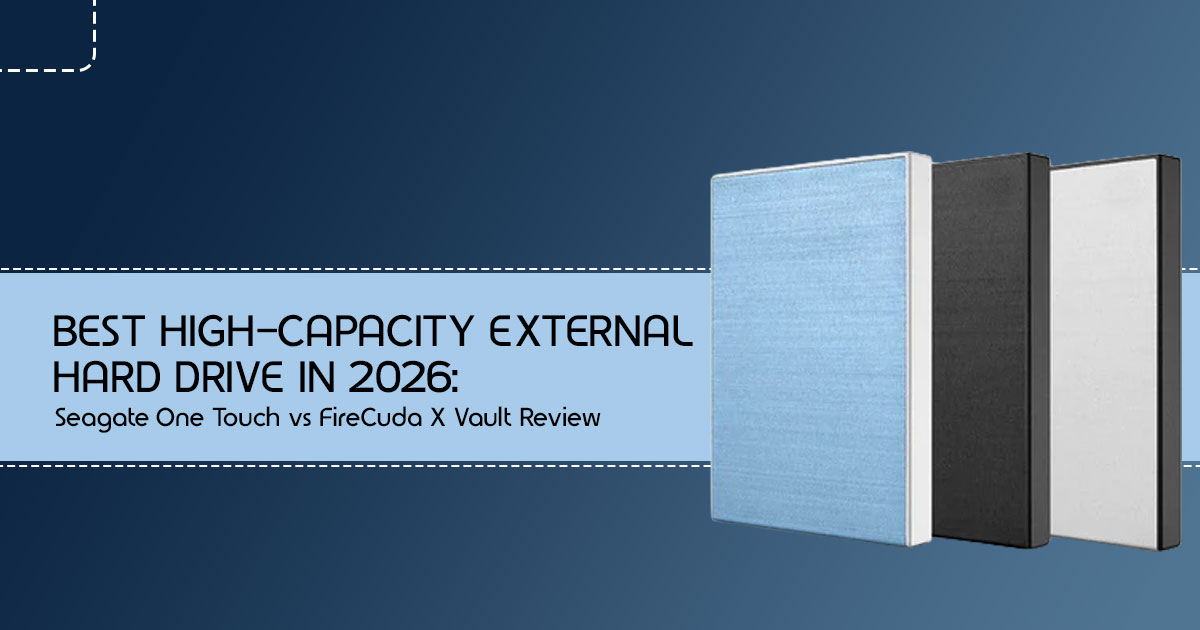
Introduction: The Storage Dilemma of 2026
A few years ago, running out of storage was an occasional annoyance. Today, it’s a constant reality.
Modern AAA games can easily exceed 150GB to 250GB each, a single 4K video project can consume terabytes of space, and the rise of AI-generated content, high-resolution photography, and digital media archives means many users are filling drives faster than ever before. At the same time, storage buyers face a difficult question: should they prioritize speed, capacity, reliability, or value for money?
The answer isn’t as straightforward as most product advertisements would have you believe.
Many people spend hundreds of dollars on storage devices they don’t actually need, while others choose the cheapest option and discover its limitations only after their game library, creative projects, family photos, or business files begin to pile up. The real challenge isn’t finding a storage device—it’s finding one that fits the way you work, play, create, and protect your data.
This is where high-capacity external hard drives continue to play an important role, even in a world filled with increasingly affordable SSDs. While solid-state drives dominate conversations around speed, traditional hard drives still offer something that millions of users need most: massive storage capacity at a reasonable cost.
In this guide, we’ll take a close look at two popular options from Seagate—the Seagate One Touch and the Seagate FireCuda X Vault. But rather than focusing only on benchmark numbers and technical specifications, we’ll answer the questions that matter in real life:
- Which drive offers the best value per terabyte?
- Is a high-capacity external HDD still worth buying in 2026?
- Which model is better for gaming, content creation, and long-term backups?
- What hidden limitations should buyers know before spending their money?
- Which drive is most likely to serve you well for years rather than months?
As technology experts with over 20 years of experience in hardware and application research and development, we evaluate every product through the lens of real-world performance, durability, reliability, and long-term value. Our goal is simple: help readers identify the best products in every category—whether you’re looking for the best budget storage solution, the highest performance drive, the most reliable backup option, or the smartest long-term investment.
This guide is designed for:
- PC and console gamers managing large game libraries
- Content creators working with 4K and 8K video projects
- Photographers storing RAW image collections
- Professionals and small businesses protecting critical files
- Students and home users building reliable backup systems
- Anyone searching for the best external storage solution for the next several years
Every recommendation in this article is based on extensive research, component analysis, practical usability testing, market comparisons, and industry expertise—not marketing claims.
Because when it comes to your data, making the right storage decision isn’t just about capacity. It’s about peace of mind, future-proofing your digital life, and avoiding costly mistakes that many buyers only realize after it’s too late.
1. Why Large External HDDs Are Making a Comeback
Despite the undeniable rise of solid-state drives (SSDs), the humble Hard Disk Drive (HDD) is experiencing a quiet resurgence, particularly in the high-capacity external storage market. This isn’t about revisiting old technology. It’s a practical response to growing storage demands and rising data volumes.
1.1. Growing Game Sizes
Modern video games are larger than ever, with many titles requiring well over 100GB of storage. Titles routinely demand 100GB, 200GB, or even more, and with frequent updates and DLC, these figures only swell. An internal 1TB or 2TB SSD quickly fills up, forcing gamers into a constant cycle of uninstalling and reinstalling.
Large external hard drives for gaming provide a practical way to store growing game libraries without constantly deleting and reinstalling titles. For many users, they remain an affordable gaming storage solution compared to upgrading internal SSD capacity.
1.2. 4K and 8K Content
High-resolution video content, whether for professional production or personal media consumption, generates extremely large file sizes. A few hours of 4K footage can easily consume terabytes of storage. As 8K becomes more prevalent, the demand for affordable, high-capacity archiving solutions will only intensify. HDDs provide the necessary bulk storage for these demanding media files.
1.3. AI-Generated Media
The explosion of AI-generated media—from high-resolution images and 3D models to synthetic video and audio—is creating entirely new categories of large data. Artists, designers, and researchers working with AI tools are quickly finding their storage stretched thin. External HDDs offer an economical way to store these vast datasets and project files.
1.4. Home Media Collections
Our personal digital archives—photos, home videos, ripped movies, and music—continue to grow. Many users prefer to keep these collections locally accessible rather than solely relying on cloud services. A large external HDD serves as a central, reliable repository for these cherished digital assets.
1.5. Cost-Per-Terabyte Economics
This is one of the main reasons many users are still choosing high-capacity external hard drives despite the growing popularity of SSDs. While SSD prices fluctuate based on market demand, production capacity, and supply chain conditions, HDDs continue to offer a lower cost per terabyte for large-capacity storage.
For users who need large amounts of storage at the lowest possible cost, HDDs continue to offer one of the best value propositions available.
2. Understanding Modern Storage Choices
Before diving into specific products, it’s crucial to understand the broader landscape of storage options available today. Each technology has its strengths and weaknesses, making it suitable for different use cases.
2.1. Hard Disk Drives (HDDs)
HDDs are the traditional workhorses of storage. They use spinning platters and read/write heads to store data magnetically. Their primary advantage is cost-effectiveness and high capacity. They are ideal for archival storage, backups, and large media libraries where sequential read/write speeds are less critical than sheer volume. However, they are slower, more fragile (due to moving parts), and consume more power than SSDs.
2.2. SATA SSDs
SATA SSDs (Solid State Drives) offer a significant speed upgrade over HDDs by using flash memory. They are much faster for booting operating systems, loading applications, and general computing tasks. They are also more durable, silent, and power-efficient. While faster than HDDs, their performance is limited by the SATA III interface, and their cost-per-terabyte is higher than HDDs.
2.3. NVMe SSDs
NVMe SSDs utilize the PCIe interface, offering dramatically higher speeds than SATA SSDs. These are the fastest consumer-grade drives available, perfect for demanding applications like video editing, large file transfers, and competitive gaming where every millisecond counts. Their main drawback is their premium price, making high-capacity NVMe drives prohibitively expensive for most users’ mass storage needs.
2.4. Cloud Storage
Cloud storage services (e.g., Dropbox, Google Drive, Backblaze) offer convenient, accessible, and often redundant storage over the internet. They are excellent for collaboration, sharing, and off-site backups. However, they rely on internet connectivity, can incur ongoing subscription costs, and may not be suitable for extremely large datasets due to bandwidth limitations and potential privacy concerns.
External HDD vs SSD: Which One Should You Choose?
The choice between an external HDD vs SSD comes down to priorities. If speed is your main concern, an SSD is the better option. If you need the most storage for the lowest cost, an HDD remains the smarter purchase. Many professionals use both: an SSD for active work and a high-capacity external hard drive for backups and archiving.
2.5. Decision Tree: Choosing Your Storage
To help you decide, consider this simplified decision tree:
| Question | If Yes, Consider… | If No, Consider… |
| Do you need the absolute fastest storage speeds for active workloads such as 4K video editing, AI datasets, large file transfers, or competitive gaming? | NVMe SSD | Proceed to the next question |
| Do you need fast boot times, quick application launches, and responsive everyday performance? | SATA SSD | Proceed to the next question |
| Is your primary goal maximum storage capacity for backups, archives, surveillance footage, or large media libraries while keeping costs low? | HDD | Proceed to the next question |
| Do you need storage that is accessible from multiple devices, easy to share, and protected off-site with automatic synchronization? | Cloud Storage | Re-evaluate your primary storage requirements |
2.6 CMR vs SMR: Why Recording Technology Matters
Many buyers compare capacity and price but overlook how data is actually written to the drive.
CMR (Conventional Magnetic Recording) writes data in separate tracks, making it better for large file transfers, backups, and workloads that involve frequent writing and rewriting.
SMR (Shingled Magnetic Recording) overlaps data tracks to increase storage density. While it can offer more capacity at lower costs, write performance may slow down during large transfers or heavy workloads.
For everyday backups, both technologies can work well. However, users regularly moving large files, creating backups, or managing media libraries generally benefit from CMR-based drives.
Before buying any external HDD, it is worth checking the manufacturer’s specifications to understand which recording technology is being used.
3. Seagate One Touch Explained
The Seagate One Touch external hard drive series positions itself as a versatile and user-friendly solution for everyday storage and backup needs. It’s designed for simplicity and reliability, making it a popular choice for a broad audience.
3.1. Design
The One Touch series typically features a sleek, minimalist design, often with a fabric-textured finish on some models, giving it a more aesthetic appeal than traditional utilitarian external drives. It’s generally compact for its capacity, though the larger desktop versions are, by nature, bulkier. The desktop models usually require an external power adapter in addition to a USB data cable.
3.2. Capacity Options
Seagate One Touch drives are available in a wide range of capacities, from portable 1TB and 2TB models up to substantial desktop versions offering 8TB, 20TB, and even 24TB. This extensive range allows users to select a drive that precisely matches their current and anticipated storage requirements.
3.3. Backup Features
True to its name, the One Touch often emphasizes ease of backup. Many models come bundled with Seagate’s Toolkit software, which provides straightforward options for scheduled backups, mirroring folders, and syncing files. Some versions also include subscriptions to services like Mylio Create or Adobe Creative Cloud Photography plan, enhancing their value proposition for creative professionals or those seeking robust photo management.
3.4. Ideal Users
The Seagate One Touch is ideal for:
- Everyday Users: Those needing extra space for documents, photos, and videos.
- Students: For backing up assignments and project files.
- Small Business Owners: Looking for a reliable external hard drive for backups, business records, and client files.
- Home Media Enthusiasts: For storing large movie and music collections.
- Budget-Conscious Buyers: Who prioritize cost-per-terabyte over raw speed.
3.5. Strengths
- Excellent Cost-Per-Terabyte: Offers some of the most affordable mass storage available.
- High Capacities: Up to 24TB in desktop models, catering to significant storage needs.
- User-Friendly Backup Software: Seagate Toolkit simplifies data protection.
- Broad Compatibility: Works seamlessly with both Windows and macOS.
- Reliable for Archival: A solid choice for long-term data retention.
3.6. Weaknesses
- Slower Performance: As a traditional hard drive, transfer speeds are noticeably slower than SSDs, especially during large file transfers and demanding available.
- External Power (Desktop Models): Requires a separate power adapter, adding to cable clutter.
- Not Ideal for Active Editing: Its speed limitations make it less suitable for directly editing large video files or running demanding applications.
- Mechanical Vulnerability: As an HDD, it’s susceptible to damage from drops or impacts.
4. FireCuda X Vault Explained
The FireCuda X Vault is a high-capacity external hard drive built for gamers and content creators who need large amounts of storage without giving up convenience. It blends substantial storage with a distinctive aesthetic and user-centric features.
4.1. RGB Features
One of the most striking features of the FireCuda X Vault is its integrated RGB lighting. This isn’t just for show; it allows gamers to customize their setup and synchronize lighting effects with other peripherals. The RGB can often be controlled via Seagate’s Toolkit software or even through Windows Dynamic Lighting, offering flexibility in personalization.
4.2. Gaming Focus
The FireCuda X Vault is clearly designed for gamers, from its RGB lighting to its focus on storing large game libraries and media files. It’s built to house massive game libraries, allowing users to offload titles from their primary SSDs without deleting them. While it won’t load games as fast as an internal NVMe drive, it provides a convenient and spacious repository for an ever-expanding collection.
4.3. USB-C Single Cable Design
A significant advantage of the FireCuda X Vault is its single USB-C cable design. Unlike many high-capacity 3.5-inch external drives that require a separate, bulky power adapter, the X Vault draws both power and data through a single USB-C connection. This significantly reduces cable clutter and simplifies setup.
Not all USB-C ports provide sufficient power. Users should verify that their device can deliver the required power output before purchasing.
However, it’s crucial to note that this requires a USB-C port capable of delivering at least 15W of power.
4.4. Real-World Performance
While it’s an HDD and won’t break speed records, the FireCuda X Vault utilizes a USB 3.2 Gen 2 (10 Gbps) interface. In typical real-world use, transfer speeds can reach around 200 MB/s, depending on file size, system configuration, and workload. This is respectable for a 3.5-inch HDD and noticeably faster than many older or portable 2.5-inch drives, making it adequate for streaming media or loading games where absolute speed isn’t critical.
4.5. Capacity Options
The FireCuda X Vault is currently available in two primary capacities: 8TB and 20TB. This provides options for both moderate and extreme storage needs, though it lacks the 24TB option found in the One Touch lineup.
5. FireCuda X Vault vs One Touch
To help you decide between these two Seagate offerings, let’s compare them directly across key metrics.
| Feature | Seagate One Touch (Desktop) | Seagate FireCuda X Vault |
| Speed (Interface) | USB 3.2 Gen 1 (5 Gbps) | USB 3.2 Gen 2 (10 Gbps) |
| Capacity Options | 8TB, 20TB, 24TB | 8TB, 20TB |
| Software & Extras | Seagate Toolkit, Mylio Photos, Adobe Creative Cloud Trials | Seagate Toolkit, Xbox Game Pass & Adobe Creative Cloud Trials |
| Noise & Vibration | Standard HDD Noise | Standard HDD Noise |
| Price (8TB MSRP) | ~$259 | ~$269 |
| Backup Features | Excellent (Backup-Focused Toolkit Features) | Good (Toolkit Included) |
| Gaming Suitability | Basic Storage for Games | Better for Gaming (Faster Interface, RGB Lighting) |
| Power Requirement | External Power Adapter Required | Single USB-C Cable (15W Power Requirement) |
| Design & Aesthetics | Minimalist Design with Fabric Accents | Gaming-Inspired Design with RGB Lighting |
| Best For | Backup Storage, Home Users, Media Libraries | Gamers, Creators, High-Speed External Storage Users |
| Key Advantage | Higher Maximum Capacity (Up to 24TB) | Faster Connectivity and Better Gaming Features |
The Verdict: The One Touch is the pragmatic choice for pure capacity and straightforward backups, especially if you need the massive 24TB option. The FireCuda X Vault justifies its slightly higher price tag with its single-cable convenience, faster interface, and gamer-centric aesthetics.
6. Real Cost Per Terabyte Analysis
When evaluating storage, the sticker price only tells part of the story. The true metric of value is the cost per terabyte. Let’s break down the economics of different storage solutions in 2026.
6.1. HDDs (Internal and External)
HDDs remain the undisputed champions of cost-efficiency. A high-capacity external HDD like the Seagate One Touch or FireCuda X Vault often costs between $15 to $30 per terabyte, depending on the total capacity and current market fluctuations. This makes them the only viable option for massive, multi-terabyte archives on a budget.
6.2. Portable SSDs
Portable SSDs offer a significant speed advantage and durability but come at a premium. You can expect to pay anywhere from $60 to $100+ per terabyte. While excellent for active projects or frequent travel, outfitting a 20TB archive with portable SSDs would be prohibitively expensive for most users.
6.3. External SSDs (Desktop Class)
High-capacity desktop SSDs (like the SanDisk Desk Drive) offer massive speed and space but are luxury items. An 8TB desktop SSD can easily cost over $700, translating to roughly $90+ per terabyte. They are niche products for professionals who demand both extreme capacity and extreme speed.
6.4. Cloud Storage Subscriptions
Cloud storage pricing models vary wildly. Services like Google Drive or Dropbox might charge around $10-$20/month for 2TB-3TB. Over a few years, this cost accumulates significantly. Dedicated backup services like Backblaze offer unlimited storage for a flat fee (e.g., $9/month), which is excellent for off-site redundancy but doesn’t replace the need for fast, local access.
Key Question: “How much does each terabyte really cost?”
If your primary need is volume, HDDs are the clear winner. If you need speed, you must be prepared to pay a substantial premium per terabyte for SSD technology.
7. Real-World Use Cases
Let’s examine how these drives fit into practical, everyday scenarios.
7.1. Scenario 1: Steam Library Storage
Using: Steam, Xbox Game Pass
A gamer with a massive library across Steam and Xbox Game Pass quickly exhausts their internal SSD. The FireCuda X Vault is an excellent solution here. While you might keep your most frequently played, load-time-sensitive competitive games on your internal NVMe drive, the X Vault can house the rest of your collection. Its 10 Gbps interface ensures that transferring games back and forth, or even playing less demanding titles directly from the drive, is a relatively smooth experience. The RGB lighting also integrates well into a gaming setup.
7.2. Scenario 2: YouTube Creator Archive
Using: Adobe Premiere Pro, DaVinci Resolve
A YouTube creator generating hours of 4K footage weekly needs a robust archiving system. While active editing should happen on a fast internal or portable SSD, completed projects and raw footage need a permanent home.
The 20TB external hard drive and 24TB external hard drive versions of the Seagate One Touch are particularly useful for creators who need affordable external storage for video editing, completed projects, raw footage libraries, and large media archives.
7.3. Scenario 3: Photographer Backup System
Using: RAW workflow, Catalog workflow, Redundancy planning
A professional photographer dealing with thousands of high-resolution RAW files needs a reliable, redundant backup system. They might use a fast portable SSD for active catalog work (e.g., Lightroom) in the field. Upon returning to the studio, they need a robust backup. A Seagate One Touch serves as an excellent primary local backup. For true redundancy, they should employ a second drive (perhaps another One Touch or a different brand) to mirror the first, ensuring their livelihood is protected against hardware failure.
8. FireCuda X Vault vs Popular Alternatives
How does the FireCuda X Vault compare to other options on the market?
8.1. WD Elements Desktop / WD My Book
These are the direct competitors to the Seagate One Touch. They offer similar capacities and performance at comparable price points. The choice often comes down to brand preference or slight variations in bundled software. The FireCuda X Vault distinguishes itself from these with its single-cable USB-C design and gaming aesthetics.
8.2. Samsung T9 / SanDisk Extreme Pro SSD
These are high-performance portable SSDs. They are vastly faster, smaller, and more durable than the FireCuda X Vault. However, they are also significantly more expensive per terabyte and typically max out at 4TB or 8TB. They are alternatives for speed, not for mass capacity.
8.3 How Long Do External Hard Drives Last?
One of the most common questions buyers ask is how long an external hard drive for backups or long-term storage will last.
Most external hard drives have an expected lifespan of around 3 to 7 years, although actual lifespan depends heavily on usage, operating conditions, and handling.
Factors that affect lifespan include:
- Frequent read and write activity
- Heat exposure
- Physical shocks or drops
- Dust and humidity
- Power fluctuations
To extend the life of a high-capacity external hard drive:
- Keep it in a cool, dry location
- Avoid sudden disconnections
- Use surge protection
- Monitor drive health periodically
- Maintain a separate backup
No storage device lasts forever, which is why having multiple copies of important data is essential.
8.4 The 3-2-1 Backup Strategy
Even the best storage device can fail unexpectedly. That’s why many IT professionals recommend the 3-2-1 backup strategy.
- Keep 3 copies of important data
- Store them on 2 different storage devices
- Keep 1 copy offsite, such as cloud storage
For example:
- Original files on your computer
- Backup on a Seagate One Touch external hard drive
- Additional backup in a cloud service
This simple approach reduces the risk of losing valuable files due to hardware failure, accidental deletion, theft, or disasters.
9. Frequently Asked Questions
What is the difference between Seagate One Touch and FireCuda X Vault?
The Seagate One Touch is designed primarily for general-purpose storage and reliable backups, offering a balance of capacity and simplicity. The Seagate FireCuda X Vault, on the other hand, is specifically engineered for gamers and content creators, featuring RGB lighting, single USB-C cable power, and optimized performance for large game libraries and media archives.
Is FireCuda X Vault worth it for gamers?
For gamers with extensive libraries or those who frequently download new titles, the FireCuda X Vault can be a worthwhile investment. Its large capacities (8TB, 20TB) and single-cable USB-C connectivity offer convenience, while its performance is sufficient for storing and loading games, though not as fast as an internal SSD.
Is One Touch better for backups?
Yes, the Seagate One Touch is generally better suited for backups due to its focus on straightforward, reliable storage and often bundled backup software. It provides a cost-effective solution for archiving large amounts of data without the premium features or gaming-centric design of the FireCuda X Vault.
Can you run games directly from these drives?
While you can run games directly from both the Seagate One Touch and FireCuda X Vault, performance will be limited by the HDD’s inherent speed. Expect longer load times compared to an internal SSD. The FireCuda X Vault, with its USB 3.2 Gen 2 interface, offers slightly better performance for this purpose than the One Touch’s USB 3.2 Gen 1, but neither will match an SSD experience.
Is an HDD still worth buying in 2026?
Absolutely. In 2026, Hard Disk Drives (HDDs) remain a practical choice for people who need large amounts of storage without spending a fortune. While SSDs are much faster, high-capacity external hard drives continue to offer outstanding value for backups, media collections, and long-term storage.
Which capacity should you choose?
Choosing the right capacity depends entirely on your needs. For casual users or basic backups, 8TB might suffice. However, for serious gamers, 4K/8K content creators, or those with extensive media collections, capacities like 20TB or 24TB (available in some One Touch models) offer better long-term value and future-proofing against ever-growing file sizes.
10. Final Verdict
Choosing between the Seagate One Touch and the FireCuda X Vault—or deciding if you need an HDD at all—depends entirely on your specific needs and budget.
Best for Gamers: Seagate FireCuda X Vault
With its single-cable convenience, faster USB 3.2 Gen 2 interface, and customizable RGB lighting, the FireCuda X Vault is the superior choice for gamers looking to expand their storage without cluttering their setup with power adapters.
Best for Creators: Seagate One Touch (20TB/24TB)
If you’re looking for the best hard drive for content creators, the Seagate One Touch delivers excellent capacity, reliable backup features, and strong long-term value.
For video editors, photographers, and digital artists who need massive, reliable archival storage for completed projects and raw assets, the Seagate One Touch, particularly in its largest capacities, offers the best combination of space and value.
Best for Backup: Seagate One Touch
The Seagate One Touch remains one of the best choices if you’re looking for an external hard drive for backups and long-term file storage.
If your primary goal is simply to back up your computer and you don’t care about RGB or single-cable setups, the Seagate One Touch provides a straightforward, cost-effective solution with solid bundled software.
Best Value per TB: Seagate One Touch
When it comes to sheer economics, the Seagate One Touch consistently offers one of the lowest costs per terabyte on the market, making it the undisputed champion of budget-friendly mass storage.
Best Long-Term Investment: High-Capacity HDDs (20TB+)
If you are generating data rapidly, investing in a 20TB or 24TB HDD (like the larger One Touch models) is a smart long-term play. It provides ample headroom for future growth, delaying the need to purchase additional storage for years to come.
Ready to Upgrade Your Storage?
Don’t let a full hard drive slow you down or put your precious data at risk. Whether you’re building a massive game library or archiving years of creative work, choosing the right high-capacity storage is crucial.
Check the latest pricing and availability for the Seagate FireCuda X Vault.
Compare current deals on the Seagate One Touch before making your final decision from Amazon Worldwide and Amazon India.
What’s your current storage setup? Are you struggling with game sizes or massive video files? Share your experiences, ask questions, or request personalized storage advice in the comments below!
***Disclaimer***
This blog post reflects our research, analysis, and opinions based on available product information, user feedback, and industry knowledge. It should not be taken as the official position of any brand, manufacturer, or company mentioned here. While we aim to keep information accurate and up to date, product details, pricing, and availability can change. We recommend double-checking important details before making a purchase.
Some links in this article may be affiliate links. If you choose to buy through these links, we may earn a small commission at no extra cost to you. This helps support our work and allows us to keep publishing in-depth, unbiased reviews. Our recommendations are never influenced by affiliate partnerships.
Comments shared by readers reflect their own views and not ours. We are not responsible for outcomes resulting from the use of information on this site. Please seek professional advice where appropriate.
All product names, logos, and brands mentioned are the property of their respective owners. These names are used for identification and informational purposes only and do not imply endorsement.
