
NGXP Tech

KOReader Zen UI: A Practical Guide to Installation, Features and ZenOS

by Prakash Dhanasekaran

How we researched this: we have not installed Zen UI on our own hardware, and we do not present this as hands-on testing. This guide is built from the project’s source repository, its official documentation, its release notes, the documentation of competing plugins, kindlemodding.org, and user reports across r/koreader, r/kindlejailbreak, Hacker News, and MobileRead. Where a claim originates with a developer rather than independent measurement, we attribute it.


A Naming Note Before We Start

This project is in the middle of a rename, and getting this wrong will send you to the wrong download.

  • Zen UI 5.4 is the current stable release, published 27 July 2026.
  • ZenOS 0.0-beta28 is the current pre-release, published 16 August 2026. The release notes state plainly: “Zen UI is now ZenOS.”

The rename took effect in the beta line on 15 August 2026. The package folder is still zen_ui.koplugin in both. Despite the name, ZenOS is a KOReader plugin and does not replace your device’s operating system.

This article uses Zen UI when discussing the stable release, which is what most readers should install, and ZenOS when discussing the beta.


What Zen UI Is

Zen UI is a free KOReader plugin that changes the menus, library, and reading interface. It does not replace your device’s operating system or firmware. You need KOReader first, and the installation requirements depend on your device. Kindle users need a jailbreak, while Kobo, PocketBook, Android e-readers, and desktop users do not.

With more than 20 years of experience in hardware and software research and development, we assess products and software based on technical research, documentation, user feedback, usability, reliability, and value for money. This guide is for KOReader users who want a cleaner interface and better control over their reading experience, as well as anyone deciding whether Zen UI or ZenOS is worth installing.

We have looked at the release versions, device requirements, features, usability, and practical differences to help you choose the right version without the confusion around the rename.

Detail Value
Stable Release Zen UI v2.5.4 (27 July 2026)
Pre-Release ZenOS v3.0.0-beta28 (16 August 2026)
Package zen_ui.koplugin
Developer Anthony Gress (Zen Labs)
License GPL-3.0
Price Free; optional donations via Ko-fi and GitHub Sponsors
Repository Open-source repository
Interface Languages Multiple interface languages
Platforms Kindle, Kobo, PocketBook, Android, Linux, and macOS
KOReader Testing Version KOReader 2026.07, according to the v2.5.4 release notes

The Problem Zen UI Addresses

KOReader supports EPUB, PDF, CBZ, DjVu, FB2, and other formats, with extensive reading and typography controls. Its PDF tools include reflow for scanned PDF and DjVu documents.

Some users find KOReader’s interface dense. A widely-read Hacker News thread on KOReader converged on the view that the settings menus need better organisation, and a recurring r/koreader thread is titled “I wish KOReader had a better interface.”

Part of the issue comes from the sheer number of options KOReader offers. Surfacing them through nested menus produces a dense interface. That is a deliberate trade-off, but it can deter people who want to open a book and read.

Zen UI takes the opposite approach. Its stated design principle is that less is more, and its central feature works by hiding most of what KOReader normally displays.


Key Zen UI Features and What They Mean in Practice

Zen Mode

Zen Mode hides KOReader‘s default menus and consolidates settings into a single Zen UI tab.

In practice: You give up quick access to KOReader‘s more obscure options, but the change is reversible — switch Zen Mode off and the full menus return. In v2.5.4 this requires a restart. The ZenOS beta28 removes that step.

Quick Settings Panel

A swipe-down overlay provides brightness, warmth, Wi-Fi, night mode, sleep, and rotation from anywhere in the file browser.

In practice: these are settings people adjust daily. In stock KOReader they sit at different menu depths. User reports mention this feature often. One Kobo user described the pull-down bar as delivering the stock Kindle feel they had been trying to recreate. On a jailbroken Kindle, it restores a convenience the stock software provided.

Library and Bottom Navigation Bar

Zen UI rebuilds the library around cover art, adds folder thumbnails, and places a configurable tab bar along the bottom covering Library, Manga, Favorites, Authors, History, and Collections.

In practice: KOReader‘s default browser presents a folder tree, so finding a book in a nested structure means walking that tree. The tab bar makes browsing closer to a bookshelf.

One caveat: in direct comparisons, some users rate SimpleUI‘s library view above Zen UI‘s while preferring Zen UI‘s swipe-down menu. That is a genuine split rather than a clear advantage either way.

Lockdown Mode

Lockdown Mode restricts access to settings and can magnify the interface. The developer describes it as suited to very young or very old readers.

In practice: this matters if you are configuring a device for someone else — a parent, grandparent, or child — and want to make accidental changes harder. Neither SimpleUI nor Project: Title documents a comparable mode.

Automated Lighting Schedules

Three independent schedules cover night mode, brightness, and warmth, replacing KOReader’s limited automatic night mode.

In practice: the device adjusts itself if you read at consistent times. Note that the warmth schedule only does something on hardware with an adjustable-warmth front light.

Reader Improvements

The reader tools include a Kindle-style page browser for scrubbing and searching, a margin guard, and saveable progress bar presets.

In practice: the margin guard is the practical one. If you hold a device by the bezel and your thumb contacts the touchscreen, you can trigger an unintended page turn. This feature is designed to prevent that.

ZenPM

The same developer maintains ZenPM (Zen Package Manager), which installs, updates, and removes KOReader packages from one interface. It runs as a standalone Kindle app or as a KOReader plugin, and supports KOReader on Kindle, Kobo, Android, Linux, and macOS.

In practice: installing plugins normally means downloading a zip, unzipping it, and copying a folder over USB. ZenPM removes that loop. It is a separate install and is not required for Zen UI. If you intend to try several plugins, it is worth considering.


How to Install Zen UI on KOReader

KOReader must already be installed. The procedure is identical across devices; only the destination folder differs.

  1. Download koplugin.zip from the latest release on the project’s GitHub releases page.
  2. Unzip You should have a folder named zen_ui.koplugin.
  3. Copy that folder into your device’s KOReader plugins directory (table below). Copy the unzipped folder, not the zip file.
  4. Restart KOReader.

The finished path must be …/plugins/zen_ui.koplugin/main.lua. A doubled folder or a zip left in place is the usual reason an install fails.

Device KOReader Plugins Folder
Kindle /mnt/base-us/koreader/plugins/
Kobo /mnt/onboard/.adds/koreader/plugins/
PocketBook /mnt/ext1/applications/koreader/plugins/
Android sdcard/koreader/plugins/
Desktop (Linux / macOS) /koreader/plugins/

Remove Conflicting Plugins First

The developer states that Zen UI conflicts with SimpleUI, Project: Title, VOS, and other plugins or patches that modify the interface, because they patch the same Cover Browser component.

To migrate from Project: Title, either delete the projecttitle.koplugin folder or rename it to projecttitle.koplugin.disabled, then restart. KOReader ignores the renamed folder, which makes renaming the safer option if you may want to switch back.


Troubleshooting Common Zen UI Problems

Nothing appears after restarting. Enable the plugin manually: Tools > More tools > Plugin management > Zen UI. If it is not listed, the folder structure is wrong — check that main.lua sits at the path above.

The interface behaves inconsistently. Check whether a second UI plugin is still present. This is a common cause reported in community threads.

Zen Mode hides a menu you still want. Community members have documented editing

zen_ui.koplugin/modules/menu/patches/zen_mode.lua to add entries such as [“tools”] = true to the allow list. This works, but it is an unsupported modification that an update will overwrite. Treat it as a workaround rather than a step.

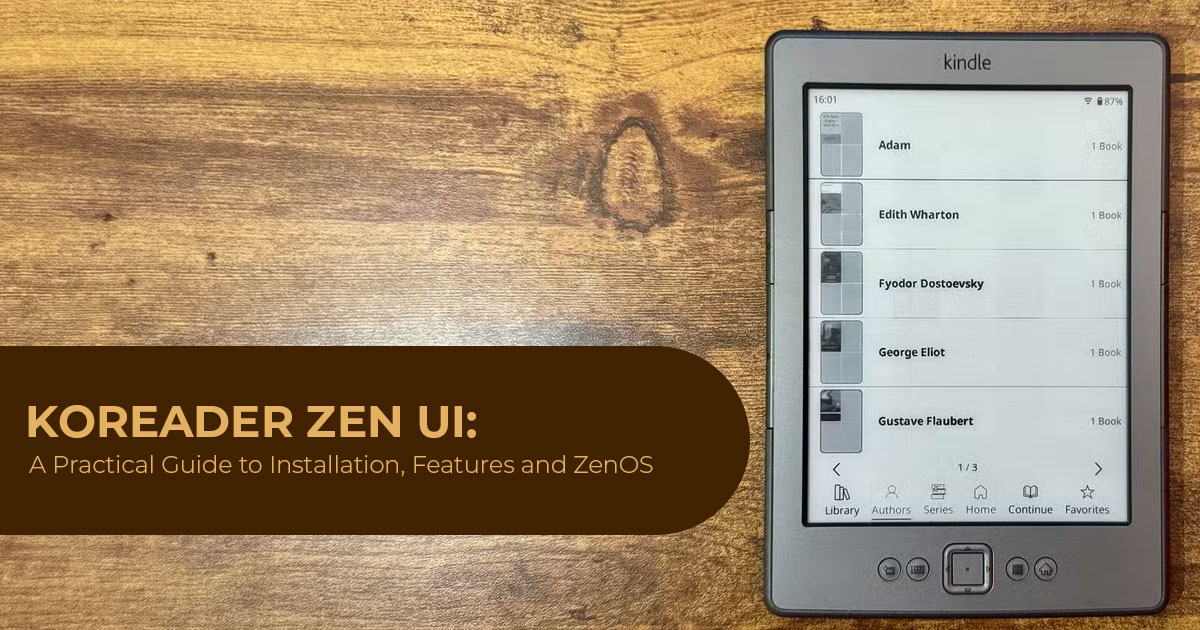
You have a non-touch device. Support exists but is secondary. The plugin is built around swipes and gestures. Support for legacy and non-touch hardware was added in v1.3, and the ZenOS beta lists major accessibility improvements for non-touch devices. The How-To Geek article that prompted this guide reported a usable experience on a Kindle (4th generation) using physical buttons. If you own button-driven hardware, that is a reasonable signal, but expect to lose the gesture shortcuts that make the plugin quick elsewhere.


Zen UI vs SimpleUI vs Project: Title

These plugins solve overlapping problems and generally cannot be combined. The table below uses details published by each project rather than our own measurement.

Feature Zen UI SimpleUI Project: Title
Developer Anthony Gress doctorhetfield joshuacant and elfbutt
Package zen_ui.koplugin simpleui.koplugin projecttitle.koplugin
License GPL-3.0 MIT AGPL-3.0
Latest Verified Release v2.5.4 — 27 Jul 2026 v2.1.1 — 16 Jul 2026 v3.8.3 for KOReader 2026.07 / 2026.07.01 / 2026.07.02 — 3 Aug 2026
Locked to a KOReader Version Not documented; testing emulator updated to KOReader 2026.07 Not documented Yes — each release targets a specific KOReader version and is blocked from loading on incompatible versions
Home Screen Yes, via Home widgets Yes, a core feature No
Distraction-Free Mode Zen Mode and Lockdown Mode Described as distraction-free; no equivalent to Lockdown Mode is documented No
Requires Disabling Cover Browser First Not stated Not stated Yes
Performance / Speed Developer reports no dramatic changes in speed, responsiveness, or resource usage, including with libraries containing thousands of books. The developer has stated that performance is a priority. Developer notes it may be slower than a plain list or Cover Browser; thumbnail-heavy grids can result in longer page turns on older Kindle hardware.

The version lock is worth paying attention to. It can matter more than the interface itself if you update KOReader often. Project: Title ties each release to a specific KOReader version and blocks itself from loading otherwise. Its own documentation advises waiting to upgrade KOReader until a matching Project: Title release exists. Zen UI does not document the same strict KOReader version lock. If you like keeping KOReader current, that difference will affect you more often than any interface preference.

The speed trade-off is worth noting. Project: Title‘s developers describe it in their README as a plugin for people who want a richer interface rather than those who prize speed above all.

Users tend to choose these plugins for different reasons. People who enjoy configuring software tend to choose SimpleUI or Project: Title, both of which offer more control. People who want a usable setup with less work tend to choose Zen UI; one user reported reaching a setup they liked in about fifteen minutes. Community reports often favour Zen UI on Kindle and Kobo, while SimpleUI is frequently recommended for Android-based e-readers.

Bookshelf and Bookends, both by AndyHazz, address narrower problems and are frequently mentioned as working alongside Zen UI, with Bookshelf providing the flat library view some Zen UI users miss.

One detail that speaks well of the project: the Zen UI README credits Project: Title as “the plugin that started it all,” alongside qewer33/koreader-patches and sebdelsol/KOReader.patches. The developer documents what the work is built on.

Should You Install the ZenOS Beta?

The developer recommends waiting for the stable release rather than using the beta on your main device.

The ZenOS v3.0.0-beta28 release notes carry this warning: “This beta is testing the migration to ZenOS and may be unstable, it is recommended to wait until ZenOS stable release.”

The beta is substantial — a rebuilt settings page, a new rendering path, custom icon packs, a book switcher, performance work, Tailscale integration, and accessibility improvements for non-touch devices. It addresses several weaker points of the stable release. Three beta releases landed across 15–16 August, showing that the build is still changing rather than settled.

Two practical notes if you do try it: the release notes state existing installations and settings migrate automatically, and that you should update ZenPM before updating the plugin.

For a primary reading device, Zen UI v2.5.4 is the safer choice. ZenOS beta28 is worth considering only if you want to test the new features and are comfortable with pre-release software.

Strengths and Limitations

Strengths Limitations
✔ Free and GPL-3.0 licensed, with no account required to use it. ✖ Requires KOReader, which in turn requires a jailbreak on Kindle devices.
✔ Works well with settings close to the default configuration, reducing the amount of initial setup required. ✖ Cannot run alongside SimpleUI, Project: Title, or VOS.
✔ The Quick Settings panel is frequently praised in user reports for making common controls easier to access. ✖ Some users prefer SimpleUI’s library view.
✔ Zen Mode is reversible, allowing users to return to the standard interface when required. ✖ Primarily designed around touchscreen devices; support for non-touch hardware is secondary.
✔ Actively developed with frequent software updates and ongoing improvements. ✖ The rapid release cycle can make guides and screenshots outdated quickly.
✔ Lockdown Mode has no documented equivalent among the main alternatives. ✖ There are currently no independent performance measurements available.
✔ Supports multiple interface languages, improving accessibility for international users. ✖ Editing the Zen Mode allow list is unsupported, and custom changes can be overwritten by updates.
✔ Not documented as being locked to a specific KOReader version. ✖ A rename and major-version transition is currently underway, which may create short-term documentation and compatibility confusion.

On performance: the developer states there is no dramatic change in speed, responsiveness, or resource use even with libraries of thousands of books, because patches load only when needed. Users frequently describe Zen UI as fast. No independent benchmark exists, so treat this as a developer claim with consistent anecdotal support rather than a measured result.


Who Zen UI Suits

Consider it if you:

  • already run KOReader and find the menus tiring
  • want a distraction-free reading setup without extended configuration
  • are preparing a device for someone non-technical, where Lockdown Mode applies
  • keep KOReader updated regularly and want to avoid version-locked plugins
  • use a Kindle or Kobo rather than an Android e-reader

Look elsewhere if you:

  • enjoy configuring software and want maximum control, where SimpleUI likely fits better
  • want a stats-heavy home screen, which SimpleUI has developed further
  • use an Android-based e-reader, where reports lean toward SimpleUI
  • run KOReader on non-touch hardware and rely on gestures
  • are satisfied with stock KOReader

Buying Advice: Choosing Hardware for This Setup

Zen UI is free, so the main cost comes from the e-reader itself.

The Kindle Firmware Problem

Running KOReader on a Kindle requires a jailbreak. Jailbreak availability depends on the device’s firmware and model, while some methods also have registration or blacklist restrictions. The community reference, kindlemodding.org, provides a jailbreaking wizard that takes the first eight digits of the serial number plus the firmware version, both found under Three Dots > Settings > Device options > Device info. Methods change often, so we point you there rather than reproducing them.

The practical consequence is that a new Kindle may arrive with firmware that has no available jailbreak. You cannot control which firmware ships on a retail unit, and Kindles can download and install firmware updates when connected to Wi-Fi.

This drives a strategy worth understanding. Buyers who specifically want KOReader often look at used or refurbished Kindles, since older stock is more likely to run older firmware. One long-time user described buying refurbished in the hope of getting a device one firmware version behind, then jailbreaking immediately. It is a real approach, but you are betting on a firmware version the listing does not state.

Two points from kindlemodding.org apply if you take that route. First, some jailbreak methods have device or registration restrictions, so check the current KindleModding guide before buying a used unit. Second, the site’s own advice while waiting to jailbreak is to fill the Kindle’s storage, which prevents automatic updates to a firmware where the method has been patched.

Why a Kobo Carries Less Risk

Kobo devices run KOReader without a jailbreak; you sideload it. It does not rely on a Kindle-style exploit, which makes the setup more predictable.

For someone buying hardware specifically to run KOReader and Zen UI, this is the more predictable path, and user reports place Zen UI as a good fit on Kobo.

Comparison Kindle Kobo PocketBook Android E-Reader
Jailbreak Required for KOReader Yes No No No
Firmware Risk Higher; jailbreak methods can be patched by firmware updates Low Low Low
Zen UI Fit, per User Reports Reported as good Reported as good Supported SimpleUI is often preferred
Sensible Purchase Condition Buy used or refurbished and verify the firmware version first Buying new is fine Buying new is fine Buying new is fine
Main Caveat A device may arrive with firmware for which no compatible jailbreak is available Smaller first-party bookstore catalogue Narrower community support More device-specific setup may be required

What to Prioritise in the Device

Because Zen UI is built around swipes and gestures, a touchscreen matters more here than it otherwise would. Non-touch devices work, but you lose the feature users most often single out.

Beyond that:

  • An adjustable-warmth front light is required for one of the three lighting schedules to do anything.
  • Storage matters if you keep a large local library, since KOReader browses files directly rather than through a store.
  • Physical page-turn buttons remain useful, and KOReader‘s gesture mapping makes them more configurable than stock firmware allows.
  • Screen size is worth weighing if you read PDFs. KOReader‘s reflow is a genuine strength, but a larger display reduces how much you need it.

We do not quote prices here. E-reader pricing varies by market, changes frequently, and differs between new, previous-generation, and refurbished stock, so any figure would go out of date quickly. Check current listings directly.

  • Amazon US: Check current e-reader prices and availability →
  • Amazon India: Check current e-reader prices and availability →

Frequently Asked Questions

Is Zen UI free?

Yes. It is released under GPL-3.0 with no paid tier and no account requirement. The developer accepts optional donations through Ko-fi and GitHub Sponsors.

Do I need to jailbreak my Kindle to use Zen UI?

On a Kindle, yes, because Zen UI requires KOReader. On Kobo, PocketBook, Android, and desktop, no jailbreak is needed.

What is the difference between Zen UI and ZenOS?

They are the same project. ZenOS became the project name with v3.0.0-beta26, released on 15 August 2026. Zen UI v2.5.4 remains the current stable release. ZenOS is still a KOReader plugin, not an operating system.

Does Zen UI slow down KOReader?

The developer states there is no dramatic change in speed or resource use, even with thousands of books, because patches load only when needed. Users frequently describe it as fast. No independent benchmark exists.

Can I run Zen UI and SimpleUI together?

No. Both patch the Cover Browser and the developer states they are incompatible. The same applies to Project: Title and VOS.

Does Zen UI work on a non-touch Kindle?

It can. Support was added in v1.3 and improved in ZenOS beta28, and the How-To Geek report described a usable experience on a Kindle (4th generation) using physical buttons. The plugin is designed primarily for touchscreens, so expect a reduced experience.

Will jailbreaking break Libby, Goodreads, or Send to Kindle?

According to the Kindle modding community’s FAQ, jailbreaking does not interfere with these services. KOReader also runs alongside the stock software rather than replacing it.

How do I turn Zen Mode off?

It is a toggle in the Zen UI settings, and switching it off restores KOReader‘s full menus. In v2.5.4 this requires a restart; the ZenOS beta28 removes that requirement.

Which is better, Zen UI or SimpleUI?

Neither is better in general terms. SimpleUI offers more configuration and a more developed home screen. Zen UI is more often described as quick to set up and stable. The Project: Title version-locking issue is a separate consideration if you update KOReader often.

Do I need ZenPM to use Zen UI?

No. ZenPM is a separate package manager by the same developer that simplifies installing and updating plugins.


Verdict

Zen UI targets KOReader’s most commonly cited weakness and asks relatively little of the user. The recurring theme in user reports is not that it does more than the alternatives, but that it reaches a usable result faster. Its license is GPL-3.0, its development is active, and it does not document the same strict KOReader version lock as Project: Title, which can be an advantage if you regularly update KOReader.

The limitations are real. Its library view is not the strongest option available, it cannot coexist with the plugins it competes with, it assumes a touchscreen, and the project is mid-rename with a major version still in beta. These limitations do not rule out Zen UI, but they make the stable v2.5.4 release the safer choice for most users. If you want more configuration, it is worth checking whether SimpleUI suits you better.

Because the plugin is free and reversible, trying it costs the time it takes to copy a folder and restart. For an existing KOReader user, that is a straightforward decision. For someone buying hardware to reach this setup, the decision is larger, and the Kindle firmware question deserves more caution than it usually receives.

Where to Buy the Hardware

KOReader and Zen UI are free, so the main cost comes from the e-reader itself. The choice comes down to how much firmware uncertainty you are willing to accept.

A Kobo runs KOReader and Zen UI without a jailbreak, which makes it the predictable option for a new purchase.

A used or refurbished Kindle can work and may cost less, but check the firmware version and registration status against the kindlemodding.org wizard before relying on it.

Availability and pricing shift regularly in both markets, and older models may be easier to use for a KOReader setup than the newest release, but check compatibility first.

Have you tried Zen UI or ZenOS with KOReader? Let us know what you think in the comments. If you have any questions about installation, compatibility, or features, feel free to ask—we’ll try to help.

For more tech guides, reviews, updates, and practical tips, follow us and stay tuned for the next one.

***Disclaimer***

This blog post reflects our research, analysis, and opinions based on available product information, user feedback, and industry knowledge. It should not be taken as the official position of any brand, manufacturer, or company mentioned here. We make every effort to keep this guide accurate, but product specifications, pricing, and availability may change after publication. We recommend double-checking important details before making a purchase.

Some links in this article may be affiliate links. If you choose to buy through these links, we may earn a small commission at no extra cost to you. This helps support our work and allows us to keep publishing in-depth, unbiased reviews. Affiliate partnerships never influence our recommendations.

Opinions expressed by readers are their own and do not necessarily reflect ours. We are not responsible for outcomes resulting from the use of information on this site. Please seek professional advice where appropriate.

All product names, logos, and brands mentioned are the property of their respective owners. These names are used for identification and informational purposes only and do not imply endorsement.

You may also like

Leave a Comment

KOReader Zen UI: A Practical Guide to Installation, Features and ZenOS

by Prakash Dhanasekaran

A keyboard and mouse are easy to overlook when building a PC setup. Most people spend more time comparing a monitor or processor and then pick a keyboard and mouse based on price. That can be a mistake if you use them for work, study, browsing, or long hours at a desk.

The Logitech Pebble 2 Combo targets people who want a compact wireless keyboard and mouse without spending much. It is aimed at students, office workers, remote workers, and everyday PC users who want a simple setup with a small footprint.

At the time of our price check, the combo was listed at $49.99 on Amazon US, down from its

$59.99 list price. Logitech’s US store listed it at $59.99. Amazon’s 17% discount reflects the difference between $49.99 and $59.99 after rounding.

We have not physically tested this bundle. Our assessment is based on Logitech’s official specifications, retailer listings, published reviews of the individual keyboard and mouse, and owner reports. When figures differed between sources, we used Logitech’s specifications as the reference.

With more than 20 years of experience in hardware and application research and development, we assess products based on performance, durability, usability, and value for money. For the Logitech Pebble 2 Combo, that means looking at what matters in daily use: comfort, connectivity, battery life, build quality, features, and long-term value.


Logitech Pebble 2 Combo Price and Availability

Here is how the Logitech Pebble 2 Combo price stands across the two markets this article covers.


Market Price type Listed price Reference price Stated discount
Amazon US Current sale price $49.99 $59.99 list ~17%
Logitech.com (US) Current listed price $59.99 $59.99 list 0%
Amazon India Current sale price ₹4,595 ₹5,995 M.R.P. ~23%


In the US, Amazon’s listing includes Black, Tonal Rose, and Tonal White at the reduced price, while Logitech’s store lists Tonal Graphite at $59.99. The Amazon listing does not show an end date for the promotion, and color availability can change independently of price.

Price history suggests that $49.99 is a recurring sale price rather than an unusually low price. If you want the bundle now, it is a reasonable price; buyers who are not in a hurry may find a similar discount later.


What the Bundle Includes: Pebble Keys 2 K380s and Pebble Mouse 2 M350s

The Logitech Pebble 2 Combo pairs two products that Logitech also sells separately, in matching colors:

  • Logitech Pebble Keys 2 K380s — the compact wireless Bluetooth keyboard
  • Logitech Pebble Mouse 2 M350s — the slim wireless mouse with silent clicks Both products are also sold separately, making it easy to compare the bundle’s

Verified specifications


Specification Pebble Keys 2 K380s Pebble Mouse 2 M350s
Dimensions 279 × 124 × 16 mm 106.7 × 58.7 × 26.62 mm
Weight 415 g with batteries 76 g with battery
Power source 2x AAA alkaline, pre-installed 1x AA, pre-installed
Stated battery life Up to 36 months Up to 24 months


Wireless Bluetooth Low Energy, Logi Bolt Bluetooth Low Energy, Logi Bolt
Paired devices Up to 3 via Easy-Switch Up to 3
Input mechanism Scooped, round, low-profile keys Optical sensor
Click technology — Silent Touch Technology
Sensor range — 400–4,000 DPI, adjustable
Buttons — 3, symmetrical shell
Backlight None —
Number pad None —
Customization 10 customizable Fn keys via Logi Options+ Middle button via Logi Options+
Current US price $39.99 $24.99


There is some confusion around the DPI figure. Some comparison sites list this mouse at 1,000 DPI. That specification belongs to the discontinued M350, not the M350s in this bundle. Logitech’s product documentation states an adjustable 400–4,000 DPI range, and reviews of the newer unit also distinguish the M350s from the older M350 by its updated sensor specification.


How Quiet Is the Pebble 2 Combo?

Quiet operation is one of the main reasons to consider this combo, but the keyboard and mouse achieve it in different ways.

Logitech describes the keyboard as having quiet, low-profile keys with a laptop-like typing feel and says the M350s produces over 90% less click noise than the M185. The Silent Touch claim applies only to the mouse, not the keyboard.

The Pebble Keys 2 K380s is quiet because of its low-profile key design with short travel, similar to a laptop keyboard. The mouse uses Silent Touch Technology, while the keyboard relies on its low-profile key design for quieter typing.

Published reviews of the M350s describe the clicks as very quiet while retaining a tactile feel. Because we did not test the mouse ourselves, we treat these observations as reviewer feedback rather than our own testing.

Published reviews describe the keyboard as quiet but not silent. One review noted that the space bar is louder than the surrounding keys, while another found the overall noise level suitable for a shared office. These are reviewer observations, not results from our own testing.

For buyers: for video calls, shared rooms, or typing while someone sleeps nearby, the lower noise level should be useful. If noise is your main concern, the mouse is quieter than the keyboard.


Multi-Device Easy-Switch and Compatibility

Both units support Bluetooth, and the combo also includes a Logi Bolt USB receiver. Logitech’s product page confirms the receiver is part of the bundle. The standalone Pebble Mouse 2 M350s is sold without the receiver, while the combo includes one.

The Easy-Switch function is the practical highlight. You can pair up to three devices and move between them with a single key press.

Logitech lists the Pebble 2 Combo as compatible with Windows, macOS, iPadOS, iOS, Android, ChromeOS and Linux. The combo also includes a Logi Bolt USB receiver for compatible devices.

In practical terms, one keyboard and mouse can serve a work laptop, a personal desktop, and a tablet without having to pair them again each time.

This is not a gaming-focused keyboard and mouse. If fast-paced gaming is your priority, a dedicated gaming keyboard and mouse would be a better choice.


Battery Life and Materials

Battery endurance is a genuine strength, and it follows directly from a design choice some buyers will dislike.

The keyboard runs on two AAA batteries rated at up to 36 months. The mouse uses one AA battery rated at up to 24 months. Both come pre-installed. The keyboard also has an auto-sleep power-saving mode and an on/off switch.

Logitech’s battery figures are estimates based on typical use, but they still mean you should rarely need to replace the batteries.

There is no rechargeable battery or USB-C port. Some buyers prefer replaceable batteries because a flat battery can be replaced in seconds. Others may prefer USB-C charging and view replaceable alkaline batteries as a drawback.

On materials, Logitech states the combo range uses more than 45% recycled plastic, with the figure varying by color. Documentation for the Pebble Keys 2 K380s specifies a minimum of 49% post-consumer recycled content, rising to 64% on Tonal Graphite. These percentages exclude the printed wiring assembly and packaging.


Does the Combo Cost Less Than Buying Separately?

This is the clearest financial argument for the bundle, based on Logitech’s own standalone pricing.


Purchase route US price Total
Pebble Keys 2 K380s alone $39.99 —
Pebble Mouse 2 M350s alone $24.99 —
Both purchased separately at current Logitech US prices — $64.98
Pebble 2 Combo at Amazon sale price — $49.99
Difference — $14.99


Standalone prices fluctuate, and each unit goes on sale independently. The Pebble Keys 2 K380s has been tracked as low as around $32.99 on its own during past promotions.

Practical takeaway: at Amazon’s $49.99 sale price, the bundle is cheaper than buying both products separately. If you only need one, buy that unit separately. The individual products offer the same core features, but the combo includes the Logi Bolt receiver.


Limitations of the Logitech Pebble 2 Combo

These are the main constraints reported in published reviews and owner reports, and they explain why some buyers may prefer a different product.

Round keycaps require adjustment. The circular keys are the design signature and they divide opinion. Reviewers noted the keycaps are small and demand precise finger placement. Several described a real adjustment period, and at least one owner said they did not fully adapt after moving from square keycaps.

No backlight. There is no key illumination, and no illumination option exists in the software. For anyone who works in dim conditions without touch-typing confidently, this is a daily limitation.

No number pad. Logitech describes the layout as minimalist. It retains the function row and arrow keys but omits the numeric keypad. A full-size keyboard is a better choice for frequent number entry.

Fixed typing angle. There are no adjustable feet and the 16 mm profile sits low and flat. Reviewers who prefer a raised angle flagged this, and it cannot be changed without propping the keyboard up manually.


The mouse has a flat profile. At 26.62 mm tall with a symmetrical shell, the Pebble Mouse 2 M350s is not a sculpted ergonomic design. Some reviewers found its flat shape more suitable for travel and secondary setups than long sessions at a fixed desk. The symmetrical shape does make it usable left-handed, which sculpted mice generally are not.

Some chassis flex is possible. The keyboard weighs 415 g with batteries. One published review noted some deck flex and described the build as feeling somewhat inexpensive, while still considering it sturdy overall. This is a reviewer observation rather than a result from our own testing.

One long-term durability report is worth noting. One owner reported that the left mouse button developed misclicks and double-clicks after roughly two years of heavy use. This is a single owner report, not an established pattern or a result from our own testing, but it is worth noting for buyers concerned about long-term durability.


How the Pebble 2 Combo Compares to Other Logitech Combos

The Pebble 2 Combo competes with several Logitech sets that make different trade-offs. Prices are Logitech’s own US listings at the time of writing and change with ongoing promotions.


Model Listed US price Layout Connection Multi-device Distinguishing characteristic
Logitech Pebble 2 Combo $59.99 Compact, no numpad Bluetooth + Logi Bolt Up to 3 Slim profile, Silent Touch mouse
Logitech POP Icon Combo $69.99 Compact, extra navigation keys Bluetooth + receiver Up to 3 Larger keycaps, additional keys
Logitech MK295 Silent Wireless Combo $34.99 Full-size with numpad 2.4GHz

receiver only

No Lowest cost, numpad, single device
Logitech MK270

Wireless Combo

$29.99 Full-size with numpad 2.4GHz

receiver only

No Lowest-priced option in this comparison
Logitech Wave Keys MK670

Combo

$89.99 Full-size, cushioned palm rest 2.4GHz +

Bluetooth

Yes Wrist support, ergonomic shaping


Pebble 2 Combo compared with POP Icon Combo

The two combos make different trade-offs. The Pebble 2 Combo is slimmer and lighter, which may suit people who carry their peripherals. The POP Icon Combo uses larger keycaps and adds


Home, End, Page Up, and Page Down keys, which some owners found useful for navigating documents and web pages.

One owner who had used both products described the difference as a matter of use case rather than overall quality. In that user’s experience, the POP Icon scroll wheel felt faster and quieter, while the Pebble 2 keyboard was preferable for its slimmer, lighter design. The same user valued the POP Icon’s extra keys more when portability was not a priority. Some owners with medium or large hands also preferred the POP Icon’s larger keycaps.

We should be clear that these points come from owner reports rather than manufacturer specifications or independent testing.


Pebble 2 Combo compared with MK295 Silent Wireless Combo

These suit different desks. At Amazon’s $49.99 sale price, the MK295 is $15 cheaper, is full-size, and includes a number pad. What it does not offer is Bluetooth or multi-device switching

— it uses a single 2.4GHz receiver and connects to one machine at a time.

If you work at one desk with one computer and want a numpad, the MK295 is the more sensible purchase and costs less. If you move between a laptop, tablet, and desktop, the Pebble 2 Combo is built for that and the MK295 is not.


Who the Logitech Pebble 2 Combo Suits

This bundle is a reasonable fit if you:

  • Work in a shared office, co-working space, or a home with people nearby and want to reduce click and key noise
  • Move between two or three devices and want one keyboard and mouse across all of them
  • Have a small desk or prefer a minimal setup
  • Travel or commute with peripherals and need something slim and light
  • Use a mix of platforms, particularly Windows, macOS, iPadOS, or Android
  • Prefer long replaceable-battery life over recharging
  • Are left-handed, since the mouse uses a symmetrical shell
  • Are a student buying a first proper keyboard and mouse on a limited budget

Consider a different product if you:

  • Need a number pad for accounting, data entry, or spreadsheet work
  • Type in low light and depend on a backlight
  • Find the round keycaps uncomfortable or difficult to adapt to
  • Want a sculpted ergonomic mouse for long sessions at a fixed desk
  • Play fast-paced games and want gaming-focused keyboard and mouse performance


  • Prefer USB-C rechargeable peripherals
  • Want an adjustable typing angle


Frequently Asked Questions

Is the Logitech Pebble 2 Combo worth buying at Amazon’s $49.99 sale price?

At Amazon’s $49.99 sale price, it costs $14.99 less than buying the Pebble Keys 2 K380s ($39.99) and Pebble Mouse 2 M350s ($24.99) separately from Logitech. For buyers wanting a quiet, slim, multi-device set who do not need a number pad or backlight, that is a reasonable saving. Buyers needing a number pad should consider a full-size alternative.


How long does the Pebble 2 Combo battery last?

Logitech states up to 36 months for the keyboard on two AAA batteries and up to 24 months for the mouse on one AA battery, with batteries pre-installed. These are estimates for typical use and vary with conditions.


Does the Pebble Keys 2 K380s have a backlight?

No. The keyboard has no backlighting and no illumination setting in Logi Options+. Buyers who type in dim conditions should account for this.


Does the Pebble 2 Combo have a number pad?

No. Logitech describes the layout as minimalist. It keeps the function row and arrow keys but omits the numeric keypad. The full-size Logitech MK295 Silent Wireless Combo or MK270 Wireless Combo are better suited to frequent number entry.


Is the Pebble Mouse 2 M350s genuinely silent?

Logitech states the mouse produces over 90% less click noise compared with the Logitech M185 through Silent Touch Technology. Reviewers describe the clicks as very quiet while remaining tactile. “Quiet” is more accurate than “silent,” but the reduction is substantial. This claim applies to the mouse only, not the keyboard.


Does the Pebble 2 Combo work with iPad, Mac, and Chromebook?

Logitech lists the Pebble 2 Combo as compatible with Windows, macOS, iPadOS, iOS, Android, ChromeOS and Linux. The combo also includes a Logi Bolt USB receiver. A separate Logitech Pebble 2 Combo for Mac variant is also sold, with its own pricing.


Can it connect to more than one device at a time?

It pairs with up to three devices and switches between them using Easy-Switch.


Is the Logi Bolt receiver included?

Logitech’s official combo page states the Logi Bolt receiver is included with the bundle. The standalone Pebble Mouse 2 M350s documentation states its receiver is sold separately, so buyers who want a receiver should note the difference between the bundle and individual units.


Are the round keycaps difficult to type on?

Published reviews and owner reports describe an adjustment period with the round keycaps. The keys are small and circular, so they can require more precise finger placement than standard square keycaps. The experience varies from person to person.


Final Assessment

The Logitech Pebble 2 Combo is a focused product rather than a general-purpose one. It handles a specific set of requirements well: quiet operation, a slim and portable form, clean switching across three devices, and multi-year battery life from included cells. At Amazon’s $49.99 sale price, it costs $14.99 less than buying the two components separately at their current Logitech US prices.

The limitations are clear: no number pad, no backlight, a fixed low typing angle, small round keycaps, and a flat mouse shell that reviewers often find better suited to travel than long sessions at a fixed desk.

Based on the available specifications, published testing, and owner feedback, buyers who move between devices and care about noise are likely to find this a sensible purchase at $49.99. If you work at one desk, enter a lot of numbers, or want a sculpted ergonomic mouse, another type of combo may suit you better.

The price history suggests that $49.99 is a recurring sale price, so buyers who are not in a hurry may find similar pricing again.


Where to Buy the Logitech Pebble 2 Combo

Amazon US

The Logitech Pebble 2 Combo is listed at $49.99 on Amazon US, reduced from $59.99, with Black, Tonal Rose, and Tonal White shown on the listing at the time of our price check. The set includes three-device Easy-Switch, a Logi Bolt receiver, and pre-installed batteries rated for up


to 36 and 24 months. Amazon has not stated how long the reduction runs, so check the live listing before ordering.

Amazon India

In India, the bundle is listed at ₹4,595 against an M.R.P. of ₹5,995. The hardware is the same Pebble Keys 2 K380s and Pebble Mouse 2 M350s pairing, with Bluetooth and Logi Bolt connectivity. Indian listings show additional color options including Graphite, Blue, Rose, Sand, and White, though availability varies by seller and color choice can affect the price.

Have you used the Logitech Pebble 2 Combo? Share your experience in the comments, especially if you have been using it for work or study.

If you found this review useful, follow us for more practical tech reviews, comparisons, and buying guides. And if you have any questions about the Pebble 2 Combo or want us to cover a specific feature, leave a comment—we’d be happy to help.

***Disclaimer***

This blog post reflects our research, analysis, and opinions based on available product information, user feedback, and industry knowledge. It should not be taken as the official position of any brand, manufacturer, or company mentioned here. We make every effort to keep this guide accurate, but product specifications, pricing, and availability may change after publication. We recommend double-checking important details before making a purchase.

Some links in this article may be affiliate links. If you choose to buy through these links, we may earn a small commission at no extra cost to you. This helps support our work and allows us to keep publishing in-depth, unbiased reviews. Affiliate partnerships never influence our recommendations.

Opinions expressed by readers are their own and do not necessarily reflect ours. We are not responsible for outcomes resulting from the use of information on this site. Please seek professional advice where appropriate.

All product names, logos, and brands mentioned are the property of their respective owners. These names are used for identification and informational purposes only and do not imply endorsement.

A keyboard and mouse are easy to overlook when building a PC setup. Most people spend more time comparing a monitor or processor and then pick a keyboard and mouse based on price. That can be a mistake if you use them for work, study, browsing, or long hours at a desk.

The Logitech Pebble 2 Combo targets people who want a compact wireless keyboard and mouse without spending much. It is aimed at students, office workers, remote workers, and everyday PC users who want a simple setup with a small footprint.

At the time of our price check, the combo was listed at $49.99 on Amazon US, down from its

$59.99 list price. Logitech’s US store listed it at $59.99. Amazon’s 17% discount reflects the difference between $49.99 and $59.99 after rounding.

We have not physically tested this bundle. Our assessment is based on Logitech’s official specifications, retailer listings, published reviews of the individual keyboard and mouse, and owner reports. When figures differed between sources, we used Logitech’s specifications as the reference.

With more than 20 years of experience in hardware and application research and development, we assess products based on performance, durability, usability, and value for money. For the Logitech Pebble 2 Combo, that means looking at what matters in daily use: comfort, connectivity, battery life, build quality, features, and long-term value.


Logitech Pebble 2 Combo Price and Availability

Here is how the Logitech Pebble 2 Combo price stands across the two markets this article covers.


Market Price type Listed price Reference price Stated discount
Amazon US Current sale price $49.99 $59.99 list ~17%
Logitech.com (US) Current listed price $59.99 $59.99 list 0%
Amazon India Current sale price ₹4,595 ₹5,995 M.R.P. ~23%


In the US, Amazon’s listing includes Black, Tonal Rose, and Tonal White at the reduced price, while Logitech’s store lists Tonal Graphite at $59.99. The Amazon listing does not show an end date for the promotion, and color availability can change independently of price.

Price history suggests that $49.99 is a recurring sale price rather than an unusually low price. If you want the bundle now, it is a reasonable price; buyers who are not in a hurry may find a similar discount later.


What the Bundle Includes: Pebble Keys 2 K380s and Pebble Mouse 2 M350s

The Logitech Pebble 2 Combo pairs two products that Logitech also sells separately, in matching colors:

  • Logitech Pebble Keys 2 K380s — the compact wireless Bluetooth keyboard
  • Logitech Pebble Mouse 2 M350s — the slim wireless mouse with silent clicks Both products are also sold separately, making it easy to compare the bundle’s

Verified specifications


Specification Pebble Keys 2 K380s Pebble Mouse 2 M350s
Dimensions 279 × 124 × 16 mm 106.7 × 58.7 × 26.62 mm
Weight 415 g with batteries 76 g with battery
Power source 2x AAA alkaline, pre-installed 1x AA, pre-installed
Stated battery life Up to 36 months Up to 24 months


Wireless Bluetooth Low Energy, Logi Bolt Bluetooth Low Energy, Logi Bolt
Paired devices Up to 3 via Easy-Switch Up to 3
Input mechanism Scooped, round, low-profile keys Optical sensor
Click technology — Silent Touch Technology
Sensor range — 400–4,000 DPI, adjustable
Buttons — 3, symmetrical shell
Backlight None —
Number pad None —
Customization 10 customizable Fn keys via Logi Options+ Middle button via Logi Options+
Current US price $39.99 $24.99


There is some confusion around the DPI figure. Some comparison sites list this mouse at 1,000 DPI. That specification belongs to the discontinued M350, not the M350s in this bundle. Logitech’s product documentation states an adjustable 400–4,000 DPI range, and reviews of the newer unit also distinguish the M350s from the older M350 by its updated sensor specification.


How Quiet Is the Pebble 2 Combo?

Quiet operation is one of the main reasons to consider this combo, but the keyboard and mouse achieve it in different ways.

Logitech describes the keyboard as having quiet, low-profile keys with a laptop-like typing feel and says the M350s produces over 90% less click noise than the M185. The Silent Touch claim applies only to the mouse, not the keyboard.

The Pebble Keys 2 K380s is quiet because of its low-profile key design with short travel, similar to a laptop keyboard. The mouse uses Silent Touch Technology, while the keyboard relies on its low-profile key design for quieter typing.

Published reviews of the M350s describe the clicks as very quiet while retaining a tactile feel. Because we did not test the mouse ourselves, we treat these observations as reviewer feedback rather than our own testing.

Published reviews describe the keyboard as quiet but not silent. One review noted that the space bar is louder than the surrounding keys, while another found the overall noise level suitable for a shared office. These are reviewer observations, not results from our own testing.

For buyers: for video calls, shared rooms, or typing while someone sleeps nearby, the lower noise level should be useful. If noise is your main concern, the mouse is quieter than the keyboard.


Multi-Device Easy-Switch and Compatibility

Both units support Bluetooth, and the combo also includes a Logi Bolt USB receiver. Logitech’s product page confirms the receiver is part of the bundle. The standalone Pebble Mouse 2 M350s is sold without the receiver, while the combo includes one.

The Easy-Switch function is the practical highlight. You can pair up to three devices and move between them with a single key press.

Logitech lists the Pebble 2 Combo as compatible with Windows, macOS, iPadOS, iOS, Android, ChromeOS and Linux. The combo also includes a Logi Bolt USB receiver for compatible devices.

In practical terms, one keyboard and mouse can serve a work laptop, a personal desktop, and a tablet without having to pair them again each time.

This is not a gaming-focused keyboard and mouse. If fast-paced gaming is your priority, a dedicated gaming keyboard and mouse would be a better choice.


Battery Life and Materials

Battery endurance is a genuine strength, and it follows directly from a design choice some buyers will dislike.

The keyboard runs on two AAA batteries rated at up to 36 months. The mouse uses one AA battery rated at up to 24 months. Both come pre-installed. The keyboard also has an auto-sleep power-saving mode and an on/off switch.

Logitech’s battery figures are estimates based on typical use, but they still mean you should rarely need to replace the batteries.

There is no rechargeable battery or USB-C port. Some buyers prefer replaceable batteries because a flat battery can be replaced in seconds. Others may prefer USB-C charging and view replaceable alkaline batteries as a drawback.

On materials, Logitech states the combo range uses more than 45% recycled plastic, with the figure varying by color. Documentation for the Pebble Keys 2 K380s specifies a minimum of 49% post-consumer recycled content, rising to 64% on Tonal Graphite. These percentages exclude the printed wiring assembly and packaging.


Does the Combo Cost Less Than Buying Separately?

This is the clearest financial argument for the bundle, based on Logitech’s own standalone pricing.


Purchase route US price Total
Pebble Keys 2 K380s alone $39.99 —
Pebble Mouse 2 M350s alone $24.99 —
Both purchased separately at current Logitech US prices — $64.98
Pebble 2 Combo at Amazon sale price — $49.99
Difference — $14.99


Standalone prices fluctuate, and each unit goes on sale independently. The Pebble Keys 2 K380s has been tracked as low as around $32.99 on its own during past promotions.

Practical takeaway: at Amazon’s $49.99 sale price, the bundle is cheaper than buying both products separately. If you only need one, buy that unit separately. The individual products offer the same core features, but the combo includes the Logi Bolt receiver.


Limitations of the Logitech Pebble 2 Combo

These are the main constraints reported in published reviews and owner reports, and they explain why some buyers may prefer a different product.

Round keycaps require adjustment. The circular keys are the design signature and they divide opinion. Reviewers noted the keycaps are small and demand precise finger placement. Several described a real adjustment period, and at least one owner said they did not fully adapt after moving from square keycaps.

No backlight. There is no key illumination, and no illumination option exists in the software. For anyone who works in dim conditions without touch-typing confidently, this is a daily limitation.

No number pad. Logitech describes the layout as minimalist. It retains the function row and arrow keys but omits the numeric keypad. A full-size keyboard is a better choice for frequent number entry.

Fixed typing angle. There are no adjustable feet and the 16 mm profile sits low and flat. Reviewers who prefer a raised angle flagged this, and it cannot be changed without propping the keyboard up manually.


The mouse has a flat profile. At 26.62 mm tall with a symmetrical shell, the Pebble Mouse 2 M350s is not a sculpted ergonomic design. Some reviewers found its flat shape more suitable for travel and secondary setups than long sessions at a fixed desk. The symmetrical shape does make it usable left-handed, which sculpted mice generally are not.

Some chassis flex is possible. The keyboard weighs 415 g with batteries. One published review noted some deck flex and described the build as feeling somewhat inexpensive, while still considering it sturdy overall. This is a reviewer observation rather than a result from our own testing.

One long-term durability report is worth noting. One owner reported that the left mouse button developed misclicks and double-clicks after roughly two years of heavy use. This is a single owner report, not an established pattern or a result from our own testing, but it is worth noting for buyers concerned about long-term durability.


How the Pebble 2 Combo Compares to Other Logitech Combos

The Pebble 2 Combo competes with several Logitech sets that make different trade-offs. Prices are Logitech’s own US listings at the time of writing and change with ongoing promotions.


Model Listed US price Layout Connection Multi-device Distinguishing characteristic
Logitech Pebble 2 Combo $59.99 Compact, no numpad Bluetooth + Logi Bolt Up to 3 Slim profile, Silent Touch mouse
Logitech POP Icon Combo $69.99 Compact, extra navigation keys Bluetooth + receiver Up to 3 Larger keycaps, additional keys
Logitech MK295 Silent Wireless Combo $34.99 Full-size with numpad 2.4GHz

receiver only

No Lowest cost, numpad, single device
Logitech MK270

Wireless Combo

$29.99 Full-size with numpad 2.4GHz

receiver only

No Lowest-priced option in this comparison
Logitech Wave Keys MK670

Combo

$89.99 Full-size, cushioned palm rest 2.4GHz +

Bluetooth

Yes Wrist support, ergonomic shaping

Pebble 2 Combo compared with POP Icon Combo

The two combos make different trade-offs. The Pebble 2 Combo is slimmer and lighter, which may suit people who carry their peripherals. The POP Icon Combo uses larger keycaps and adds Home, End, Page Up, and Page Down keys, which some owners found useful for navigating documents and web pages.

One owner who had used both products described the difference as a matter of use case rather than overall quality. In that user’s experience, the POP Icon scroll wheel felt faster and quieter, while the Pebble 2 keyboard was preferable for its slimmer, lighter design. The same user valued the POP Icon’s extra keys more when portability was not a priority. Some owners with medium or large hands also preferred the POP Icon’s larger keycaps.

We should be clear that these points come from owner reports rather than manufacturer specifications or independent testing.

Pebble 2 Combo compared with MK295 Silent Wireless Combo

These suit different desks. At Amazon’s $49.99 sale price, the MK295 is $15 cheaper, is full-size, and includes a number pad. What it does not offer is Bluetooth or multi-device switching

— it uses a single 2.4GHz receiver and connects to one machine at a time.

If you work at one desk with one computer and want a numpad, the MK295 is the more sensible purchase and costs less. If you move between a laptop, tablet, and desktop, the Pebble 2 Combo is built for that and the MK295 is not.


Who the Logitech Pebble 2 Combo Suits


This bundle is a reasonable fit if you:

  • Work in a shared office, co-working space, or a home with people nearby and want to reduce click and key noise
  • Move between two or three devices and want one keyboard and mouse across all of them
  • Have a small desk or prefer a minimal setup
  • Travel or commute with peripherals and need something slim and light
  • Use a mix of platforms, particularly Windows, macOS, iPadOS, or Android
  • Prefer long replaceable-battery life over recharging
  • Are left-handed, since the mouse uses a symmetrical shell
  • Are a student buying a first proper keyboard and mouse on a limited budget

Consider a different product if you:

  • Need a number pad for accounting, data entry, or spreadsheet work
  • Type in low light and depend on a backlight
  • Find the round keycaps uncomfortable or difficult to adapt to
  • Want a sculpted ergonomic mouse for long sessions at a fixed desk
  • Play fast-paced games and want gaming-focused keyboard and mouse performance
  • Prefer USB-C rechargeable peripherals
  • Want an adjustable typing angle

Frequently Asked Questions


Is the Logitech Pebble 2 Combo worth buying at Amazon’s $49.99 sale price?

At Amazon’s $49.99 sale price, it costs $14.99 less than buying the Pebble Keys 2 K380s ($39.99) and Pebble Mouse 2 M350s ($24.99) separately from Logitech. For buyers wanting a quiet, slim, multi-device set who do not need a number pad or backlight, that is a reasonable saving. Buyers needing a number pad should consider a full-size alternative.

How long does the Pebble 2 Combo battery last?

Logitech states up to 36 months for the keyboard on two AAA batteries and up to 24 months for the mouse on one AA battery, with batteries pre-installed. These are estimates for typical use and vary with conditions.

Does the Pebble Keys 2 K380s have a backlight?

No. The keyboard has no backlighting and no illumination setting in Logi Options+. Buyers who type in dim conditions should account for this.

Does the Pebble 2 Combo have a number pad?

No. Logitech describes the layout as minimalist. It keeps the function row and arrow keys but omits the numeric keypad. The full-size Logitech MK295 Silent Wireless Combo or MK270 Wireless Combo are better suited to frequent number entry.

Is the Pebble Mouse 2 M350s genuinely silent?

Logitech states the mouse produces over 90% less click noise compared with the Logitech M185 through Silent Touch Technology. Reviewers describe the clicks as very quiet while remaining tactile. “Quiet” is more accurate than “silent,” but the reduction is substantial. This claim applies to the mouse only, not the keyboard.

Does the Pebble 2 Combo work with iPad, Mac, and Chromebook?

Logitech lists the Pebble 2 Combo as compatible with Windows, macOS, iPadOS, iOS, Android, ChromeOS and Linux. The combo also includes a Logi Bolt USB receiver. A separate Logitech Pebble 2 Combo for Mac variant is also sold, with its own pricing.

Can it connect to more than one device at a time?

It pairs with up to three devices and switches between them using Easy-Switch.

Is the Logi Bolt receiver included?

Logitech’s official combo page states the Logi Bolt receiver is included with the bundle. The standalone Pebble Mouse 2 M350s documentation states its receiver is sold separately, so buyers who want a receiver should note the difference between the bundle and individual units.

Are the round keycaps difficult to type on?

Published reviews and owner reports describe an adjustment period with the round keycaps. The keys are small and circular, so they can require more precise finger placement than standard square keycaps. The experience varies from person to person.

Final Assessment


The Logitech Pebble 2 Combo is a focused product rather than a general-purpose one. It handles a specific set of requirements well: quiet operation, a slim and portable form, clean switching across three devices, and multi-year battery life from included cells. At Amazon’s $49.99 sale price, it costs $14.99 less than buying the two components separately at their current Logitech US prices.

The limitations are clear: no number pad, no backlight, a fixed low typing angle, small round keycaps, and a flat mouse shell that reviewers often find better suited to travel than long sessions at a fixed desk.

Based on the available specifications, published testing, and owner feedback, buyers who move between devices and care about noise are likely to find this a sensible purchase at $49.99. If you work at one desk, enter a lot of numbers, or want a sculpted ergonomic mouse, another type of combo may suit you better.

The price history suggests that $49.99 is a recurring sale price, so buyers who are not in a hurry may find similar pricing again.

Where to Buy the Logitech Pebble 2 Combo

Amazon US

The Logitech Pebble 2 Combo is listed at $49.99 on Amazon US, reduced from $59.99, with Black, Tonal Rose, and Tonal White shown on the listing at the time of our price check. The set includes three-device Easy-Switch, a Logi Bolt receiver, and pre-installed batteries rated for up to 36 and 24 months. Amazon has not stated how long the reduction runs, so check the live listing before ordering.

Check the current price and available colors on Amazon US →

Amazon India

In India, the bundle is listed at ₹4,595 against an M.R.P. of ₹5,995. The hardware is the same Pebble Keys 2 K380s and Pebble Mouse 2 M350s pairing, with Bluetooth and Logi Bolt connectivity. Indian listings show additional color options including Graphite, Blue, Rose, Sand, and White, though availability varies by seller and color choice can affect the price.

View the latest Logitech Pebble 2 Combo offers on Amazon India →

Have you used the Logitech Pebble 2 Combo? Share your experience in the comments, especially if you have been using it for work or study.

If you found this review useful, follow us for more practical tech reviews, comparisons, and buying guides. And if you have any questions about the Pebble 2 Combo or want us to cover a specific feature, leave a comment—we’d be happy to help.

***Disclaimer***

This blog post reflects our research, analysis, and opinions based on available product information, user feedback, and industry knowledge. It should not be taken as the official position of any brand, manufacturer, or company mentioned here. We make every effort to keep this guide accurate, but product specifications, pricing, and availability may change after publication. We recommend double-checking important details before making a purchase.

Some links in this article may be affiliate links. If you choose to buy through these links, we may earn a small commission at no extra cost to you. This helps support our work and allows us to keep publishing in-depth, unbiased reviews. Affiliate partnerships never influence our recommendations.

Opinions expressed by readers are their own and do not necessarily reflect ours. We are not responsible for outcomes resulting from the use of information on this site. Please seek professional advice where appropriate.

All product names, logos, and brands mentioned are the property of their respective owners. These names are used for identification and informational purposes only and do not imply endorsement.

You may also like

Leave a Comment

-
00:00
00:00
Update Required Flash plugin
-
00:00
00:00