
Introduction
If you’re searching for a Network Attached Storage (NAS) system that delivers serious performance without pushing you into enterprise-level pricing, the TerraMaster F4-425 Pro deserves your attention. For years, many NAS buyers have faced the same frustrating choice: pay a premium for aging hardware from established brands or settle for cheaper alternatives that cut important features. TerraMaster is taking a different approach by combining an 8-core Intel processor, dual 5GbE networking, and three M.2 NVMe SSD slots inside a compact 4-bay NAS designed for modern workloads.
What makes this launch interesting is that it challenges one of the biggest assumptions in the NAS market—that high-performance storage must come with a high-performance price tag. Whether you’re tired of paying monthly cloud storage fees, struggling with slow file transfers, running out of space for your growing media collection, or looking for a reliable platform to host business data, the F4-425 Pro promises to solve several problems at once.
But hardware specifications alone do not determine whether a NAS is worth buying. The real question is how it performs when faced with everyday demands. Can it handle 4K video editing projects without becoming a bottleneck? Is it powerful enough to run a Plex Media Server for multiple users? Can developers and enthusiasts rely on it for Docker containers, backups, and self-hosted applications? And perhaps most importantly, does the latest TOS 7 operating system provide an experience that is simple, stable, and secure?
As technology experts with over 20 years of experience in hardware and application research and development, we evaluate every product based on real-world performance, durability, reliability, and long-term value for money. Our goal is to help readers identify the best products across every category, whether the priority is budget, performance, dependability, or future-proof ownership. For home users, content creators, video editors, small business owners, IT professionals, Plex enthusiasts, and homelab builders, our recommendations are based on extensive research, component analysis, real-world usability, and industry expertise.
In this review, we go beyond marketing claims and specification sheets to examine how the TerraMaster F4-425 Pro performs in practical situations. From storage architecture and networking capabilities to media streaming, virtualization, and everyday usability, we’ll uncover where this NAS excels, where it falls short, and whether it truly offers one of the best value propositions in today’s highly competitive NAS market.
Quick Answer: Is the TerraMaster F4-425 Pro Worth Buying?
What Is the TerraMaster F4-425 Pro?
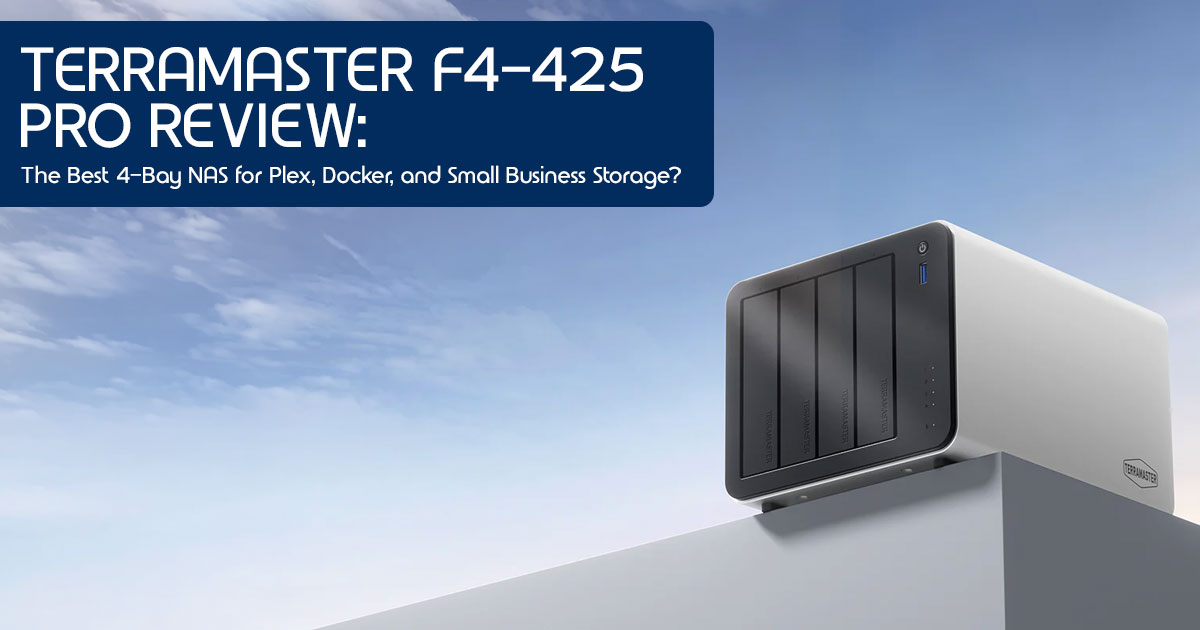
The TerraMaster F4-425 Pro is a high-performance, 4-bay hybrid NAS designed for power users, content creators, and small businesses. It features an 8-core Intel processor (available in N350 or N305 variants), up to 16GB of DDR5 RAM, dual 5GbE network ports, and three
M.2 NVMe slots for SSD caching or fast storage pools. It runs on TerraMaster’s TOS 7 operating system, which introduces improved storage management, security enhancements, and a more refined user experience.
Who Should Buy It?
- Content Creators: Video editors who need fast, direct access to large 4K files over a 5GbE network.
- Homelab Enthusiasts: Users who want to run multiple Docker containers, virtual machines, and self-hosted apps without CPU bottlenecks.
- Small Businesses: Teams needing a robust file server with proactive ransomware protection and flexible storage expansion.
Who Should Not Buy the TerraMaster F4-425 Pro?
- Users who only need cloud storage backup
- Users with a single laptop and no shared storage needs
- Enterprise environments requiring high availability
- Users who prioritize software ecosystem over hardware
Biggest Advantages
- Exceptional Hardware Value: You get an 8-core CPU and dual 5GbE for a price where competitors often offer dual-core CPUs and 1GbE.
- Storage Flexibility: Three 2 NVMe slots allow for dedicated SSD volumes or high-speed caching without sacrificing the four main hard drive bays.
- T-RAID System: Allows you to mix and match hard drive sizes, making future capacity upgrades much more cost-effective.
Biggest Drawbacks
- App Ecosystem: While growing, the third-party app selection in TOS 7 isn’t as vast as QNAP’s or Synology’s.
- Underutilized HDMI Port: The included HDMI port lacks robust first-party software support for direct media playback or local administration.
Bottom-Line Verdict
The TerraMaster F4-425 Pro delivers outstanding hardware for the money. If you need serious processing power for virtualization or fast networking for video editing, it outpaces similarly priced rivals. While Synology and QNAP still offer larger app ecosystems, TOS 7 has improved significantly. For users who care more about hardware performance, storage flexibility, and value for money, the F4-425 Pro is a compelling alternative.
Technical Specifications at a Glance
| Feature | Specification |
| Processor | Intel Core 3 N350 (8-core, 8-thread) or Intel Core i3-N305 |
| Memory | 16GB DDR5 (Core 3 N350 model) or 8GB DDR5 (Core i3-N305 model) |
| Drive Bays | 4 × 3.5-inch / 2.5-inch SATA HDD/SSD |
| M.2 Slots | 3 × M.2 2280 NVMe PCIe 3.0 slots for SSD cache or high-speed storage |
| Networking | 2 × 5GbE RJ45 Ethernet ports |
| USB Ports | 2 × USB 3.2 Gen 2 (10Gbps) Type-A and 1 × USB 3.2 Gen 2 Type-C |
| Operating System | TOS 7 (Linux-based NAS operating system) |
1. Understanding the F4-425 Pro
1.1 What Makes This NAS Different From Typical 4-Bay NAS Systems?
When you look at the standard 4-bay NAS market, you usually see a predictable formula: a low-power Celeron processor, 2GB to 4GB of RAM, and standard Gigabit Ethernet ports. The TerraMaster F4-425 Pro completely ignores that formula. It is built to eliminate the bottlenecks that frustrate power users.
1.2 Hybrid HDD + NVMe Architecture
Many NAS systems are described as “hybrid,” but the F4-425 Pro makes full use of both traditional hard drives and high-speed NVMe storage. Alongside the four standard SATA bays for high-capacity hard drives, it includes three M.2 NVMe slots. Most competitors offer two slots at best, and often restrict them to caching only.
Having three slots means you can create a dedicated, blazing-fast SSD storage pool for your active projects or Docker containers, while still keeping a massive, cheaper hard drive array for long-term archiving.
1.3 8-Core Intel Platform
Processing power is where this unit really shines. Instead of a basic dual-core or quad-core chip, TerraMaster opted for an 8-core Intel processor (either the Core 3 N350 or the i3-N305, depending on the specific configuration). This gives the NAS the necessary headroom to run multiple background tasks—like indexing photos, running backups, and hosting virtual machines—without grinding to a halt when someone tries to stream a movie.
1.4 Dual 5GbE Networking
Gigabit Ethernet (1GbE) maxes out at around 110 MB/s, which is slower than a modern mechanical hard drive. The F4-425 Pro features dual 5GbE ports. If you have a compatible switch or connect directly to your computer, you can achieve speeds up to 500 MB/s per port. This makes transferring massive video files or backing up entire computers feel almost as fast as using an internal drive.
1.5 Aluminum Chassis Design
TerraMaster has moved away from the plasticky feel of older models. The F4-425 Pro features a redesigned extruded aluminum chassis. It looks professional sitting on a desk, but more importantly, the metal casing helps dissipate heat from the drives and the 8-core processor, keeping the system running cool and quiet.
2. Hardware Deep Dive
2.1 CPU Analysis: Intel N305 vs Intel N350
Depending on when and where you buy, you will see the F4-425 Pro equipped with either an Intel Core i3-N305 or the newer Intel Core 3 N350. Both are 8-core, 8-thread processors based on Intel’s efficient architecture.
The N350 is a newer, highly efficient 7W chip that excels at keeping power consumption low while handling multitasking effortlessly. The N305 has a slightly higher power draw but benchmarks a bit higher in raw multi-threaded performance. For most NAS workloads, both processors provide more than enough performance for file sharing, media streaming, backups, virtualization, and self-hosted applications.
2.2 Performance Expectations
2.2.1 Multi-User Workloads
If you have a small team of five to ten people constantly saving files, searching the database, and running backups simultaneously, the 8-core CPU ensures that users are less likely to experience slowdowns during periods of heavy activity. The system remains responsive even under heavy concurrent access.
2.2.2 Media Streaming Performance
For media enthusiasts, the integrated Intel UHD graphics provide a clear advantage when handling hardware-accelerated video transcoding. Hardware-accelerated transcoding helps convert high-resolution video into formats that can be played smoothly on devices with lower bandwidth or limited playback support.
2.2.3 Virtual Machine Performance
Running a full Windows or Linux virtual machine on a typical NAS is usually a frustrating, laggy experience. The 8-core processor and DDR5 memory make the F4-425 Pro suitable for lightweight virtual machines and testing environments.
2.2.4 Container Performance
Docker is where this NAS truly flexes its muscles. You can comfortably run multiple Docker containers such as Home Assistant, Pi-hole, Nextcloud, and media management applications simultaneously.
2.3 RAM and Upgrade Potential
2.3.1 8GB vs 16GB Configurations
The N305 version typically ships with 8GB of DDR5 RAM, while the N350 version comes with 16GB. DDR5 provides significantly more bandwidth than the older DDR4 memory found in most competing NAS units, speeding up everything from app loading times to cache operations.
2.3.2 When More RAM Matters
If you are just storing files and running Plex, 8GB is plenty. However, if you plan to run virtual machines, host a large Nextcloud instance, or use data-heavy Docker containers, you will want the 16GB model. Virtual machines rely heavily on available memory. If RAM runs low, performance can drop quickly, especially when running multiple VMs at the same time.
2.3.3 Recommended Memory Configurations
The F4-425 Pro uses a single SO-DIMM slot. Users should verify maximum supported memory with TerraMaster before upgrading beyond official specifications. We recommend starting with 16GB if you have any plans for a home lab setup.
2.4 Storage Architecture Explained
2.4.1 Four HDD Bays and Three NVMe Slots
The combination of four high-capacity SATA bays and three M.2 NVMe slots provides incredible flexibility. You can populate the main bays with massive 20TB hard drives for bulk storage, and use the NVMe slots for performance-critical tasks.
2.4.2 SSD Cache vs SSD Storage Pool
You have two choices for those NVMe slots. You can set them up as an SSD Cache, where the NAS automatically temporarily stores frequently accessed files on the fast SSDs to speed up the hard drives. Alternatively, you can create a dedicated SSD Storage Pool. For many users, a dedicated SSD storage pool offers more predictable performance for applications, containers, and virtual machines than SSD caching alone.
2.4.3 Best Drive Combinations
A smart setup for a power user would be three high-capacity HDDs in a RAID 5 array for bulk storage, one SATA SSD in the fourth bay for scratch space, and two NVMe drives in a RAID 1 mirror for hosting the operating system apps and Docker containers.
2.5 Capacity Planning Guide
2.5.1 RAID Recommendations by Use Case
- Home Users: T-RAID (TerraMaster RAID) is your best friend. It allows you to mix different drive sizes. If you have an old 8TB drive and buy a new 12TB drive, T-RAID maximizes the usable space while still providing redundancy if one drive fails.
- Content Creators: RAID 5 using identical, high-performance NAS drives (like WD Red Pro or Seagate IronWolf Pro) offers the best balance of speed, capacity, and single-drive failure protection.
- Small Businesses: RAID 6 or RAID RAID 6 allows two drives to fail simultaneously without data loss, which is crucial for business continuity.
- Homelabs: A mix of RAID 1 for the NVMe app drives and T-RAID for the bulk storage array provides the perfect blend of speed for services and flexible capacity for large-scale data storage.
3. Real-World Usage Scenarios
3.1 Scenario 1: Family Backup Server
3.1.1 Photos
Using TerraMaster’s photo management tools in TOS 7, the NAS can automatically back up photos from smartphones and organize large photo libraries more efficiently. The 8-core CPU makes this indexing process incredibly fast compared to older NAS models.
3.1.2 Videos
Home videos take up massive amounts of space. The F4-425 Pro gives you a central, private location to store years of 4K smartphone footage without paying monthly cloud subscription fees.
3.1.3 Mobile Backups
With the TNAS Mobile app, you can set up automatic background backups for your family’s phones. If a phone is lost, damaged, or replaced, important photos and files can still be recovered from the NAS.
3.2 Scenario 2: Plex Media Server
3.2.1 Direct Play
If your TV or streaming box supports the file format you are playing, the NAS simply sends the file over the network. Direct Play places very little load on the processor, making it suitable for multiple simultaneous streams across a home network.
3.2.2 4K Transcoding
This is the ultimate test for a media server. If you are away from home on a slow hotel Wi-Fi connection and want to watch a 4K movie, the NAS has to convert that massive file into a smaller 1080p stream in real-time. The integrated Intel Quick Sync Video engine can significantly improve hardware-accelerated Plex transcoding performance compared with NAS systems that lack integrated graphics.
3.2.3 Multi-User Streaming
The hardware is capable of supporting multiple simultaneous media streams, although actual performance depends on file formats, bitrate, Plex settings, and network conditions.
3.3 Scenario 3: YouTube Video Editing Storage
3.3.1 4K Editing Workflow
Editing 4K video directly off a standard NAS over a Gigabit connection is a miserable, choppy experience. With the F4-425 Pro’s 5GbE networking, you can edit 4K footage directly from the NAS in Premiere Pro or Final Cut Pro, providing a much smoother editing experience than a traditional Gigabit NAS connection.
3.3.2 Shared Project Storage
If you work with an assistant editor or a colorist, you can both connect to the NAS and work from the same project files simultaneously, eliminating the need to pass external hard drives back and forth.
3.3.3 SSD Cache Benefits
For video editing, setting up the NVMe slots as a read/write cache ensures that the specific video clips and audio files you are actively scrubbing through on your timeline are served up instantly, masking the slower seek times of the mechanical hard drives.
3.4 Scenario 4: Small Business File Server
3.4.1 Team Collaboration
The F4-425 Pro acts as a robust central hub for documents, spreadsheets, and design assets. TerraSync allows team members to keep their local folders perfectly synchronized with the NAS, ensuring everyone is always working on the latest version of a file.
3.4.2 Permissions
TOS 7 makes it easy to set up granular user permissions. You can ensure the marketing team only sees marketing folders, while HR and accounting data remains strictly locked down.
3.4.3 Remote Access
Employees working from home can securely access the NAS without needing complex VPN setups, thanks to TerraMaster’s secure remote access tools.
3.4.4 Disaster Recovery
A NAS is not a backup if it’s the only place the data lives. The F4-425 Pro includes robust tools to automatically back up its own data to an offsite cloud provider (like AWS or Backblaze) or to a second NAS, ensuring your business survives a fire or theft.
3.5 Scenario 5: Homelab and Self-Hosting
3.5.1 Docker Containers
The F4-425 Pro is an excellent platform for self-hosting. The 8-core processor provides enough headroom to run several services and containers simultaneously without affecting everyday responsiveness.
3.5.2 Home Assistant
Ditch the slow Raspberry Pi and run your smart home automation directly on the NAS. The NVMe storage ensures instant response times when you turn on a light switch.
3.5.3 Nextcloud
Host your own private alternative to Google Drive. The 8-core CPU ensures the Nextcloud web interface remains snappy, even when syncing thousands of small files.
3.5.4 Git Servers
Developers can host their own private Gitea or GitLab instances for version control, keeping proprietary code completely in-house.
3.5.5 VM Hosting
Need a Windows environment to run a specific legacy accounting app? Spin up a virtual machine. The 16GB RAM option gives you plenty of resources to allocate to VMs without starving the host OS.
4. Network Performance Expectations
4.1 How Fast Is Dual 5GbE Really?
4.1.1 Single User Throughput
A standard 1GbE connection maxes out around 110 MB/s. A single 5GbE connection on the F4-425 Pro can push roughly 500 MB/s to 550 MB/s. That is fast enough to saturate a SATA SSD and is a massive quality-of-life upgrade for moving large files.
4.1.2 Multi-User Throughput
If you have multiple users hitting the NAS hard, the dual 5GbE ports ensure there is enough total bandwidth (up to 10Gbps combined) so that no single user hogs the pipe and slows everyone else down.
4.1.3 Link Aggregation Explained
You can bond the two 5GbE ports together using Link Aggregation. This doesn’t give a single user a 10GbE connection; rather, it creates a wider highway so two different users can both pull 5GbE speeds simultaneously.
4.1.4 Required Networking Hardware
To actually get these speeds, your computer needs a 5GbE or 10GbE network adapter (cheap USB adapters are readily available), and you need a multi-gig network switch. If you plug this NAS into a standard cheap home router, it will fall back to 1GbE speeds.
5. Software Experience
5.1 Exploring TerraMaster TOS 7
Earlier versions of TerraMaster’s software received mixed feedback from users. TOS 7 addresses many of those concerns with a more polished interface and stronger security features.
5.1.1 User Interface
The desktop-style interface is clean, snappy, and intuitive. It feels modern and doesn’t suffer from the lag that plagued older versions of TOS. Finding settings and managing storage pools is straightforward, even for intermediate users.
5.1.2 App Ecosystem
The App Center covers all the essentials: Plex, Docker, backup utilities, and media servers. While it doesn’t have the sheer volume of niche third-party apps found on Synology’s platform, the robust Docker support means you can easily install almost anything you need manually.
5.1.3 Backup Features
TOS 7 includes comprehensive backup tools. You can back up PCs, Macs (via Time Machine), and servers directly to the NAS. More importantly, it includes tools to back up the NAS itself to external drives or cloud storage.
5.1.4 Security Features
Security has been significantly beefed up. TOS 7 includes a proactive defense system that monitors for abnormal file encryption (a hallmark of ransomware) and can automatically lock folders and take emergency snapshots to protect your data.
5.1.5 Snapshot Support
Using the BTRFS file system, the NAS can take instant “snapshots” of your data. If you accidentally delete a crucial folder or get hit by malware, you can roll back the entire shared folder to exactly how it looked an hour ago, instantly.
5.1.6 Cloud Sync
TerraMaster’s CloudSync app allows you to link the NAS to Google Drive, Dropbox, or OneDrive. You can set it up for two-way syncing, ensuring your local files are always mirrored to the cloud, or use the cloud as a one-way backup destination.
6. TerraMaster vs Competitors
| Feature | TerraMaster F4-425 Pro | Synology DS923+ | QNAP TS-464 | Ugreen DXP4800 Plus |
| Processor | Intel 8-Core Processor | AMD Ryzen Dual-Core | Intel Celeron Quad-Core | Intel Processor (varies by model) |
| Integrated Graphics | Yes | No | Yes | Yes |
| Plex Hardware Transcoding | Excellent | Limited | Good | Good |
| Network Connectivity | Dual 5GbE | Dual 1GbE (optional 10GbE upgrade) | Dual 2.5GbE | Dual 2.5GbE |
| Virtualization Performance | Excellent | Moderate | Good | Good |
| Docker & Container Support | Excellent | Excellent | Excellent | Good |
| M.2 NVMe Slots | 3 Slots | 2 Slots | 2 Slots | 2 Slots |
| Software Ecosystem | Good and continuously improving | Industry-leading | Mature and feature-rich | Still developing |
| Ease of Use | Good | Excellent | Good | Moderate |
| Value for Money | Excellent | Moderate | Good | Good |
| Best For | Home labs, Plex servers, content creators, and small businesses. | Businesses prioritizing software reliability and ease of management. | Power users seeking balanced hardware and software features. | Budget-conscious users looking for modern NAS hardware. |
| Biggest Strength | Powerful hardware at a competitive price. | Best-in-class NAS software ecosystem. | Strong feature set with excellent flexibility. | Aggressive pricing combined with modern hardware. |
| Biggest Weakness | Smaller application ecosystem than Synology. | Older hardware and higher price. | Slower networking than the TerraMaster F4-425 Pro. | Software platform is still maturing. |
6.4 Which NAS Delivers the Best Value?
If hardware performance, multi-gig networking, media streaming, and self-hosting are high on your priority list, the TerraMaster F4-425 Pro offers excellent value compared with similarly priced competitors.
If you prioritize the most polished software experience, extensive third-party applications, and beginner-friendly management tools, the Synology DS923+ remains a top choice despite its aging hardware.
The QNAP TS-464 sits comfortably in the middle, balancing hardware performance with a mature software ecosystem, while the Ugreen DXP4800 Plus appeals to buyers seeking modern hardware at an attractive price but who are willing to accept a newer, less mature software platform.
7. Common Mistakes New NAS Owners Make
7.1 Choosing the Wrong RAID
Setting up RAID 0 for maximum speed is a recipe for disaster; if one drive dies, you lose everything. Stick to T-RAID or RAID 5 for a balance of capacity and safety.
7.2 Buying Slow Drives
Using “Shingled Magnetic Recording” (SMR) drives in a NAS will cause massive performance issues during RAID rebuilds. Always ensure you are buying “Conventional Magnetic Recording” (CMR) drives specifically labeled for NAS use.
7.3 Skipping Backups
RAID is not a backup. RAID keeps your server running if a drive dies. It does not protect you if the house burns down, if you accidentally delete a folder, or if ransomware encrypts the NAS. Always back up your NAS to an external drive or the cloud.
7.4 Ignoring Power Protection
As mentioned, skipping a UPS is the easiest way to destroy your data during a thunderstorm.
7.5 Overestimating SSD Cache Benefits
SSD caching is great for databases and small, frequently accessed files. It will not magically make transferring massive, sequential video files faster if your network is the bottleneck.
Often, a dedicated SSD storage pool is a better use of NVMe drives than a cache.
8. Security Best Practices
8.1 Ransomware Protection
Enable TerraMaster’s proactive defense features in TOS 7. Ensure your NAS is not exposed directly to the open internet via port forwarding unless absolutely necessary.
8.2 Snapshot Scheduling
Set up automated BTRFS snapshots to run daily. This is your time machine to undo accidental deletions or malware infections.
8.3 Multi-Factor Authentication
Enable 2FA for all admin accounts. If someone guesses your password, they still can’t get in without the code from your phone.
8.4 Remote Access Hardening
Instead of opening ports on your router, use TerraMaster’s secure remote access relay, or better yet, set up a Tailscale or WireGuard VPN container for secure, encrypted access to your home network.
9. Frequently Asked Questions
Is the TerraMaster F4-425 Pro Worth Buying in 2026?
For users who prioritize hardware performance, 5GbE networking, Docker support, Plex media streaming, and storage flexibility, the TerraMaster F4-425 Pro offers excellent value in 2026. Buyers who place the highest priority on software ecosystem maturity may still prefer Synology, but TerraMaster provides significantly stronger hardware for the price.
Is the TerraMaster F4-425 Pro Good for Plex?
Yes, it is exceptional for Plex. The Intel processor includes Quick Sync Video, allowing it to effortlessly handle multiple 4K hardware transcodes simultaneously, ensuring smooth playback on any device.
Can It Replace Google Drive?
Absolutely. Using the TerraSync and Nextcloud applications, you can create your own private cloud storage with no monthly subscription fees, keeping your data entirely under your control.
Is Dual 5GbE Worth It?
If you edit video directly from the NAS or frequently move massive files, 5GbE can make a noticeable difference, offering speeds of up to 500 MB/s for large file transfers and creative workloads. If you only use the NAS for basic backups and streaming movies, standard Gigabit is fine, but the 5GbE provides excellent future-proofing.
How Much Storage Can It Support?
It supports four SATA drives (up to 24TB+ each) and three M.2 NVMe SSDs, allowing for well over 100TB of total raw storage capacity depending on your drive choices.
Is It Better Than Synology?
It offers significantly better hardware performance (CPU and networking) for the price compared to Synology. However, Synology still holds an edge in software ecosystem maturity and absolute beginner-friendliness.
Can It Run Docker Containers?
Yes. The 8-core processor and up to 16GB of RAM make the F4-425 Pro well suited for running multiple Docker containers and self-hosted services at the same time.
Can It Run Virtual Machines?
Yes. With the 16GB RAM configuration, you can comfortably host Windows or Linux virtual machines using TerraMaster’s virtualization tools.
Is It Suitable for Video Editors?
Yes. The combination of dual 5GbE networking and the ability to create a fast NVMe SSD storage pool makes it ideal for editing 4K video directly over the network.
9.1 How We Evaluated the TerraMaster F4-425 Pro
Our assessment is based on product specifications, software capabilities, storage architecture, networking features, competitor analysis, user feedback, and real-world deployment scenarios. We evaluated the F4-425 Pro from the perspective of home users, content creators, small businesses, Plex users, and homelab enthusiasts.
Rather than focusing only on benchmark numbers, we considered long-term usability, upgrade potential, storage flexibility, security features, and overall value for money. This approach helps readers understand how the NAS is likely to perform in everyday use, not just in controlled testing environments.
10. Final Verdict
Best For
- Home Media Enthusiasts: Unbeatable Plex transcoding performance.
- Content Creators: Fast 5GbE networking for direct video editing.
- Homelab Builders: 8 cores and plenty of RAM for Docker and VMs.
- Small Businesses: Excellent value for a robust, secure file server.
Not Ideal For
- Enterprise Deployments: Lacks the high-availability clustering needed for large corporations.
- Heavy Virtualization: While good for light VMs, enterprise virtualization requires more robust server hardware.
- Users Wanting the Largest App Ecosystem: Synology and QNAP still have more third-party apps available natively.
The TerraMaster F4-425 Pro delivers a strong combination of performance, networking speed, and storage flexibility at a competitive price. For content creators, home lab users, Plex enthusiasts, and small businesses, it offers features that are often reserved for more expensive NAS systems. While Synology and QNAP still hold an advantage in software ecosystem size, TerraMaster has narrowed the gap significantly with TOS 7, making the F4-425 Pro one of the most compelling 4-bay NAS options available today.
Ready to upgrade your storage? Check the latest price for the TerraMaster F4-425 Pro on Amazon Worldwide and Amazon India here.
Have questions about setting up your NAS or choosing the right hard drives? Drop a comment below or reach out for online assistance—we’d love to hear about your home lab or business setup!
***Disclaimer***
This blog post reflects our research, analysis, and opinions based on available product information, user feedback, and industry knowledge. It should not be taken as the official position of any brand, manufacturer, or company mentioned here. While we aim to keep information accurate and up to date, product details, pricing, and availability can change. We recommend double-checking important details before making a purchase.
Some links in this article may be affiliate links. If you choose to buy through these links, we may earn a small commission at no extra cost to you. This helps support our work and allows us to keep publishing in-depth, unbiased reviews. Our recommendations are never influenced by affiliate partnerships.
Comments shared by readers reflect their own views and not ours. We are not responsible for outcomes resulting from the use of information on this site. Please seek professional advice where appropriate.
All product names, logos, and brands mentioned are the property of their respective owners. These names are used for identification and informational purposes only and do not imply endorsement.
