
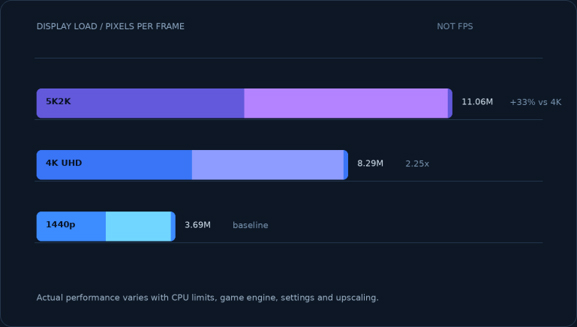
Hero visual: pixel-load comparison, not a benchmark. Actual performance varies with CPU limits, game engine, settings, and upscaling.
AT A GLANCE
The platform behind the display debate
Core product facts from NVIDIA; display recommendations from this comparison.
| PRODUCT
GeForce RTX 5090 Desktop Blackwell GPU |
LAUNCH DATE
30 Jan 2025 |
STARTING PRICE
$1,999 |
| GPU CORE
21,760 CUDA Blackwell architecture |
MEMORY
32GB GDDR7 High-end gaming and creator workloads |
BEST ONE-SCREEN FIT
4K 240Hz The article’s mixed-use recommendation |
| The Short Answer | Pairing an RTX 5090 with 1440p is not automatically wasteful. A 27-inch 1440p OLED at 360Hz or 480Hz suits competitive games; a 32-inch 4K 240Hz OLED is usually the better single-screen choice; a 1440p desk monitor plus a 4K OLED TV can make sense for two different gaming spaces. |
| Important Discovery | Limitation | Unexpected Detail |
| 1440p is not a bottleneck by definition.
At very high frame rates, the CPU or game engine may become the limit before the GPU does. |
5K2K is 33.3% more pixels than 4K.
A 20–25% FPS loss is not universal; publish a percentage only after a controlled test. |
480Hz is not twice as good as 240Hz.
The refresh interval halves, but the benefit depends on the game, frame-time consistency and the player. |
THE QUESTION
Introduction
The argument starts with an expensive graphics card and a seemingly modest display: why spend around $2,000 on an RTX 5090 and then play at 2560×1440? The criticism sounds convincing, but it treats resolution as the only measure that matters. Refresh rate, response time, viewing distance, game genre, text clarity, HDR performance and price all affect the decision.
This article compares five display strategies:
- a 27-inch 1440p 360Hz QD-OLED;
- a 27-inch 1440p 480Hz WOLED;
- a 32-inch 4K 240Hz QD-OLED;
- a 55-inch 4K OLED TV for couch gaming; and
- a 45-inch 5K2K ultrawide with a high-refresh dual
This guide explains when an RTX 5090 may be limited by the CPU or game engine, when 4K is worth the extra rendering load, and what pixel counts can—and cannot—tell you. It is a research-based buying guide, not a hands-on lab review. Specifications come from manufacturer pages, benchmark results are linked where discussed, and prices are snapshots that may change.
Specifications only tell part of the story. This guide also considers everyday usability, the trade-offs between performance and image quality, and whether each setup makes sense for the way people actually play and work.
This guide is for PC gaming enthusiasts, RTX 5090 owners, competitive gamers chasing high frame rates, enthusiasts considering a 4K OLED upgrade, and buyers weighing a premium gaming monitor against a large-screen OLED TV or ultrawide display. We assess the trade-offs using manufacturer specifications, published benchmarks, component-level analysis and practical usability considerations.
HARDWARE / DISPLAY MATH
The resolution is only half the question
A screen does not make an RTX 5090 faster. It determines how much work the GPU has to do and how many of the resulting frames the display can show.
| Display Mode | Pixels per Frame | Frame Time at Maximum Refresh Rate |
| 2560 × 1440 at 360Hz | 3.69 million | 2.78ms |
| 2560 × 1440 at 480Hz | 3.69 million | 2.08ms |
| 3840 × 2160 at 240Hz | 8.29 million | 4.17ms |
| 5120 × 2160 at 165Hz | 11.06 million | 6.06ms |
| 2560 × 1080 at 330Hz | 2.76 million | 3.03ms |
A 4K frame contains 2.25 times as many pixels as a 1440p frame. A 5K2K frame contains one-third more pixels than a standard 4K frame. Those are useful workload comparisons, but they are not guaranteed frame-rate ratios. A game can be limited by the CPU, simulation, storage, shader compilation, an in-game cap or the display’s refresh rate before the GPU becomes the limiting component.
NVIDIA lists the desktop RTX 5090 with 21,760 CUDA cores and 32GB of GDDR7 memory. Its announced starting price was $1,999. Those specifications explain why buyers expect it to drive a demanding display, but they do not dictate one resolution. The official RTX 5090 specifications and NVIDIA’s launch announcement are the appropriate references for those figures.
PERFORMANCE
Why 1440p can be a rational RTX 5090 choice
At 1440p, the GPU has less pixel work to complete. That can be wasteful if the monitor is a conventional 144Hz LCD and the game is already rendering well above the refresh ceiling. It can also be exactly what a competitive player wants: more headroom for very high frame rates, lower rendering latency and a smaller screen that keeps the whole game readable at a normal desk distance.
Independent RTX 5090 testing shows why the simple “4K or it is wasted” rule is incomplete. In TechSpot’s 17-game test, the RTX 5090’s average lead over the RTX 4090 was much smaller at 1440p than at 4K, which the review attributes in part to CPU limits arriving sooner at the lower resolution. GamersNexus likewise reports very high 1440p results in some titles and a smaller relative advantage than at 4K in others. The exact number depends on the game, preset, CPU, memory configuration and whether ray tracing or upscaling is enabled. See the TechSpot RTX 5090 review and GamersNexus testing rather than treating a single FPS claim as universal.
That is the practical distinction between a CPU- or game-engine-limited result and a display refresh-rate ceiling:
- If the CPU or game engine cannot deliver more frames, a faster GPU will not improve the average FPS much at that setting.
- If the display is limited to 144Hz, it cannot present more than 144 distinct refreshes per second. Rendering additional frames may still affect latency and frame delivery, but those frames cannot all appear as separate full-screen refreshes.
- If the display runs at 360Hz or 480Hz, the same high-FPS system has a larger refresh window to The gain is most relevant to players who can notice and exploit small changes in motion clarity and latency.
A Ryzen 7 9800X3D can deliver very high frame rates in Counter-Strike 2 or Valorant, but results depend on the map, game patch, settings, background tasks, memory tuning and frame-time behavior. A 1440p 360Hz or 480Hz monitor can suit this workload; no specific FPS figure should be treated as guaranteed without testing the same configuration
PERFORMANCE / IMAGE QUALITY
Why 4K still matters
4K is not just a way to use more GPU power. At 32 inches, 3840×2160 works out to roughly 140 pixels per inch, compared with about 111 pixels per inch on a 26.5-inch 1440p monitor. Small text, interface elements and fine geometry can look cleaner at the higher density. That difference matters if the same display will be used for code, documents or spreadsheets.
The RTX 5090 also has more room to show its advantage in GPU-heavy games at 4K. Full ray tracing and path tracing can still be demanding at that resolution, so a 4K owner may use DLSS Super Resolution or Frame Generation. That is not a failure of the card; it is a choice between native rendering, image reconstruction, visual settings and frame rate. It is also important to distinguish a rendered frame from a generated frame when discussing latency.
For an example of the range involved, published reviews disagree on exact FPS because they use different presets and test paths. Some tests show the RTX 5090 comfortably above 60 FPS in demanding 4K rasterized or ray-traced workloads; path-traced Cyberpunk 2077 with upscaling and frame generation is a different workload from native 4K without those features. The honest conclusion is that there is no single “RTX 5090 at 4K” number.
SOFTWARE
DLSS and DLDSR are not the same thing
DLSS Super Resolution renders internally at a lower resolution and reconstructs an image for a higher-resolution output. DLDSR does the reverse: it renders above the monitor’s native resolution and then downsamples the result. NVIDIA says DLDSR uses Tensor Cores and that its 2.25× mode can provide image quality comparable to traditional 4× DSR with a lower internal resolution; its DLDSR explanation is the source for that claim.
On a 2560×1440 monitor, a 2.25× pixel factor corresponds to a 3840×2160 input before downsampling. That can make a single-player game look cleaner, but it is not the same as owning a native 4K panel. It also costs performance. A useful setup is to leave competitive games at native 1440p and enable DLDSR only for games where extra anti-aliasing and image stability are worth the frame-rate reduction.
COMPARISON
The five display options
| Model or Setup | Verified Headline Specifications | Best Fit | Important Limitation |
| MSI MPG 271QRX QD-OLED | 26.5-inch 2560 × 1440 QD-OLED, 360Hz, manufacturer-rated 0.03ms GtG, VESA ClearMR 13000, USB-C with up to 90W Power Delivery, KVM, DisplayPort 1.4a and HDMI 2.1 | Competitive FPS and laptop connectivity | About 111 PPI; QD-OLED black levels can look raised in strong ambient light, depending on the coating and room. |
| ASUS ROG Swift OLED PG27AQDP | 26.5-inch 2560 × 1440 WOLED, 480Hz, manufacturer-rated 0.03ms GtG, DisplayPort 1.4 DSC, HDMI 2.1, OLED Care+ | Players who can use 480Hz and want a compact esports screen | No USB-C laptop-charging connection; the price premium is hard to justify if 360Hz already meets the use case. |
| ASUS ROG Swift OLED PG32UCDM | 31.5-inch 3840 × 2160 QD-OLED, 240Hz, manufacturer-rated 0.03ms GtG, KVM, USB-C Power Delivery up to 90W (90W mode enabled in the OSD; 65W default), HDR10 and Dolby Vision, DisplayPort 1.4 DSC | One-screen gaming and productivity | More demanding at 4K; 32 inches may feel large for players who prefer a small competitive field of view. |
| LG OLED evo G3 55-inch | 55-inch 3840 × 2160 OLED TV, native 120Hz, four HDMI inputs supporting 4K 120Hz, VRR and G-SYNC compatibility in the India listing | Couch gaming and cinematic single-player games | It is a TV, not a desk monitor; viewing distance, room layout, TV processing and warranty terms differ. |
| LG UltraGear 45GX950A-B | 44.5-inch 5120 × 2160 OLED, 165Hz at 5K2K or 330Hz at 2560 × 1080, 800R curve, DisplayPort 2.1 | Flight and racing simulators, ultrawide RPGs and immersive desk setups | The 330Hz mode is 1080p, and the 800R curve is not for everyone; GPU load is higher than 4K at the full resolution. |
The 0.03ms figures above are manufacturer response-time claims. They describe a pixel transition under the stated test method, not total system-to-photon latency. Input devices, the game engine, the GPU queue, VRR behavior and the monitor’s processing still matter.
DECISION POINT
1440p 480Hz versus 4K 240Hz
This is the most useful head-to-head comparison in the article because both displays are premium OLED products, but they solve different problems.
Choose 1440p 480Hz when:
- competitive shooters account for most of your play time;
- you sit close enough that a 27-inch screen keeps the whole interface easy to scan;
- your CPU and game settings can produce high, consistent frame rates; and
- you accept lower desktop pixel density and the lack of USB-C Power Delivery on the Choose 4K 240Hz when:
- the monitor will also be used for text-heavy work;
- cinematic games, ray tracing and image quality matter at least as much as esports;
- you have room for a 32-inch screen; and
- you want one display with KVM and USB-C
480Hz is not twice as good as 240Hz. The refresh interval falls from about 4.17ms to 2.08ms, but the practical benefit depends on the game, the frame-time consistency and the player. A 360Hz monitor can be the better value if it costs materially less and the difference can fund a better CPU, a larger SSD or a second display.
SETUP DESIGN
The case for a 1440p monitor plus a 4K OLED TV
A two-screen setup is not automatically better. Its main advantage is that it lets you choose different displays for competitive gaming at a desk and 4K OLED TV gaming from the couch.
At the desk, a 27-inch 1440p OLED keeps a competitive game within a comfortable central viewing area. Across the room, a 55-inch LG G3 can provide a larger 4K HDR presentation for a controller-based game. LG lists the G3 with Brightness Booster Max, 4K 120Hz input support, VRR and G-SYNC compatibility. Its large panel and TV-oriented processing can produce a different HDR experience from a small desktop monitor, but it is not accurate to say that it will always be brighter in every scene or picture mode without a controlled measurement.
The hybrid approach makes sense if the TV is already part of the room and the buyer plays both genres. It is a poor value if the second display will rarely be used. It also adds cost, wall or stand space, cable management and Windows display-profile housekeeping. OLED care remains relevant on both screens: automatic protection features reduce risk, but they do not make static desktop content risk-free.
PERFORMANCE / ULTRAWIDE
What 5K2K costs the RTX 5090
The arithmetic is straightforward:
- 3840×2160 = 8,294,400 pixels;
- 5120×2160 = 11,059,200 pixels; and
- 11,059,200 is 3% more than 8,294,400.
If a game is completely GPU-limited by pixel shading, the extra work can reduce the frame rate by up to roughly 25% relative to 4K. That is a theoretical ceiling, not a universal benchmark result. A CPU-limited game may show a smaller difference; a game with heavier geometry, ray tracing or memory pressure may behave differently.
The LG 45GX950A-B adds an important option: its high-refresh dual mode switches to 2560×1080 at up to 330Hz. That is useful for a competitive game, but it is not 5K2K at 330Hz. The full-resolution mode is 5120×2160 at up to 165Hz. Because pixel count alone cannot predict performance, compare the same game, preset, driver and upscaling mode at both resolutions before assigning a percentage to the frame-rate difference.
DESIGN / OLED CARE
Text, room lighting and OLED care
Pixel density is easy to calculate, but text clarity is also affected by the panel’s sub-pixel layout, operating-system scaling and viewing distance. The MSI, ASUS and LG pages describe improvements to text or color-fringe behavior on their newer panels. That does not guarantee identical text rendering for every user. Anyone who reads small text for eight hours should view the display in person or buy from a retailer with a practical return policy.
Room lighting is another reason not to reduce QD-OLED and WOLED to a simple winner. Coating, ambient light and the specific panel generation all matter. A glossy or anti-reflective QD-OLED can look exceptionally saturated in a controlled room, while bright ambient light can lift perceived blacks on some QD-OLED screens. A matte WOLED may be easier in a bright room, but its image and HDR behavior still depend on the model. Treat the room as part of the purchase decision.
For burn-in protection, use pixel cleaning and panel-care features as directed, vary static content and avoid leaving a bright fixed desktop on screen for long periods. MSI advertises three-year OLED burn-in coverage for the MPG 271QRX. ASUS advertises three-year coverage including panel burn-in for the PG27AQDP and PG32UCDM on the relevant product pages. Warranty coverage varies by region and sales channel: LG’s US support page lists a two-year limited warranty for the 45GX950A-B, while LG India’s support listing for the 45GX950A-B.AEU lists three-year parts and labour coverage. Confirm the exact regional model and written warranty terms with the seller before buying.
HARDWARE / PORTS
Connectivity and setup details that matter
The MSI and ASUS 1440p/4K monitors use DisplayPort 1.4 with Display Stream Compression for their highest PC refresh modes. DSC is a normal part of the design for these bandwidth combinations; it is not a reason by itself to reject the monitor. HDMI 2.1 is useful for consoles and for the LG TV’s 4K 120Hz mode.
The LG 45GX950A-B is the outlier here because its product page highlights DisplayPort 2.1. NVIDIA notes on LG’s page that RTX 50-series users should keep display drivers current when using DisplayPort 2.1, and that actual refresh rates depend on the graphics card and configuration. For any purchase, check the exact regional port list rather than assuming that similarly named revisions have identical connectivity.
PRICING & AVAILABILITY
Price and value: use a threshold, not an old price table
Prices, promotions, taxes, import costs, warranty support and stock can change quickly, especially for flagship OLED models. Prices and availability can change frequently. Check the retailer listings for the latest prices, stock status, and warranty details before making a purchase. Recheck these details periodically, as offers and product availability may change.
Prices, stock and warranty terms vary by retailer and region. Before buying, check the current listing for the exact model number, confirm that the item is in stock, review the warranty applicable to your country, and compare the final checkout price—including taxes, shipping and import charges—rather than relying on a sale headline.
More importantly, compare like with like:
- If a 27-inch 1440p 360Hz OLED is substantially cheaper than a 32-inch 4K 240Hz OLED, it is the stronger competitive value.
- If the prices are close and you work on the display, the 4K model’s pixel density, KVM and USB-C features make the extra pixels easier to justify.
- A hybrid setup is the most expensive option unless you already own a suitable 4K TV.
- The 45-inch ultrawide is a specialist Its value comes from width and immersion, not from the best FPS-per-rupee result.
BUYING GUIDE
Who should buy which setup?
Buy the MSI MPG 271QRX if competitive play is the priority and the price is right
The MSI is the sensible 1440p option for a player who wants 360Hz, QD-OLED contrast, KVM and USB-C charging. Its limitations are the lower pixel density and the possibility of raised blacks in a bright room. It is the better value than a 480Hz panel when the extra refresh rate is not central to the buyer’s games. Check here on Amazon US | Amazon India.
Buy the ASUS PG27AQDP if 480Hz is the point of the build
The PG27AQDP is for a narrower audience: players who actively compete at very high frame rates and want the fastest refresh option among the supplied 1440p models. It is not a universal upgrade over a good 360Hz OLED. Pay the premium only when the price gap is acceptable and the rest of the system can feed the panel consistently. Check here on Amazon US | Amazon India.
Buy the ASUS PG32UCDM for one screen
For a compact setup with no room for a TV, the PG32UCDM is the most balanced all-rounder in this comparison. Its 4K sharpness helps with work, and its 240Hz ceiling is still extremely high. Its USB-C Power Delivery supports up to 90W when enabled in the on-screen display menu; the default setting is 65W. The KVM features are practical, making it a strong option for demanding games and a desktop workflow. Check here on Amazon US | Amazon India.
Buy the LG G3 plus a 27-inch monitor for two distinct gaming spaces
This is the best answer for a buyer who owns or genuinely wants both a desk and a couch setup. Use the 27-inch screen for competitive games and the TV for large-screen HDR. Do not buy the second display merely to satisfy a forum rule; buy it because you will use the different viewing positions. Check here on Amazon US | Amazon India.
Buy the LG 45GX950A-B for simulation and ultrawide immersion
The 45GX950A-B is a specialist choice for racing, flight simulation and wide-screen games. Its 5K2K mode is sharper than older 3440×1440 ultrawides, while the 330Hz mode is available when performance matters more than resolution. The extreme 800R curve, large footprint and price make it a poor default recommendation for a small desk or text-heavy work. Check here on Amazon US | Amazon India.
VERDICT
Final verdict
A 1440p monitor is not an insult to an RTX 5090. The real mismatch is a display that does not fit the way the owner plays.
A 27-inch 1440p 360Hz or 480Hz OLED is a valid RTX 5090 choice for competitive gaming. A 32-inch 4K 240Hz OLED is the stronger one-screen recommendation for mixed gaming and work. A 1440p monitor beside a 4K OLED TV is the most flexible two-display strategy, but only if the buyer has the space and will use both screens. A 45-inch 5K2K monitor is compelling for simulation and immersion, not because it is an automatic performance upgrade.
The RTX 5090 gives the buyer headroom. The right display decides whether that headroom becomes lower latency, higher image quality, sharper text, better HDR or simply a number in a benchmark overlay. Choose based on the workload, then verify the exact price, stock, warranty and regional model before publishing or buying.
FAQ
Frequently asked questions
Is 1440p a bottleneck for the RTX 5090?
Not by definition. A conventional 1440p 144Hz monitor may leave refresh-rate headroom unused in some games, while a 1440p 360Hz or 480Hz monitor can make that resolution useful for competitive play. At very high FPS, the CPU or game engine may become the limit before the GPU does.
Should I buy 4K 240Hz or 1440p 480Hz?
Buy 4K 240Hz for one-screen gaming, work and sharper text. Buy 1440p 480Hz when competitive FPS is the main use and the system can sustain very high frame rates. If the 480Hz model costs much more than a 360Hz OLED, the cheaper model may be the better value.
How much FPS do you lose from 4K to 5K2K?
There is no fixed percentage. 5K2K has 33.3% more pixels than 4K, so a completely pixel-bound workload could lose about 25% of its FPS. Real results vary with the game, CPU, ray tracing, upscaling and driver.
Why can a 4K OLED TV look brighter than a desktop OLED monitor?
Large TVs and desktop monitors use different power, thermal, brightness-limiting and picture-processing strategies. The LG G3 also uses Brightness Booster Max. The visual result depends on the window size, picture mode, room and measurement method, so avoid claiming that one category is always brighter without comparable test data.
Does a 0.03ms response-time rating mean 0.03ms input lag?
No. It is a manufacturer pixel-response claim. Total input latency includes the game, CPU, GPU, frame queue, scanout and monitor electronics.
Is OLED burn-in covered by the warranty?
Some listed monitor models advertise three-year coverage including panel burn-in, but terms are regional and channel-specific. MSI and ASUS list such coverage for the models cited above on their relevant pages. The LG 45GX950A-B US listing shows a two-year limited warranty. Check the local warranty document before purchase, and still use the panel-care features.
Which display would you pair with an RTX 5090, and why? Share your choice in the comments, or ask a question about performance, specifications, compatibility or value.
Follow us for practical technology comparisons that look beyond the spec sheet. We compare performance, price, reliability and everyday usability to help you choose products that fit your needs.
Disclaimer

This article is based on our research, analysis, available product information, user feedback, and industry knowledge. It is not an official statement from any brand or manufacturer mentioned in the article. Product specifications, prices, software features, and availability can change. We do our best to keep the information up to date, but please check the latest details with the manufacturer or retailer before making a purchase.

Some links in this article may be affiliate links. If you buy something through one of these links, we may earn a small commission at no extra cost to you. These commissions help support the site and our work. They do not affect how we assess or discuss products. Comments and opinions shared by readers belong to the people who post them and do not necessarily represent our views. Information on this site is provided for general purposes, and we cannot guarantee a particular result from using it. Where professional advice is needed, consult a qualified professional.

All product names, logos, and trademarks belong to their respective owners. We use them only to identify the products and companies discussed and do not imply endorsement or affiliation.
CMS PUBLISHING METADATA — DO NOT INCLUDE IN ARTICLE BODY
Enter the following values in the corresponding CMS SEO fields. Do not paste this metadata block into the published article body.
SEO title: Is 1440p a Waste with an RTX 5090? 1440p vs 4K Gaming Monitors
Meta description: Compare 1440p 360Hz and 480Hz OLED, 4K 240Hz, and 5K2K monitors for the RTX 5090. Find the right display for gaming and work.
Suggested URL slug: rtx-5090-1440p-vs-4k-monitor
Publication checklist: insert and test the intended Amazon US and Amazon India affiliate links in all five product recommendation sections; check current retailer stock and checkout prices; verify the exact regional model number and local warranty terms immediately before publishing
