
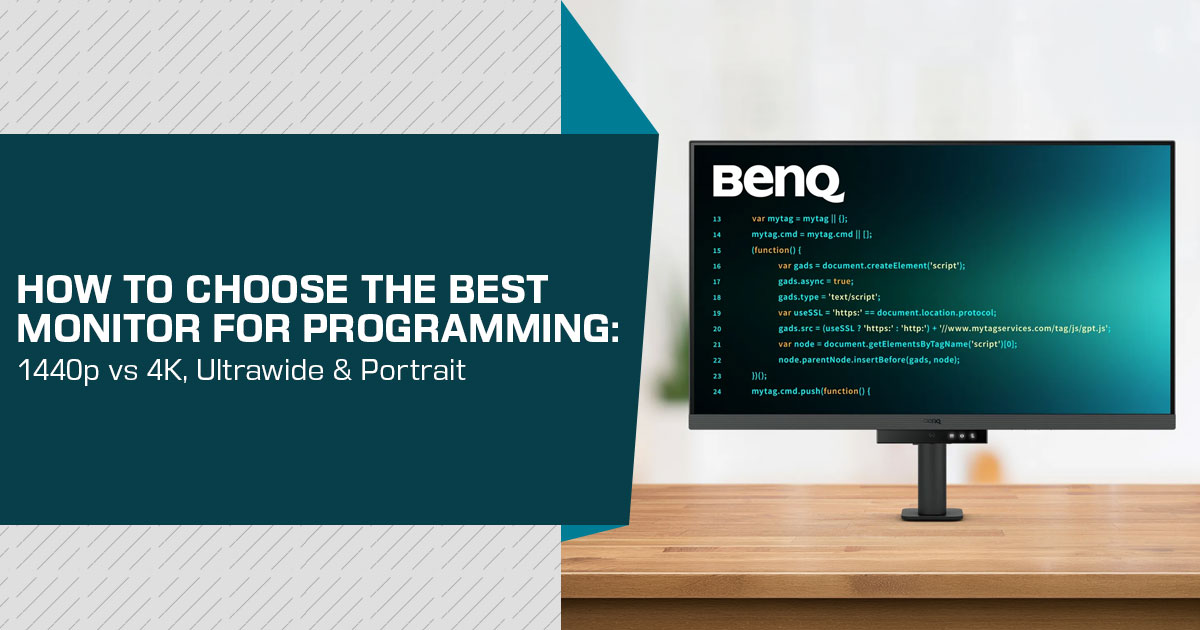
Choosing the best monitor for programming starts with one simple question: Can you read code comfortably for hours? Screen size matters, but so do resolution, text clarity, viewing comfort, connectivity, and stand adjustment. Developers need enough room for code, terminals, documentation, browsers, and development tools without constantly switching between windows.
A 27-inch monitor with 1440p or 4K resolution works well for many programmers. A 32-inch monitor gives you more room for code and multiple windows. A portrait-capable monitor can be useful for long files and documentation, while an ultrawide monitor or dual-monitor setup suits developers who work across several applications at once.
Click here to buy from Amazon
This guide is for software developers, programmers, web developers, IT professionals, coding students, and anyone who spends long hours in front of a screen. We look at the features that affect daily use and explain which type of monitor makes sense for different programming needs.
As technology experts with over 20 years of experience in hardware and application research and development, we assess products based on real-world performance, durability, and value for money. Our goal is to help you find the right product for your needs, whether you care most about budget, performance, reliability, or long-term usage. Our recommendations are based on extensive research, component analysis, real-world usability, and industry expertise.
We also examine the BenQ RD Series and how its features fit common coding workflows. The focus is practical:
what you see on the screen, how much you can fit on it, and how comfortable it is to use every day.
Quick answer: how to choose a monitor for programming
The right choice depends on the workflow rather than the job title. Our general recommendations are:
| Developer Need | Monitor Direction to Consider | Why It May Fit |
|---|---|---|
| Balanced Everyday Coding | 27-inch, 1440p or 4K | Provides a practical amount of workspace for code, terminals, and documentation without requiring an unusually large desk. |
| More Code on One Screen | 32-inch, 4K | Combines a larger physical workspace with high pixel density, making it easier to arrange multiple editor panes and windows. |
| Long Source Files & Documentation | Pivot-capable monitor | Portrait orientation can display more lines of code, documentation, logs, or other vertically structured content at once. |
| Several Applications at Once | Ultrawide or dual-monitor setup | Provides additional horizontal workspace for arranging an IDE, browser, terminal, documentation, and communication apps side by side. |
| Laptop-Based Development | USB-C monitor with charging and hub features | A compatible USB-C connection can handle display output, peripherals, and laptop charging through a single cable, reducing desk clutter. |
| Coding in a Dark Room | Adjustable brightness, glare control, and suitable contrast | Better brightness control and reduced glare can make extended coding sessions more comfortable as ambient lighting changes. |
| Compact or Shared Workspace | 24-inch or 27-inch monitor with an adjustable stand | Uses less desk space while retaining ergonomic flexibility for different users, seating positions, and everyday tasks. |
There is no single best coding monitor for every buyer. A developer who mainly edits one file may prefer a different display from someone who runs an editor, terminal, browser, virtual machine, and database console at the same time.
What should a programming monitor do well?
A good programming monitor should make text readable, provide enough workspace for the way code is organized, and remain physically comfortable during a long session. Specifications matter, but only when they solve a real problem.
Text clarity matters more than gaming specifications
Programming involves reading small characters repeatedly. Resolution and pixel density affect how sharp those characters appear. A higher-resolution display can show finer detail, but the result also depends on screen size, operating-system scaling, font choice, viewing distance, and the quality of the panel.
A higher refresh rate can make scrolling feel smoother. It is useful, but it is usually less important for coding than sharp text, a suitable size, a stable stand, and good connectivity. Buyers should not pay a premium for a gaming-focused refresh rate if the rest of the workstation does not benefit from it.
Screen size changes how code is arranged
A 24-inch display can suit a smaller desk or a secondary monitor. A 27-inch screen is often a practical middle ground for a single-display setup. A 32-inch monitor can show more code and wider application layouts, but it needs more desk depth and a suitable viewing distance.
A suitable monitor size for coding is therefore a workspace decision. Measure the desk, consider viewing distance, and decide whether the main goal is more vertical code, more side-by-side windows, or a smaller footprint.
Resolution should be considered with scaling
A 4K monitor for programming can produce crisp text and a generous working area. However, a 4K screen may require operating-system scaling to keep menus and text comfortable. A 1440p display can provide a good balance between clarity, usable workspace, and computer requirements.
The practical question is not simply “Is 4K better?” It is “Will this screen produce comfortable text at the chosen size and scaling level?” A 27-inch 4K monitor and a 32-inch 4K monitor do not create the same viewing experience because pixel density and physical text size differ.
Portrait mode, 16:10, and 3:2 displays for coding
A vertical monitor for coding can be useful when the main task involves long files, documentation, logs, chat, or code review. Portrait orientation increases the amount of vertical content visible at one time and can reduce repeated scrolling.
It is not automatically better. Wide code lines, side-by-side comparisons, and applications with large horizontal panels may work better in landscape orientation. A pivot stand is most useful when the display can be rotated easily and the operating system supports the change without awkward configuration.
Aspect ratio also affects the workspace. A 16:10 or 3:2 display provides more vertical space than a typical 16:9 screen while remaining in landscape orientation. That can be a useful compromise for developers who want additional code height without rotating the monitor.
Ultrawide versus dual monitors for programming
The choice between an ultrawide monitor for programming and a dual-monitor setup depends on desk space, portability, and how windows are managed.
| Setup | Main Advantage | Possible Limitation | Suitable For |
|---|---|---|---|
| One Standard Monitor | Simple, compact, and easy to manage | Provides less workspace for displaying multiple applications simultaneously | Focused coding workflows and smaller desks |
| Dual Monitors | Provides clear separation between code, documentation, testing tools, and other applications | Requires more desk width and introduces additional bezels and cables | Developers who regularly compare information or monitor several windows at once |
| Ultrawide Monitor | Creates a continuous horizontal workspace without a center bezel | Can require substantial desk width and more deliberate window management | Wide project layouts, side-by-side applications, and multitasking |
| Landscape + Portrait Monitors | Combines a wide primary workspace with additional vertical reading space | Requires additional physical space and a stand or monitor arm that supports portrait orientation | Developers who code while reviewing logs, documentation, terminals, or long files |
A dual setup is not automatically more productive. More screens can also create visual distraction. Before buying a second display, identify which windows are currently being hidden or repeatedly switched between. If the answer is only one terminal or documentation window, a larger single monitor may be the simpler solution.
Features that can improve comfort during long coding sessions
Searches for the best monitor for programming and eye strain often focus on a single specification. In practice, comfort depends on several conditions: room lighting, glare, brightness, viewing distance, posture, font size, and break habits.
An anti-glare monitor for coding may reduce reflections from windows or overhead lights. A brightness control can help the screen match the room. Flicker-free operation and low-blue-light modes may matter to some users, although these features should not be described as medical protection.
Ergonomic adjustment is equally practical. Height adjustment, tilt, swivel, pivot, and VESA compatibility can help the display fit the user rather than forcing the user to adapt to a fixed position. A good setup still requires sensible viewing distance and regular breaks.
Click here to buy from Amazon
USB-C, KVM, and connectivity for developers
A USB-C monitor for programming can be useful for laptop users who want display output, charging, and peripheral connectivity through fewer cables. The experience depends on the laptop’s USB-C capabilities, the monitor’s power-delivery level, and the cables used.
A KVM switch allows one keyboard and mouse to control more than one computer through a compatible monitor. This may suit developers who move between a work laptop and a personal desktop. It is less important for someone who uses only one computer.
Daisy chaining can simplify multi-monitor setups, but compatibility varies by computer, operating system, connection standard, and monitor. Mac users should check the specific limitations of their Mac model before buying a display based on daisy-chaining assumptions.
BenQ RD Series: what the manufacturer emphasizes
BenQ’s RD Series is positioned as a set of programming monitors rather than general-purpose displays. The manufacturer emphasizes coding-oriented features intended to improve text visibility and comfort. These features may appeal to developers who want a display designed around long coding sessions instead of gaming or creative work.
Coding Modes and text presentation
BenQ describes its Coding Modes as a way to sharpen code clarity. The page connects these modes with the Nano Matte Panel. The practical value depends on the user’s preferred editor theme, font, room lighting, and sensitivity to reflections. Buyers should treat this as a feature to evaluate rather than assume it will improve every coding environment equally.
Glare and night-time features
BenQ describes Night Hours Protection and MoonHalo as features for work in darker conditions. On supported models, Brightness Intelligence Gen2 (B.I. Gen2) uses ambient-light information to adjust screen brightness, while manual control remains available.
These features address common workstation concerns, but they do not replace good lighting or sensible screen positioning. Users who work beside a bright window may still need to control reflections through desk placement and room lighting.
Pivot support and physical flexibility
BenQ’s current programming-monitor lineup lists pivot support on the RD240Q, RD280UA, RD280UG, RD320U, and RD320UA. The RD240Q supports left-and-right pivot, while the RD280UA, RD280UG, RD320U, and RD320UA support single-sided pivot. The RD280U is listed without pivot support.
This distinction matters for buyers searching for a portrait monitor for programming. Anyone planning a vertical setup should confirm the exact model, pivot direction, stand configuration, and current regional specification before ordering.
Display Pilot 2 software
BenQ lists FloW, Shortcuts, Desktop Partition, Application Mode, Software Dimming, and Circadian Mode within Display Pilot 2. These tools are intended to help users organize windows and change display behavior for different applications.
Software features can be useful for multi-window workflows, but they also introduce an additional setup layer. Buyers should check operating-system compatibility and download availability before relying on a particular software function.
BenQ RD Series versus a general-purpose coding monitor
A monitor designed specifically for programming is not automatically the right purchase. General-purpose business monitors may offer better value, broader availability, or more familiar connectivity. The comparison below focuses on the type of decision rather than claiming a universal winner.
| Buying Priority | Programming-Focused Monitor | General-Purpose Business Monitor |
|---|---|---|
| Coding-Specific Controls | May include dedicated coding modes, software profiles, or developer-oriented display settings. | Typically relies on standard picture modes and conventional display controls. |
| Ergonomic Use | Often emphasizes pivot, height, tilt, and swivel adjustments for long coding sessions and portrait orientation. | Ergonomic adjustment options vary considerably depending on the model and price range. |
| Connectivity | May include productivity features such as USB-C, integrated USB hubs, and KVM switching. | Connectivity can be equally strong, but ports and hub functionality need to be checked model by model. |
| Price Flexibility | Specialized workflow and productivity features may result in a higher price premium. | Usually provides a broader selection of budget and mid-range options. |
| Product Selection | Relatively few monitors are designed specifically around programming and development workflows. | Offers a much wider range of screen sizes, resolutions, panel types, and brands. |
| Best Reason to Choose | Choose one when its specialized workflow, ergonomic, and productivity features closely match your development needs. | Choose one when price, availability, flexibility, or a broader specification mix matters more than coding-specific features. |
The useful question is whether the specialized features will be used. If coding modes, pivot, night-time controls, or display-management software solve a real problem, a programming-focused model may justify closer consideration. If not, a well-adjusted business monitor can be a reasonable alternative.
Pros and limitations of the BenQ programming-monitor approach
| Potential Strengths | Limitations to Check Before Buying |
|---|---|
| Coding-focused display modes designed to improve code readability and viewing comfort. | The practical benefit can vary depending on editor themes, text settings, ambient lighting, and personal preference. |
| Features designed to reduce glare and improve viewing comfort in darker work environments. | Monitor features do not replace appropriate room lighting, ergonomic positioning, and regular screen breaks. |
| Pivot support on specified RD Series models can provide a more practical vertical workspace for coding and documents. | Supported pivot direction and adjustment options vary by model, so individual specifications should be checked before purchase. |
| Display Pilot 2 provides workflow-oriented tools for managing compatible monitor settings. | Software compatibility and model-specific feature support should be confirmed for the operating system and monitor being used. |
| RD Series monitors are specifically positioned toward developers and programming-focused workflows. | Specialized developer-oriented features may offer limited additional value for buyers with general-purpose workloads. |
| Product-specific eye-care and reflection-reduction features may improve comfort during extended desktop use. | Manufacturer eye-care, glare, and reflection claims should be distinguished from independent laboratory testing and real-world measurements. |
Who should consider a programming monitor?
A developer who spends several hours reading source code may benefit from prioritizing text clarity, resolution, glare control, and ergonomic adjustment. A laptop-based developer may place more value on USB-C connectivity and a tidy desk. Someone working with logs, documentation, or long files may prefer portrait mode or a taller aspect ratio.
The best budget monitor for programming does not need every advanced feature. It should provide comfortable text, a suitable size, a stable stand or mounting option, and the connections required by the computer. A premium model is worth considering only when its additional features address a recurring workflow problem.
The BenQ RD Series is worth considering for buyers specifically interested in coding modes, pivot support on selected models, reflection control, dark-room features, and Display Pilot 2. Before purchase, compare the exact model against the preferred resolution, aspect ratio, ports, stand movement, computer compatibility, and desk dimensions.
Click here to buy from Amazon
Buying checklist for a coding monitor
Before ordering, check the following:
- Screen size: Does it fit the desk and viewing distance?
- Resolution: Will text remain comfortable at the chosen scaling level?
- Orientation: Is pivot required for source code or documentation?
- Connections: Does the monitor support the laptop or desktop outputs?
- USB-C: Is charging and data support included, and is the power level sufficient?
- Ergonomics: Can the screen be raised, tilted, rotated, or mounted?
- Lighting: Will the panel and brightness controls suit the room?
- Multi-monitor plan: Is a second display solving a real workflow problem?
- Software: Are any display-management tools compatible with the operating system?
- Price: Are the specialized features worth the difference over a standard business monitor?
Frequently asked questions about monitors for programming
Is 4K worth it for coding?
4K can be worthwhile for programming when sharp text and a large working area are priorities. It may require display scaling, and the computer must be able to drive the resolution comfortably. A good 1440p monitor can remain a practical choice for buyers who want lower cost or simpler system requirements.
Is a 27-inch or 32-inch monitor better for developers?
A 27-inch model generally uses less desk space and can suit a focused workstation. A 32-inch display can show more code and wider application layouts. The better size depends on viewing distance, desk depth, preferred scaling, and whether the display will be used alone.
Is a vertical monitor better for coding?
A vertical monitor for programming can show more lines of code, documentation, or logs. It may be less suitable for wide code lines, large spreadsheets, or applications designed around horizontal panels. A pivot-capable monitor is most useful when the workflow genuinely benefits from additional vertical space.
Do programmers need a 144Hz monitor?
Most coding workflows do not require a high refresh rate. Higher refresh rates can make movement and scrolling feel smoother, but text clarity, ergonomics, resolution, glare control, and connectivity usually deserve priority first.
Is an ultrawide better than two monitors for programming?
An ultrawide provides continuous horizontal space without a centre bezel. Two monitors offer clearer physical separation between tasks and may be easier to reposition. The better option depends on desk width, window management, portability, and tolerance for multiple cables.
How should a buyer choose a monitor for programming on a MacBook?
Look for compatibility with the MacBook’s video output, charging requirements, scaling preferences, and any planned multi-monitor arrangement. USB-C or Thunderbolt connectivity may simplify a laptop setup, but the exact MacBook model should be checked before purchase.
Amazon buying options
Amazon US
BenQ’s programming-monitor page lists the RD240Q, RD280UA, RD320U, and RD320UA as RD Series models with pivot support. Buyers in the United States can check current Amazon US prices and availability using the relevant model search before ordering:
- Check Amazon US for BenQ RD240Q
- Check Amazon US for BenQ RD280UA
- Check Amazon US for BenQ RD320U
- Check Amazon US for BenQ RD320UA
Amazon India
Indian buyers should check the latest Amazon India offers and stock status because model availability, sellers, taxes, and pricing can change:
- Check Amazon India for BenQ RD240Q
- Check Amazon India for BenQ RD280UA
- Check Amazon India for BenQ RD320U
- Check Amazon India for BenQ RD320UA
These are general Amazon search links rather than verified affiliate links. No current price or stock status is stated in this article because those details can change by market and seller. Replace the links with the publication’s approved tracking URLs only after checking the exact model and regional listing, and disclose the affiliate relationship clearly.
Final verdict
The best monitor for programming is the one that makes the developer’s actual workflow easier without adding features that will go unused. For a balanced setup, start by comparing a 27-inch 1440p or 4K display. Consider 32 inches when more code on one screen matters, pivot when vertical content is central to the work, and an ultrawide or dual-monitor setup when several applications must remain visible.
The BenQ RD Series deserves consideration from buyers who specifically want a programming monitor with coding-oriented modes, selected pivot options, reflection and dark-room features, and Display Pilot 2 workflow tools. The final decision should still be based on the exact model’s current specifications, compatibility, price, and the buyer’s desk—not on the product category alone.
Have a monitor you use for programming or a question about choosing one? Share your experience or question in the comments. Follow us for more hardware reviews, buying guides, and practical tech advice, and let us know what you would like us to cover next.
Disclaimer

This blog post reflects our research, analysis, and opinions based on available product information, user feedback, and industry knowledge. It should not be taken as the official position of any brand, manufacturer, or company mentioned here. We make every effort to keep this guide accurate, but product specifications, pricing, and availability may change after publication. We recommend double-checking important details before making a purchase.

Some links in this article may be affiliate links. If you choose to buy through these links, we may earn a small commission at no extra cost to you. This helps support our work and allows us to keep publishing in-depth, unbiased reviews. Affiliate partnerships never influence our recommendations.

Opinions expressed by readers are their own and do not necessarily reflect ours. We are not responsible for outcomes resulting from the use of information on this site. Please seek professional advice where appropriate.

All product names, logos, and brands mentioned are the property of their respective owners. These names are used for identification and informational purposes only and do not imply endorsement.
