
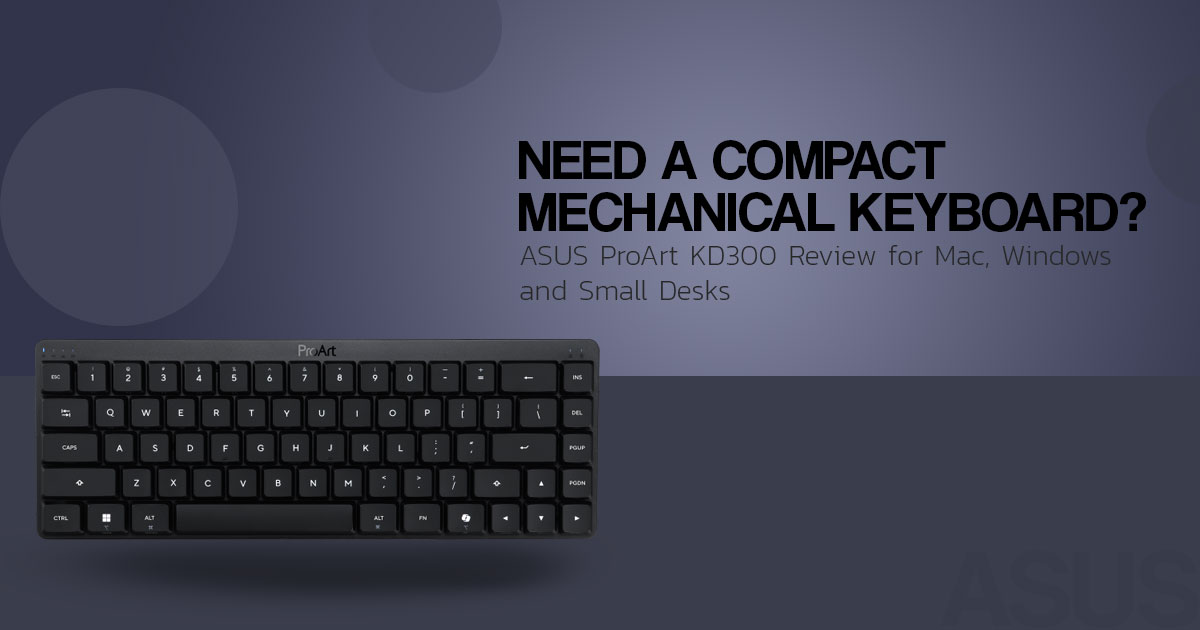
The ASUS ProArt Keyboard KD300 is a compact 65% wireless mechanical keyboard for people who want more desk space without giving up mechanical keys. It combines a slim aluminum body, RX Red Low-Profile optical switches, RGB lighting, three connection modes, a touch panel, and a 4,000 mAh battery. The compact layout also leaves out the dedicated function row and number pad.
That makes the ASUS ProArt Keyboard KD300 worth a closer look for content creators, designers, developers, Mac and Windows users, students, and professionals with limited desk space. If you spend hours typing, editing, coding, or switching between devices, the layout and key selection can affect how comfortable the keyboard feels in daily use.
As technology experts with over 20 years of experience in hardware and application research and development, we look at each product through real-world performance, durability, and value for money. Our goal is to help you find the right product based on budget, performance, reliability, and long-term use. For this review, we focus on build quality, typing experience, connectivity, battery life, layout, comfort, and everyday usability. Our recommendations are based on extensive research, component analysis, real-world usability, and industry expertise.
So, is the ASUS ProArt Keyboard KD300 a good fit for a compact workstation, or will the 65% layout take some getting used to? Let’s take a closer look.
ASUS ProArt Keyboard KD300 at a glance
| Feature | What the product offers | What it means for the buyer |
| Layout | 65%, 68 keys, arrow and navigation keys | Saves desk space, but has no dedicated function row or number pad |
| Switches | ASUS RX Red Low-Profile optical switches | Linear, light, fast-feeling presses; no tactile or clicky switch option is listed |
| Actuation | 1.0 mm; 40–55 gf key feedback | The keys register early and are designed for quick input |
| Connectivity | USB, 2.4 GHz wireless, and Bluetooth | Suitable for a desk PC, laptop, tablet, and travel setup |
| Device support | Up to five paired devices; PC/Mac switch | Useful for people who move between Windows and macOS |
| Controls | Touch panel, media controls, lighting controls, programmable commands | Can reduce the need for shortcut combinations, although the panel takes adjustment |
| Software | Browser-based ASUS Gear Link | Key mapping, macros, profiles, RGB effects, and creator shortcuts without a traditional app install |
| Battery | 4,000 mAh; up to 16 months with RGB off, according to ASUS | Long rated endurance, but actual life depends on brightness, connection mode, and usage |
| Profile and angles | 26.8 mm; approximately 4.5° flat and 8° raised | Low-profile construction with two typing angles |
| Weight | ASUS lists 600.4 g; PCWorld lists 595 g | Compact enough for a small desk, with a weight that differs slightly between sources. |
| U.S. price reference | $164.99 listed by Best Buy when accessed; PCWorld reported $165.00 at review time | The price makes layout and feature preferences important. |
Specifications are compiled from ASUS, PCWorld, and the Best Buy retailer listing. Where the sources differ, the difference is noted. Battery figures are manufacturer ratings, not guaranteed everyday results.
Compact creator setup: The ASUS ProArt Keyboard KD300 65% wireless mechanical keyboard keeps the arrow keys while reducing the width of the board. That can leave more room for a mouse, tablet, camera, or other desk equipment.
What does a 65% keyboard remove?
A 65% keyboard is smaller than a tenkeyless or full-size model. The ASUS ProArt Keyboard KD300 keeps the main typing area, arrow keys, and a small navigation section. It does not include a dedicated function row or number pad. Functions such as F1 through F12, media controls, brightness, and some navigation commands are accessed through Fn combinations.
That arrangement works well for people who rarely use those keys. It can be less convenient for spreadsheet work, software development, video-editing shortcuts, or games that rely on a dedicated function row. The front edges of the keycaps show several secondary functions, but those labels are less immediate than dedicated keys.
The layout is not simply a smaller version of a full-size keyboard. It changes how some commands are reached. Before buying, users should separate their most frequently used shortcuts into two groups:
- Commands that must be available with one press.
- Commands that are acceptable as Fn combinations.
If the first group includes many function-row or navigation keys, a 75%, tenkeyless, or full-size keyboard may be a better fit.
Arrow keys in a small footprint: Unlike many smaller boards, the ProArt Keyboard KD300 retains arrow and navigation keys. It still saves space, but it does not reduce the layout to only the central typing block.
RX Red Low-Profile switches and typing behavior
The board uses ASUS RX Red Low-Profile optical switches. They are linear switches, so the key press has no separate tactile bump or click. ASUS lists a 1.0 mm actuation point and a 40–55 gf force range. The switches are designed for an early, smooth key press.
For office typing, the main benefit is a light, quick key action compared with a clicky mechanical keyboard. PCWorld described the board as responsive and noted some sound during key release without finding it excessively loud. The supplied video also presents the Red switches as quiet.
The limitation is the fixed switch choice. Buyers who prefer tactile switches, heavier springs, or clicky feedback should not expect the same choice found on a hot-swappable keyboard. The available product information identifies this model with Red switches rather than multiple switch variants.
ASUS also uses two layers of silicone dampening foam to reduce echoes and pinging inside the case. That can help in a shared office, although the keyboard is not silent.
Early, linear optical input: The design combines a 1.0 mm actuation point with a linear switch. That suits users who prefer a light, direct key press over a pronounced tactile bump.
Build quality, profile, and portability
The ASUS ProArt Keyboard KD300 has a 26.8 mm slim body and an aluminum top cover. ASUS lists two typing angles: approximately 4.5 degrees in the flat setup and 8 degrees with the feet raised.
The compact chassis is useful on a crowded desk, but the low profile does not remove the need to learn the layout. PCWorld describes the construction as sturdy and notes that the compact format can feel cramped during use.
The matte-black finish gives the keyboard a clean look, but the supplied video notes that it can show finger oils. That is a maintenance issue rather than a performance problem. Buyers who prefer a finish that hides marks should keep this in mind.
The weight is listed differently by the sources we checked. ASUS lists 600.4 g, while PCWorld lists 595 g. The keyboard measures 30.56 × 10.9 × 2.68 cm according to both ASUS and PCWorld. Either way, it is compact enough for a desk setup and easy enough to move when needed.
Touch panel and ASUS Gear Link software
The touch panel is one of the features that separates the ProArt Keyboard KD300 from a conventional wireless mechanical keyboard. It can control volume, media playback, lighting, scrolling, and other assigned commands through the multifunction control.
The panel can be useful for a creator who wants quick access to volume or media controls while working. It may be less useful if you already handle those actions with a mouse, keyboard shortcuts, or another controller. ZDNET found the panel responsive but noted that scrolling gestures were not always precise.
ASUS Gear Link runs in a web browser. It supports profiles, key remapping, macro recording, lighting configuration, and other controls. ASUS also lists Adobe-related shortcut presets for creative workflows.
This does not mean the keyboard will improve work in Photoshop, Premiere, or another application on its own. The benefit comes from setting up commands that match your workflow, and that setup takes some time.
Built-in control surface: The keyboard with touch panel offers a physical area for volume, media, lighting, and custom commands. It is more specialized than the controls on a standard office keyboard.
Tri-mode connectivity for Mac, PC, and mobile devices
The ProArt Keyboard KD300 supports tri-mode connectivity through USB, 2.4 GHz wireless, and Bluetooth. ASUS says it can pair with up to five devices, although only one device is connected at a time. A physical PC/Mac switch changes the expected operating-system layout, and the wireless receiver has a magnetic storage slot on the keyboard.
This makes the board useful as a Mac and PC mechanical keyboard for people who move between more than one computer. PCWorld also tested switching between a Windows laptop and a MacBook and found the physical switch useful.
The modes have different purposes:
- USB: Best for charging and a direct wired
- 4 GHz wireless: A practical choice for a desktop or gaming setup that needs a receiver connection.
- Bluetooth: Convenient for laptops, tablets, and device switching without using a USB receiver.
The ability to pair multiple devices is more useful for people who move between several systems than for someone who uses one desktop. If you only use one computer, five-device support may not add much value.
Five-device flexibility: The ProArt Keyboard KD300 can serve as a multi-device keyboard for a Windows desktop, MacBook, tablet, and other compatible devices without requiring a separate keyboard for each setup.
Battery life and RGB lighting
The keyboard has a 4,000 mAh rechargeable battery. ASUS rates it for up to 16 months in 2.4 GHz mode with RGB lighting off, and up to 100 days with full-brightness RGB in 2.4 GHz mode. ASUS also lists different figures for Bluetooth, so battery life depends on the connection mode and lighting.
These figures describe different usage conditions. RGB lighting uses more power, and runtime also changes with connection mode and daily typing. PCWorld recorded a 5% drop during a week of intermittent use, but that short test cannot verify ASUS’s longer battery-life ratings.
The practical takeaway is simple: the 4,000 mAh battery should reduce charging frequency, especially for users who keep RGB lighting off or at low brightness. If you want the longest battery life, lighting settings matter.
Long rated endurance: ASUS quotes 16-month battery life with RGB disabled and up to 100 days at full-brightness RGB. The figures are useful for comparing the product, but they should not be treated as a promise for every setup.
ASUS ProArt Keyboard KD300 vs Logitech MX Keys Mini vs ROG Falchion RX Low Profile Gaming Keyboard
The most relevant comparisons are not limited to other mechanical keyboards. They are keyboards that occupy similar desk space or serve a similar Mac/PC workflow.
| Keyboard | Main difference | Better fit for | Main trade-off compared with the ASUS ProArt Keyboard KD300 |
| ASUS ProArt Keyboard KD300 | 65% mechanical layout, RX Red Low-Profile switches, RGB, touch panel, tri-mode connectivity | Users who want compact mechanical input and creator controls | Higher price; compact layout and fixed Red-switch configuration |
| Logitech MX Keys Mini | Minimalist wireless illuminated keyboard with smart illumination and programmable keys | Users who want a compact productivity keyboard with a different control system | Uses a non-mechanical minimalist design and a different control system |
| ROG Falchion RX Low Profile Gaming Keyboard | ASUS ROG low-profile gaming keyboard with ROG RX Low-Profile switches, RGB, and USB/2.4 GHz/Bluetooth connectivity | Users who want a gaming-focused low-profile keyboard | Gaming-focused software and feature set; different control priorities |
Notebookcheck describes the ProArt Keyboard KD300 as a premium alternative to compact products such as the Logitech MX Keys Mini. Logitech positions the MX Keys Mini as a minimalist wireless keyboard for creators. The ROG comparison is based on ASUS’s official specifications for the ROG Falchion RX Low Profile.
The differences are clear. The MX Keys Mini is a compact productivity keyboard with a non-mechanical design and a different control system. The ROG Falchion RX Low Profile is a gaming-focused 65% mechanical keyboard with ROG RX Low-Profile switches, RGB lighting, tri-mode connectivity, and a touch panel. The ProArt KD300 adds its own combination of creator controls, Gear Link customization, PC/Mac switching, and aluminum construction.
ASUS ProArt Keyboard KD300 pros and cons
Pros
- Compact 65% wireless keyboard design with arrow keys.
- Smooth RX Red Low-Profile optical switches.
- USB, 2.4 GHz, and Bluetooth connection modes.
- Up to five paired devices and a PC/Mac switch.
- Browser-based ASUS Gear Link customization.
- Touch panel for media, volume, lighting, and custom commands.
- Aluminum top cover and two typing angles.
- Strong rated battery endurance.
Cons
- No dedicated function row or number pad.
- The layout may feel cramped for full-size keyboard users.
- The listed configuration does not offer tactile or clicky switch options.
- The touch panel may not suit every workflow.
- Matte-black surfaces can show fingerprints.
- The U.S. price reference is high if the extra controls are not needed.
Who should buy the ASUS ProArt Keyboard KD300?
The ASUS ProArt Keyboard KD300 is a reasonable choice for:
- Creators and professionals who want configurable shortcuts and a compact mechanical keyboard.
- Users who work with both Mac and Windows computers.
- People with limited desk space.
- Buyers who prefer linear low-profile switches.
- Users who want mechanical keys, RGB, and wireless connectivity in one board.
- Anyone comfortable accessing F-key and navigation functions through Fn combinations.
It is less suitable for:
- Spreadsheet-heavy work that benefits from a number pad.
- Users who frequently press F1–F12 directly.
- People who want tactile or clicky switches.
- Buyers who need a full-size layout.
- Anyone mainly seeking a lower-cost compact mechanical keyboard.
Price, availability, and affiliate buying options
Best Buy listed the U.S. model at $164.99 when checked, while PCWorld reported $165 at review time. ASUS’s U.S. specification page also lists $164.99. Prices and availability can change, so treat these figures as a reference rather than a permanent price. Before purchasing, check the current listing, keyboard layout, return policy, warranty terms, and whether the correct regional model is being sold.
Buying reminder: The ASUS ProArt Keyboard KD300 makes the most sense when its tri-mode connectivity, touch panel, and compact mechanical layout solve a real desk or workflow problem. If those features will remain unused, a simpler keyboard may provide better value.
ASUS ProArt Keyboard KD300 on Amazon US
Check the current ASUS ProArt Keyboard KD300 price and offers on Amazon US
The Amazon US listing is worth checking for current price, delivery, stock, warranty information, and return terms. The product link is provided for buyer convenience; confirm the exact layout and seller before ordering.
ASUS ProArt Keyboard KD300 on Amazon India
Search current ASUS ProArt Keyboard KD300 listings on Amazon India
Amazon India availability, import status, regional layout, taxes, and warranty coverage may differ from the U.S. listing. Check those details before purchase rather than assuming that the U.S. model and local listing are identical.
Final verdict: solid keyboard, specific audience
The ASUS ProArt Keyboard KD300 is not a replacement for a full-size keyboard for every user. It is a premium 65% low-profile mechanical keyboard for buyers who are comfortable with the compact layout and want its extra controls and connectivity.
Its main strengths are the Mac and PC support, five-device pairing, aluminum construction, smooth Red optical switches, browser-based customization, and touch panel. The main trade-offs are the lack of a dedicated function row and number pad, the fixed Red-switch option, the touch panel’s usefulness depending on the workflow, and the price.
The buying decision comes down to how you work. If compactness and the extra controls fit your setup, the KD300 has a strong feature set. If direct access to more keys matters more than desk space, a larger keyboard may suit you better.
Frequently asked questions
Does the ASUS ProArt Keyboard KD300 work with Mac?
Yes. It supports Mac and Windows use and includes a physical PC/Mac switch. It can connect through USB, 2.4 GHz wireless, or Bluetooth.
How many devices can the ASUS ProArt Keyboard KD300 pair with?
ASUS states that the keyboard can pair with up to five devices, although only one device is connected at a time.
Does the ProArt Keyboard KD300 have a number pad?
No. Its 65% layout does not include a numeric keypad or dedicated function row.
Is the ASUS ProArt Keyboard KD300 a quiet keyboard?
It is designed to be quieter than a clicky mechanical keyboard. The linear RX Red Low-Profile switches and silicone dampening reduce sharp clicks and internal echo, but the board is not silent.
Does the keyboard support RGB lighting?
Yes. It includes per-key RGB lighting and configurable effects through ASUS Gear Link.
Is the ASUS ProArt Keyboard KD300 good for gaming?
The ASUS ProArt Keyboard KD300 can support gaming through wired or 2.4 GHz wireless modes, and its linear optical switches are designed for quick actuation. The 65% layout and light Red-switch feel may not suit every player, so consider your preferred layout and switch feel alongside the keyboard’s productivity features.
Have you used the ASUS ProArt Keyboard KD300, or are you thinking about buying one? Share your experience or questions in the comments. If you are unsure about the layout, typing feel, connectivity, battery life, or whether it fits your work, ask us—we’ll help you look at the details that matter before you spend your money.
Follow us if you want tech reviews that help you make a better buying decision, not just tell you what a product has. We look at real-world usability, build quality, performance, reliability, and long-term value so you can understand what you are actually getting for your money. We also cover new products, comparisons, buying guides, and practical tech advice to help you avoid expensive mistakes.
Have a product you want us to review? Tell us in the comments.
Disclaimer

This article is based on our research, analysis, available product information, user feedback, and industry knowledge. It is not an official statement from any brand or manufacturer mentioned in the article. Product specifications, prices, software features, and availability can change. We do our best to keep the information up to date, but please check the latest details with the manufacturer or retailer before making a purchase.

Some links in this article may be affiliate links. If you buy something through one of these links, we may earn a small commission at no extra cost to you. These commissions help support the site and our work. They do not affect how we assess or discuss products. Comments and opinions shared by readers belong to the people who post them and do not necessarily represent our views. Information on this site is provided for general purposes, and we cannot guarantee a particular result from using it. Where professional advice is needed, consult a qualified professional.

All product names, logos, and trademarks belong to their respective owners. We use them only to identify the products and companies discussed and do not imply endorsement or affiliation.
