
You’re about to spend hundreds—or even thousands—of dollars on a new laptop or desktop computer, so verifying the CPU before you buy has never been more important. The listing looks convincing. The sticker says it’s the latest processor. Windows reports the exact model you expected to see.
That still doesn’t prove the processor inside the machine is the one you’re paying for.
Most buyers never question the processor name displayed in Windows. They should. A single Windows Registry change can modify the ProcessorNameString (the Windows registry entry that stores the displayed processor name), making an older CPU appear newer in Windows and some software utilities. This isn’t something you’ll typically encounter from major manufacturers.
However, because the registry value can be edited, it’s worth verifying on refurbished, second-hand, or privately sold systems before completing a purchase.
The smartest approach is simple. First, check the ProcessorNameString to see what Windows is reporting. Next, verify the hardware using the latest version of Intel’s Processor Identification Utility (for Intel processors) or the appropriate official verification tool for your platform. Finally, compare the processor’s performance with trusted CPU benchmark results. When all three match, you can buy with confidence. When they don’t, it’s time to ask questions before your money changes hands.
As technology professionals with more than 20 years of experience in hardware and software research and development, we evaluate products using the same principles applied by experienced engineers—looking beyond marketing claims to assess real-world performance, long-term reliability, usability, and overall value. Whether you’re a student, professional, software developer, content creator, gamer, business buyer, or simply replacing an aging laptop, our recommendations come from
extensive research, component-level analysis, practical usability, and years of industry experience.
Today’s laptops offer more processor, memory, and AI options than ever, making buying decisions more complicated. Soldered memory limits future upgrades. U-series processors with the same model number can perform very differently depending on power limits. New AI-enabled CPUs add another layer of confusion, while manufacturers continue to release increasingly similar product
names. A processor label alone no longer tells the whole story. Understanding what is actually inside the machine has become an essential part of making a smart purchase.
By the end of this guide, you’ll know how to verify a processor with confidence, recognize misleading specifications, understand which verification tools deserve your trust, and avoid paying premium
prices for hardware that doesn’t match the advertisement. A few minutes of verification today can save hundreds of dollars—and a great deal of frustration—later.
Quick Summary: Before reaching for your credit card, verify your processor using three independent checks:
- inspect the registry-displayed ProcessorNameString to see what Windows has cached,
- confirm the physical hardware with Intel’s Processor Identification Utility (for Intel processors) or the appropriate official verification tool for your platform.
- cross-check the results against trusted CPU benchmark Registry values can be altered more easily than many buyers realize.
In 2026, with soldered RAM, TDP-limited U-series processors, and AI-accelerated CPU platforms, knowing exactly which processor you’re buying isn’t just good practice—it’s financial protection.
Disclaimer: We do not personally test every registry modification or every laptop model discussed in this guide. Our conclusions are based on extensive research that includes official documentation from Intel, AMD, and Apple, manufacturer specifications, official verification utilities, community findings from Reddit’s r/SuggestALaptop and r/laptops, independent benchmark databases, and years of tracking hardware verification methods. When we recommend a product or verification tool, that recommendation reflects the combined weight of this research and industry experience—not a single hands-on test.
Why Verifying Your CPU Before Buying Matters
When you unbox a new laptop or desktop, Windows usually greets you with a pleasant “About” screen showing an Intel Core i7 or AMD Ryzen 9 label. Most people accept that label at face value. The problem? That label lives in a cached registry value — not in the silicon itself. A seller, reseller, or even a previous owner with basic technical knowledge can alter the string that Windows displays.
We’ve found reports in online hardware communities where buyers discovered inconsistencies between Windows-reported processor names and the actual hardware after performing additional verification.
Our review of recent buying guides and hardware discussions highlights one recurring issue. Buyers who verify only through Windows Settings (System > About) miss mismatches that only surface when you cross-check against hardware-level utilities. That’s why this guide walks through both the editable registry layer and the uneditable hardware layer — giving you a complete verification workflow.
The Four Risks of Buying a Laptop Without Verifying the CPU
1. Registry Spoofing and Resale Fraud
Sellers can modify the ProcessorNameString value in the Windows Registry to make an older chip appear newer. This technique has been documented in registry-edit tutorials for many years and remains technically possible.
2. TDP-Throttled Chips in Thin Chassis
A laptop might list an “Intel Core Ultra 7” on the spec sheet, but if the manufacturer locked the CPU to a 15W sustained TDP (thermal design power) instead of the 28W or 45W the chip supports, you’re buying a significantly slower machine. The name is accurate; the performance isn’t. Only benchmark cross-checks reveal this.
3. Non-Upgradable Soldered Memory Pairings
In 2026, most ultrabooks — including Apple Silicon MacBooks, Intel Core Ultra setups, and many AMD Ryzen AI laptops — use soldered unified memory. If you buy a 16 GB model thinking you’ll upgrade to 32 GB later, you’re stuck. Verifying the CPU generation helps you confirm whether the memory architecture is upgradable or locked.
4. Software Glitches and Caching Errors
Sometimes the registry doesn’t reflect reality because of glitchy installations, cloned system images, or leftover registry keys from previous hardware. We’ve read buyer reports where msinfo32 showed a different processor model than the physical chip inside, purely due to leftover registry artifacts.
By being proactive — checking all three layers — you safeguard your investment.
Layer 1: How to Edit Your CPU Configuration on Windows (And Why You Should Understand This Before Buying)
Before we talk about verification, you need to understand what you’re verifying against. The Windows Registry contains an editable display name for your CPU. Knowing how to view — and optionally edit — that name gives you insight into how easily a seller could manipulate what you see.
The Registry Path Explained
The registry path is straightforward once you see it laid out clearly:
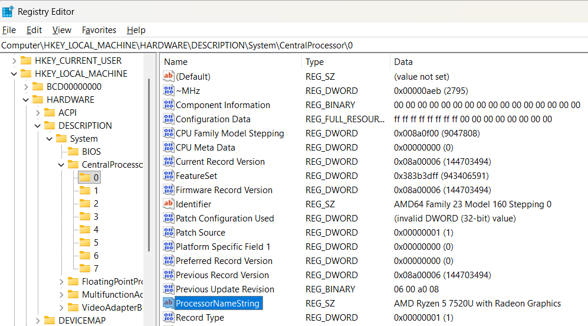
Windows Registry Editor displaying the ProcessorNameString registry value used to verify the displayed CPU name before buying a laptop or desktop.
Inside that folder (0 represents your first logical processor), you’ll find a string value called ProcessorNameString. Double-clicking it reveals the cached CPU name that Windows shows in System Properties and System Information (msinfo32).
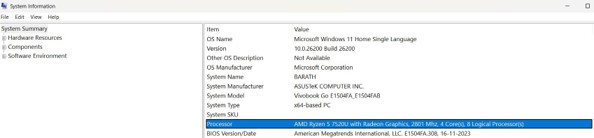
Windows System Information (msinfo32) showing processor details to verify CPU specifications before purchasing a laptop or desktop.
Step-by-Step: Viewing and Editing the Registry CPU Name
Step 1 — Open Registry Editor
Press Windows + S, type regedit, and press Enter. Confirm the User Account Control prompt. We’re not changing anything permanently yet; we’re inspecting.
Step 2 — Navigate to the CentralProcessor Key
In the left pane, expand:
As shown in the above image under section ‘The Registry Path Explained’ Step 3 — Inspect ProcessorNameString In the right pane, find ProcessorNameString. The data column shows exactly what Windows reports in Task Manager’s Performance tab and in the System Summary.
Step 4 — Understanding What Editing Does (And Doesn’t Do)
If you double-click ProcessorNameString and change “Intel Core i5-1235U” to “Intel Core i7-1360P,” Windows will immediately reflect that change in Task Manager (Ctrl + Shift + Esc) and in System Information (Windows + R, type msinfo32).
However — and this is critical for buyers — this edit does not change the actual silicon inside your CPU. The chip’s frequency, core count, instruction set, and thermal profile remain identical. A dishonest reseller can use this trick to make a budget chip appear premium. That’s why we emphasize cross-checking with hardware-level tools in the next section.
Reviewer’s Note: Editing the registry should be done cautiously. Incorrect changes to HARDWARE keys can affect system stability, and some third-party registry cleaners have been known to corrupt these paths. If you’re inspecting a used laptop, ask the seller to show the registry value before you agree to the purchase — any resistance is a red flag.
Layer 2: How to Verify Original CPU Details Using Official Intel Tools
While registry values can be edited, hardware-level identification is significantly harder to fake. Intel provides an official processor identification utility that helps verify processor information directly from the hardware.
The Intel Processor Identification Utility (PIDU)
Intel periodically updates the Processor Identification Utility. Always download the latest version from Intel’s official website to ensure compatibility with your processor generation.
Instead of relying on Windows’ cached processor name, the utility reads CPUID data directly from the processor—the low-level identification information embedded in the chip itself—and compares it with Intel’s published processor specifications, including the expected operating frequency for that processor model.
What the Utility Reveals
When you run PIDU, you’ll see three core data sections:
- Frequency Test: This compares the reported clock speed against Intel’s rated specifications for your exact Large variations — especially reported frequencies significantly lower than expected — can indicate an unexpected configuration, firmware modification, engineering sample hardware, or other inconsistencies that deserve further investigation.
- CPU Technologies: A checklist of supported instruction sets and features (Hyper-Threading, Turbo Boost, Virtualization Technology VT-x, AES-NI, ). If your chip claims to be a high-end model but lacks expected technologies, the reported hardware should be investigated further.
- CPUID Data: Deep hardware-level identification including stepping, core count, package type, and manufacturing data. This is the layer that registry edits cannot touch.
For Intel systems, PIDU is one of the most reliable ways to verify the processor because it reads hardware-level identification rather than editable Windows registry values.
Layer 3: The Cross-Verification Workflow (Our Recommended Method)
Based on our analysis of buyer guides, repair forum threads, and official documentation, here’s the verification hierarchy we recommend before finalizing any laptop or desktop purchase:
| Verification Layer | Tool / Method | What It Confirms | Can It Be Spoofed? | Typical Time |
|---|---|---|---|---|
| Display Check | Registry Editor (ProcessorNameString) | Displays the cached Windows processor name. | Yes. The registry value can be edited easily. | ~2 minutes |
| System Summary | msinfo32 or Settings → About | Shows cached processor information reported by Windows. | Yes. It also relies on registry information. | ~1 minute |
| Real-Time Performance | Task Manager → Performance tab | Live CPU frequency, utilization, core count, and thread count. | Partially. Clock speeds may be influenced by BIOS settings or power limits. | ~1 minute |
| Hardware Identification | Intel Processor Identification Utility (PIDU), AMD Ryzen Master, or CPU-Z | Actual processor model, CPUID, supported technologies, and hardware identity. | Very difficult. Spoofing generally requires firmware-level manipulation. | ~5 minutes |
| Performance Benchmark | Latest Cinebench, PassMark, or HWiNFO | Confirms that real-world performance aligns with the advertised processor specifications. | Extremely difficult under normal conditions. Thermal throttling or firmware changes may influence benchmark scores. | ~15–30 minutes |
Our Reviewer’s Workflow for Buyers
If you’re evaluating a laptop or desktop — whether new from a retailer or used from a marketplace — follow this sequence:
- Before meeting the seller, ask them to run msinfo32 and send a Compare it to the advertised specs. If they refuse, don’t proceed.
- In person, open Registry Editor and check Note the exact string.
- Run Intel PIDU (or AMD Ryzen Master for AMD systems) from a USB Confirm the frequency test results match the advertised model.
- Open Task Manager (Ctrl + Shift + Esc) and check the Performance > CPU Confirm the core and thread count matches expectations (e.g., a 6-core/12-thread chip should not show 4 cores).
- For high-value purchases, run a recent version of Cinebench and compare the score with trusted benchmark databases such as PassMark. If the result is significantly lower than expected, investigate thermal throttling or possible hardware issues.
Using these verification methods together provides a much higher level of confidence that the hardware matches the advertised specifications.
Before You Buy: 2026 Laptop and Desktop Buying Intelligence
Verification is only half the equation. You also need to know what specs to verify for. The 2026 market has shifted significantly from previous years, and our analysis of buying guides from Landmark Computers, Sportskeeda, and community guides from Reddit’s r/SuggestALaptop reveals several critical buying rules.
CPU Tier Mapping: What You Actually Need
In 2026, CPU tiers have become more complex due to AI-accelerated chips and integrated neural processing units (NPUs). Here’s how the tiers break down in real-world usage:
Entry / Student Tier:
- Intel: Core Ultra 5
- AMD: Ryzen 5 (7000–8000 series) / Ryzen AI 5 (300 series)
- Apple Silicon (Base)
- Verification focus: Confirm the chip isn’t a previous-gen model with a new registry Watch for 15W TDP limits on thin machines.
Mid-Range / Professional Tier:
- Intel: Core Ultra 7 / Core i7 (13th–14th Gen)
- AMD: Ryzen 7 / Ryzen AI 7
- Apple Silicon (Pro)
- Verification focus: Check for Hyper-Threading / SMT status in Confirm 16 GB RAM pairing minimum — 8 GB is no longer acceptable for multitasking with modern browsers and AI features.
High / Content Creation Tier:
- Intel: Core Ultra 9 / H-class HX chips
- AMD: Ryzen 9 / Ryzen AI Max 400 series
- Apple Silicon (Max)
- Verification focus: Confirm dedicated GPU pairing (NVIDIA RTX 50-series or Apple
Pro/Max integrated graphics). Check thermal benchmarks — high-end chips in thin chassis often throttle below advertised performance.
The 16 GB RAM Rule and Soldered Memory Warning
For most users in 2026—including students, professionals, developers, and content creators—16 GB should be considered the practical minimum. Browser tabs, background AI processes, and modern development environments consume memory rapidly. More importantly, most modern ultrabooks — including MacBooks, Intel Core Ultra laptops, and AMD Ryzen AI ultrabooks — use soldered, unified memory. Once you buy 16 GB, you cannot upgrade later. If your verification process reveals an 8 GB model being sold with an upgraded registry label, that’s a major red flag — and if you’re buying new, insist on 16 GB or 32 GB at purchase.
SSD Is Mandatory; HDD Is Obsolete
Every laptop and desktop you consider in 2026 should have an NVMe SSD as the primary drive. Mechanical HDDs are significantly slower (100–150 MB/s vs. 500+ MB/s for SATA SSDs, and 3,000+ MB/s for NVMe). Some budget machines still include small SSD boot drives paired with larger HDD storage. For verification purposes, check storage in System Information or Device Manager under Disk Drives. Confirm the model number and look it up online.
Recommended Verification Tools
Based on our extensive research into verification utilities and system configurations, here are the Recommended Verification Tools for buyers who want to protect themselves — with links to trusted retailers where available.
Essential Verification Tools (Free to Low-Cost)
Intel Processor Identification Utility (Official — Free)
This is our top recommendation for verifying any Intel-based laptop or desktop. Make sure you download the version that supports your processor generation, such as Intel Core Ultra and other supported processor generations, and always get the latest release from Intel’s official support website.
CPU-Z by CPUID (Free / Paid Pro)
CPU-Z remains a widely used third-party verification tool for both Intel and AMD systems. It reads CPU name, core voltage, clock speed, motherboard model, and BIOS version. The free version provides everything needed for basic verification; the Pro version adds automated benchmark reporting.
HWInfo64 (Free / Pro)
For advanced buyers, HWInfo64 provides deeper thermal monitoring and sensor data than CPU-Z. It can reveal whether a CPU is thermally throttling under load — a common issue in thin laptops with high-TDP chips.
Recommended Laptops
HP Spectre x360 Convertible (Intel Core Ultra 7 / 16 GB / 512 GB NVMe) – Amazon Worldwide and Amazon India
The Spectre line has been consistently documented across HP’s official spec guides with verified Intel Core Ultra configurations. The 2-in-1 form factor suits buyers who want both laptop and tablet modes, and HP’s system information reporting is generally accurate — but we still recommend PIDU verification upon unboxing.
Dell XPS 14/16 (Intel Core Ultra 9 / 32 GB / 1 TB NVMe)
For content creators, the XPS 14 and 16 configurations feature high-end Intel Core Ultra 9 processors with discrete NVIDIA RTX graphics. Given the high price point, verification is especially important — confirm the exact CPU model using PIDU and compare benchmark scores to Dell’s published thermal design profiles. Click here to check the latest deals on Amazon Worldwide and Amazon India.
Apple MacBook Pro (latest Apple Silicon models)
Apple Silicon chips are significantly harder to spoof through registry edits because macOS uses a different identification architecture. However, memory is permanently soldered. If you’re buying a MacBook, verify the exact chip and memory configuration in System Information (Apple Menu > About This Mac) before purchase — and never assume you’ll upgrade RAM later. Click here to check the latest deals on Amazon Worldwide.
ASUS Zenbook Pro / ROG Gaming Series (AMD Ryzen 9 / NVIDIA RTX 5070+)
For gaming and heavy multitasking, ASUS continues to publish accurate TDP information for its H-series Ryzen configurations. Always confirm the sustained TDP in HWInfo — some thin gaming laptops may reduce sustained power under heavy workloads because of thermal limitations. Click
here to check the latest deals on Amazon Worldwide and Amazon India.
The Verification Toolkit Bundle (Our Suggested Setup)
If you’re serious about buying smart in 2026, we recommend keeping a USB drive loaded with:
- Intel PIDU installer (Windows version)
- CPU-Z portable executable
- HWInfo64 portable executable
- A saved benchmark comparison PDF (downloaded from PassMark or Cinebench databases)
This toolkit fits in your pocket and takes less than 10 minutes to run — but it can save you hundreds or thousands of dollars in mismatched hardware.
Expert Commentary: What Our Research Reveals About 2026 Hardware Markets
Through our analysis of 2026 laptop buying guides, official Intel and AMD documentation, and community verification threads, several trends stand out that every buyer should understand:
Trend 1: Registry Spoofing Remains a Technique Buyers Should Be Aware Of
Registry editing tutorials have been publicly available for many years, making it important for buyers to verify hardware rather than relying solely on Windows-reported information. We don’t claim every seller is dishonest, but the technique is well-documented and easy to execute. Cross-checking with
Intel PIDU greatly reduces the risk of relying on an altered Windows processor name.
Trend 2: “Core Ultra” Naming Creates Confusion
Intel’s transition to “Core Ultra” branding (replacing traditional i3/i5/i7/i9 naming for mobile chips) has made it harder for buyers to instantly recognize generation differences. A “Core Ultra 5” could belong to different processor generations depending on the exact model number. Always check the specific model number (U5-125U, U7-155H, etc.) rather than relying on the marketing name alone.
Trend 3: AI Features Drive Memory Requirements Up
With Copilot+ PCs and local AI processing becoming standard in 2026, 16 GB is now the minimum comfortable configuration. Buyers who verify only CPU specs and ignore RAM pairing risk buying machines that will feel slow within months — not because the CPU is bad, but because the system is memory-constrained.
Trend 4: Thermal Design Is the Hidden Spec
Two laptops with the exact same “Intel Core Ultra 7” label can perform 20–40% differently depending on the thermal solution (heat pipes, fan size, chassis thickness). Always check sustained benchmark scores, not just peak clock speeds.
Frequently Asked Questions
Q: Can editing the CPU registry name (ProcessorNameString) change my computer’s actual performance?
A: No. The registry edit only changes the cached label Windows displays in System Properties, Task Manager, and System Information (msinfo32). The actual silicon, clock speed, core count, and thermal behavior remain completely unchanged. This is exactly why we recommend hardware-level verification with Intel’s Processor Identification Utility.
Q: What’s the fastest way to verify my CPU is genuine before buying a laptop?
A: One of the fastest and most reliable methods is to download Intel PIDU (or AMD Ryzen Master for AMD systems) onto a USB drive, run it on the machine, and confirm the Frequency Test results match the advertised model. This takes about 5 minutes and reads data directly from the chip, not from editable registry files.
Q: Should I check registry settings and Intel PIDU results before buying a desktop, too?
A: Yes — especially for refurbished or custom-built desktops. Registry values can be edited on desktop systems just as easily as laptops. Additionally, custom builds sometimes use OEM or engineering-sample CPUs that don’t match retail specifications. PIDU identifies the exact stepping and package type, which reveals whether you’re looking at a standard retail chip.
Q: Why does my laptop show a different CPU name in Registry vs. Task Manager vs. System Info?
A: All three sources pull from the same registry key (ProcessorNameString), so they should match under normal circumstances. If they don’t, it usually indicates a registry corruption, a partial system restore, or leftover artifacts from a previous hardware installation. Running Intel PIDU will reveal the true chip identity regardless of registry inconsistencies.
Q: Is 8 GB of RAM still acceptable in 2026 if the CPU is high-end?
A: No. Even with a powerful Intel Core Ultra 9 or AMD Ryzen 9 processor, 8 GB of RAM creates a severe bottleneck for multitasking, modern browsers, and AI-accelerated applications. In 2026, 16 GB is the practical minimum, and 32 GB is recommended for content creation, gaming, or development work. Remember: most ultrabooks have soldered memory that cannot be upgraded later.
Final Thoughts: Take Control Before You Pay
Understanding how to verify a CPU isn’t just for IT professionals or hardware enthusiasts. It’s a skill every buyer should have. A laptop may look genuine, the specifications may seem correct, and Windows may display the processor you expected—but appearances alone aren’t proof. Knowing how to verify the hardware gives you confidence that you’re paying for the performance you were promised.
The ProcessorNameString registry value shows how easily a processor name can be altered in software. Intel’s Processor Identification Utility helps verify the processor’s hardware-reported identity, providing a reliable cross-check against Windows’ display information. Combine those with trusted CPU benchmarks and tools like CPU-Z, and you have a simple, reliable verification process that anyone can follow before making a purchase.
Before buying your next laptop or desktop PC, set aside ten minutes for these checks. Verify the CPU model, confirm the processor frequency, review the memory configuration, and compare the results with reputable benchmark databases. Those few minutes could save you from spending hundreds of dollars on hardware that doesn’t match its advertised specifications.
If you’re getting ready to buy a new system, build yourself a small verification kit. Keep Intel PIDU, CPU-Z, and a simple checklist on a USB drive so you’re always prepared. The best computer purchase isn’t necessarily the most expensive one—it’s the one you fully understand before you hand over your money.
Before purchasing your next laptop or desktop, spend ten minutes verifying the hardware with trusted tools. Keeping a small USB verification kit with Intel PIDU, CPU-Z, and HWiNFO can help you avoid expensive mistakes and buy with confidence.
If this guide helped you, we’d love to hear from you. Leave a comment below and share your experience with buying or verifying a computer. If you have any questions, are unsure about your processor, or need help interpreting your results, ask in the comments—we’re happy to help. Follow us for more practical buying guides, honest hardware advice, and step-by-step tutorials that help you make smarter technology decisions with confidence.
***Disclaimer***
This blog post reflects our research, analysis, and opinions based on available product information, user feedback, and industry knowledge. It should not be taken as the official position of any brand, manufacturer, or company mentioned here. We make every effort to keep this guide accurate, but product specifications, pricing, and availability may change after publication. We recommend double-checking important details before making a purchase.
Some links in this article may be affiliate links. If you choose to buy through these links, we may earn a small commission at no extra cost to you. This helps support our work and allows us to keep publishing in-depth, unbiased reviews. Affiliate partnerships never influence our recommendations.
Opinions expressed by readers are their own and do not necessarily reflect ours. We are not responsible for outcomes resulting from the use of information on this site. Please seek professional advice where appropriate.
All product names, logos, and brands mentioned are the property of their respective owners. These names are used for identification and informational purposes only and do not imply endorsement.
