
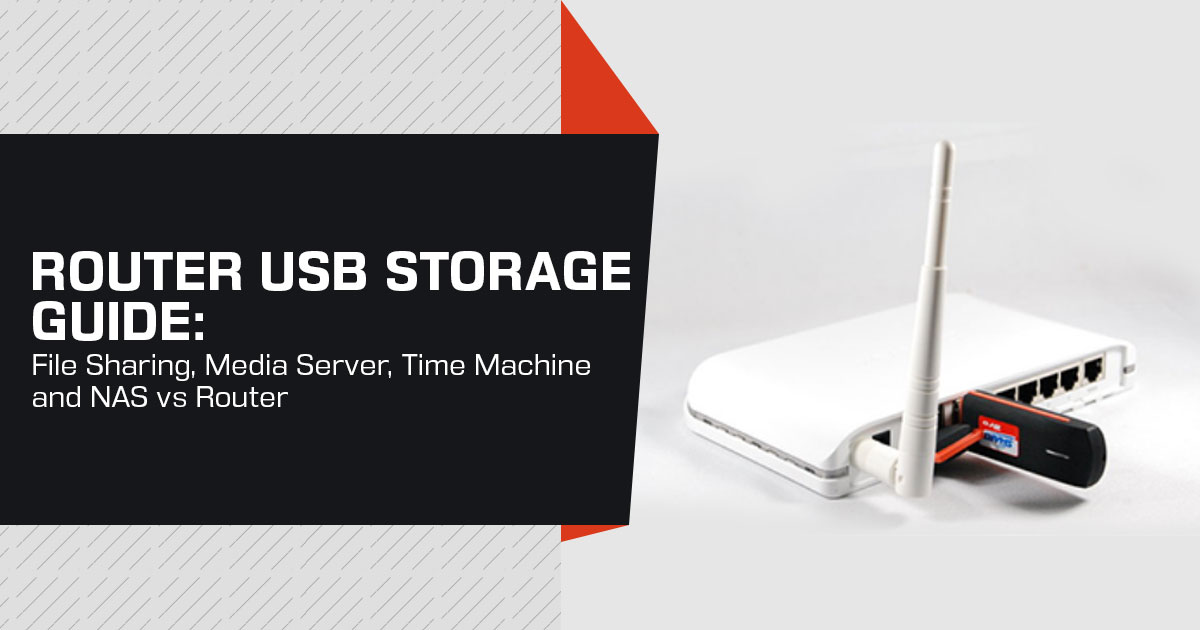
The short answer is simpler than it first appears: on many modern consumer routers, the humble USB port can provide shared storage, connect certain USB printers, and, on a smaller set of models, even provide a backup internet connection. But convenience has limits. A router’s USB port does not turn it into a dedicated NAS, and the features available can differ sharply from one model to another.
So, is it worth using? That depends on what your household actually needs. If you move files between computers, share photographs and videos, print from several devices, or want an inexpensive way to make files available across your home network, the router USB port can be useful. If you need higher transfer speeds, stronger storage management, redundancy, detailed user controls, or heavier multi-user performance, a dedicated NAS remains the better choice.
As technology experts with over 20 years of experience in hardware and application research and development, we examine products with a simple purpose: to separate what looks impressive on a specification sheet from what proves useful in everyday life. We look closely at real-world performance, durability, reliability, ease of use, and value for money to help home users, families, students, remote workers, small offices, and everyday technology buyers make sensible choices.
Our recommendations are based on extensive research, component analysis, real-world usability, manufacturer documentation, independent reviews, community reports, and industry expertise. This is not presented as a hands-on test. Where manufacturer claims, independent testing, or user reports differ, we have said so rather than pretending that every model behaves the same way.
If you already own a router with a USB 3.0 port, there is little reason to spend money before finding out what it can do. Try the feature first. Your router may already handle basic file sharing, media serving, or local backups well enough for your needs. If it falls short, you will know what is missing and whether you really need a dedicated NAS or another solution.
After all, the best technology purchase is not necessarily the newest one. Sometimes, it is simply making better use of the technology already sitting on your desk.
What the USB Port on a Router Can Do
A USB port can let a router provide services beyond routing network traffic. The useful options depend on the exact model and its firmware.
- Shared storage for the whole house. Connect an external drive and, on a compatible router, make it available as a network Windows and macOS can access many router-based shares through SMB, although setup and permissions vary by model. This can save you from leaving a separate computer running just to share files.
- A networked printer on compatible Some routers have a USB print-server function, but this is not universal and is increasingly uncommon on newer routers. Never assume that a USB port means printer sharing; check the exact model’s documentation first.
- A spare internet On a limited set of routers, a USB 4G/5G modem or a tethered phone can act as a secondary WAN connection. When the primary connection fails, supported routers can switch to the backup connection. ASUS documents USB as one of the possible secondary WAN options on supported models.
- A basic media library. Some routers can expose an attached drive through a media server such as DLNA, allowing compatible TVs and streaming devices to browse supported media This depends on the router’s software.
- A local backup Some routers can be used as a destination for backup software, while selected models support Apple Time Machine directly. For example, TP-Link lists Time Machine support for the Archer AX55.
A USB port may also supply power to small USB devices, but charging performance varies by router and port. It should not be treated as a replacement for a proper charger.
Router USB Port vs. a Dedicated NAS
This is the question that matters most: does the USB port solve your problem, or do you need a proper NAS?
| Factor | Router USB Port | Dedicated NAS (e.g. Synology / QNAP) |
|---|---|---|
| Setup Effort | Plug in a storage drive and enable file sharing through the router settings. | Install storage drives and complete the NAS operating system setup. |
| Multi-User File Serving | Supported, but generally suited to light or modest workloads. | Purpose-built for serving files to multiple users and devices. |
| Transfer Speed | Typically low to moderate, depending on the router, USB interface, and storage device. | Generally higher and optimized for network storage. |
| RAID / Redundancy | Usually not available. | Available on compatible multi-drive NAS systems. |
| Media Features | Basic and highly router-dependent. | More capable media and streaming features on supported models. |
| User Accounts & Quotas | Usually offers only basic user controls, if supported. | Provides granular user accounts, permissions, and storage quotas. |
| CPU & RAM for Storage | Storage workloads share the router’s CPU and memory with networking tasks. | Uses dedicated CPU and memory resources for storage and related services. |
| Single Point of Failure | A router failure can disrupt both network connectivity and storage access. | A NAS failure affects storage access, while the primary network can remain operational. |
| Additional Cost | Minimal additional cost because it uses existing router hardware. | Requires purchasing a separate NAS enclosure and compatible storage drives. |
For a household that occasionally shares a folder, keeps a small media library, or wants a simple local backup target, the router port can be useful and costs only the price of the drive.
For a household where several people routinely read and write large files, or where storage management and redundancy matter, a dedicated NAS is the better tool. The router option is a convenience, not a replacement.
Real-World Performance, Based on Reported Numbers
A common misunderstanding is that the USB port’s version tells you how fast file sharing will be. It does not. USB 3.0 has much more theoretical bandwidth than a router normally delivers for network storage.
The router’s processor, firmware, network connection, drive, file system, and sharing protocol all affect the final result.
Reported performance varies by model, protocol, operating system, firmware, and test method. On the Archer AX55, TP-Link has stated that around 30 MB/s is a typical USB 3.0 result, while independent testing has recorded roughly 30–40 MB/s. Some users have reported much lower SMB speeds under particular Windows configurations, so these figures should be treated as examples rather than a guaranteed transfer rate.
In practical terms, router-based storage can be fine for documents, photographs, light media use, and backups. It is a poor fit for editing large video files directly from the attached drive or for demanding simultaneous workloads.
Why Model Differences Matter
This is the most important point before acting on any advice. A USB port is only the hardware connection. What it can actually do depends on the brand, model, hardware version, software, and sometimes firmware.
- Read the manual, not just the marketing A specification sheet may list a USB port without offering every USB-related feature.
- Check the supported One router may offer SMB file sharing but no media server; another may offer backups but no print server.
- Treat cellular failover as a specialist ASUS supports USB as a secondary WAN option on selected routers, but support must be confirmed for the exact model and firmware.
If a specific use matters, confirm that exact function on your exact model before planning around it.
Who Should Use the USB Port
It fits if:
- You already have a router with a USB 0 port and a spare external drive.
- Your household shares files or a printer across two or more computers.
- You want a local backup target without buying a separate NAS.
- Your files are mostly photos, documents, or media you stream to a TV, rather than large working files.
It does not fit if:
- Several people routinely read and write large files to one location.
- You rely on hardware redundancy or RAID.
- You need sophisticated user accounts, quotas, permissions, or remote-access controls.
- Your router does not actually support the function you want (check first).
Our Buying Recommendation
For most households, start with the USB port you already have. If you are buying a new router anyway because your current one is old, weak over Wi-Fi, or lacks USB storage support, a mid-range Wi-Fi 6 router with USB 3.0 can offer a useful balance of price and features.
The TP-Link Archer AX55 remains a sensible fit for the storage-sharing workflow discussed here. It is a Wi-Fi 6 AX3000 router with one USB 3.0 port and support for Samba/SMB, a media server, FTP, and Apple Time Machine. TP-Link’s current specifications list NTFS, exFAT, HFS+, and FAT32 support.
It is not the fastest or most feature-rich router available, and its Gigabit WAN port makes it a poor choice for internet plans above 1 Gbps if you want to use the full line speed. Its USB features, however, make it useful for households that want basic network storage and Time Machine support without buying a separate NAS.
Important limitation: the standard Archer AX55 does not offer USB cellular-modem failover. If cellular backup is your priority, look at a router that explicitly supports USB as a secondary WAN.
TP-Link Archer AX55 Specifications
| Specification | Details |
|---|---|
| Official Name | TP-Link Archer AX55 (AX3000 Dual-Band Gigabit Wi-Fi 6 Router) |
| Wi-Fi Standard | Wi-Fi 6 (802.11ax), AX3000 class |
| Wireless Bands | Dual-band 2.4GHz + 5GHz with support for 160MHz channels |
| Ethernet Ports | 1× Gigabit WAN and 4× Gigabit LAN |
| USB Port | 1× USB 3.0 |
| Processor / Memory | Dual-core CPU with 512MB RAM |
| Supported Drive Formats | NTFS, exFAT, HFS+, and FAT32 |
| USB Functions | Samba (SMB) file sharing, DLNA media server, FTP server, and Apple Time Machine |
| Security | WPA2/WPA3, HomeShield, guest network, and parental controls |
| Not Offered | No 6GHz band, no multi-gigabit WAN, and no USB cellular-modem failover |
What this means for the buyer: the USB 3.0 port is one of the reasons to consider this model over a cheaper router without USB storage support. It provides SMB, media-server, and Time Machine functions. The Gigabit-only WAN limits the router to Gigabit-class wired internet service, so it is not the right choice for someone who needs to take full advantage of a 1.5 Gbps or 2 Gbps internet plan.
Pros and Cons
Pros
- USB 0 port with SMB, DLNA media server, and Time Machine support.
- Competitive value for the Wi-Fi 6 performance a typical home needs.
- Four Gigabit LAN ports for a desktop, a console, and a printer.
- WPA3 and parental controls come in the base price.
- EasyMesh / OneMesh extends coverage later with compatible units.
Cons
- WAN port is limited to Gigabit Ethernet, so it cannot deliver the full speed of internet plans above 1 Gbps through the WAN connection.
- No USB cellular-modem failover.
- Advanced HomeShield features sit behind a paid subscription.
- USB storage performance is limited by the router’s hardware and software, not simply by the USB 0 interface.
- Newer Wi-Fi 7 routers are available, so buyers should compare current prices and features before purchasing.
The Alternative for Cellular Backup
If the reason you are reading this is an unreliable wired connection, USB as a secondary WAN is the feature to look for. ASUS documentation confirms that supported routers can use USB as a secondary WAN and switch to it in failover mode. A compatible 4G/5G modem or phone tethering can therefore serve as a backup connection.
Do not treat a 30–60 second switch time as universal. Failover time depends on the router, detection settings, connection type, firmware, and network conditions. Check the documentation for the exact model before relying on it for critical work.
Alternative: Wi-Fi 7 Upgrade — TP-Link Archer BE230
If USB storage performance is a major priority, the Archer BE230 is the stronger option on paper because its newer hardware and 2.5 Gbps Ethernet remove some of the limitations found on the AX55. It is a BE3600 dual-band Wi-Fi 7 router with a 2.5 Gbps WAN port, a 2.5 Gbps LAN port, and a USB 3.0 port supporting Samba, a media server, and FTP.
There is an important difference for Mac users: TP-Link’s current BE230 specifications do not list Apple Time Machine support, while the AX55 does. If automatic Time Machine backups are a priority, the AX55 is the more direct fit.
Buying Advice and Common Objections
“Won’t a router-based share be slow?” For photographs, documents, light media use, and backups, it can be perfectly adequate. For large video editing directly from the drive, it is not the right tool. Match the job to the hardware.
“Why not just use a cloud service?” A local backup avoids a monthly storage fee and does not depend on upload bandwidth for local restores. But it will not protect your data from theft, fire, or a disaster affecting the home. For important files, keeping both a local copy and an off-site copy is safer.
“Is the attached drive safe?” A drive connected to a router is part of your network. Use secure sharing where the router provides it, set strong credentials, restrict access where possible, and keep the router’s firmware up to date. Older router software can use outdated network services, so security should not be treated as an afterthought.
“Should I use an SSD or a hard drive?” The router may be the main bottleneck, but that does not mean the drive type never matters. An SSD can be quieter and more resistant to shock, while a hard drive usually offers more storage for the money. For an always-on setup, choose based on capacity, reliability, noise, power use, and price rather than speed alone.
“Should I just buy a NAS instead?” Not necessarily. Use the port you already have if it meets your needs. If you later need more speed, RAID, stronger access controls, or heavy multi-user file serving, a dedicated NAS is the logical next step.
Frequently Asked Questions
Can I plug an external hard drive into my router?
Yes. If the router supports USB storage, a drive plugged in can be shared to every device on the network.
Do I need a NAS just to share files at home?
No. A router that supports USB storage can provide basic network file sharing and backup functions. A NAS becomes more useful for heavier, more demanding storage needs.
Can I back up my Mac to a USB drive on the router?
On routers that explicitly support Apple Time Machine, yes. The Archer AX55 is one example.
Is a router-based NAS faster than a dedicated NAS?
Usually not. A dedicated NAS is designed for storage and file serving, so it generally offers better performance and more storage features.
Final Verdict
The USB port on a router is a feature that is genuinely underused. For the cost of an external drive, a compatible router can provide household-wide shared storage, a media library, and a local backup target.
On supported models, it can also provide network printing or a backup internet connection during an outage.
It is not a NAS, and it should not be treated as one. The honest position is that it is a low-cost, low-effort win for the kind of everyday file work most homes actually do — and for most people the right move is to use the port they already have before spending money.
For anyone whose router lacks a USB port and is due for an upgrade, the TP-Link Archer AX55 combines a USB 3.0 port with SMB, media-server, and Time Machine support in a Gigabit Wi-Fi 6 router. If automatic cellular failover is the priority, look at supported ASUS routers instead.
Where to Buy
Amazon US — TP-Link Archer AX55
The AX55 offers USB 3.0, SMB file sharing, a media server, and Time Machine support. Prices vary by retailer and promotion, so check the current listing before purchasing.
- Check the current price and latest offers on Amazon US
- Pair it with a USB 0 external SSD for a reliable always-on drive.
Amazon India — TP-Link Archer AX55
The same core USB features are available in India. Because retailer pricing changes, check the current price before purchasing rather than relying on an older quoted figure.
Prices on both marketplaces fluctuate regularly. Confirm the live price before purchasing.
For cellular backup: if automatic failover is your priority, look for a supported ASUS router such as the RT-AX86U or RT-AX88U, which accept a USB modem or tethered phone as a secondary WAN.
If you already use your router’s USB port, we would like to hear how it has worked for you. Has it proved useful for file sharing, network printing, backup internet, or something else? Or did you find that the feature looked better on paper than it performed in practice?
Share your experience in the comments, and if you have a question or are unsure whether your router can handle a particular task, ask us below. We will do our best to help you make sense of it.
If you find our practical technology guides useful, follow us for more well-researched advice, product analysis, and buying guidance—without the unnecessary fuss.
***Disclaimer***
This blog post reflects our research, analysis, and opinions based on available product information, user feedback, and industry knowledge. It should not be taken as the official position of any brand, manufacturer, or company mentioned here. We make every effort to keep this guide accurate, but product specifications, pricing, and availability may change after publication. We recommend double-checking important details before making a purchase.
Some links in this article may be affiliate links. If you choose to buy through these links, we may earn a small commission at no extra cost to you. This helps support our work and allows us to keep publishing in-depth, unbiased reviews. Affiliate partnerships never influence our recommendations.
Opinions expressed by readers are their own and do not necessarily reflect ours. We are not responsible for outcomes resulting from the use of information on this site. Please seek professional advice where appropriate.
All product names, logos, and brands mentioned are the property of their respective owners. These names are used for identification and informational purposes only and do not imply endorsement.
