
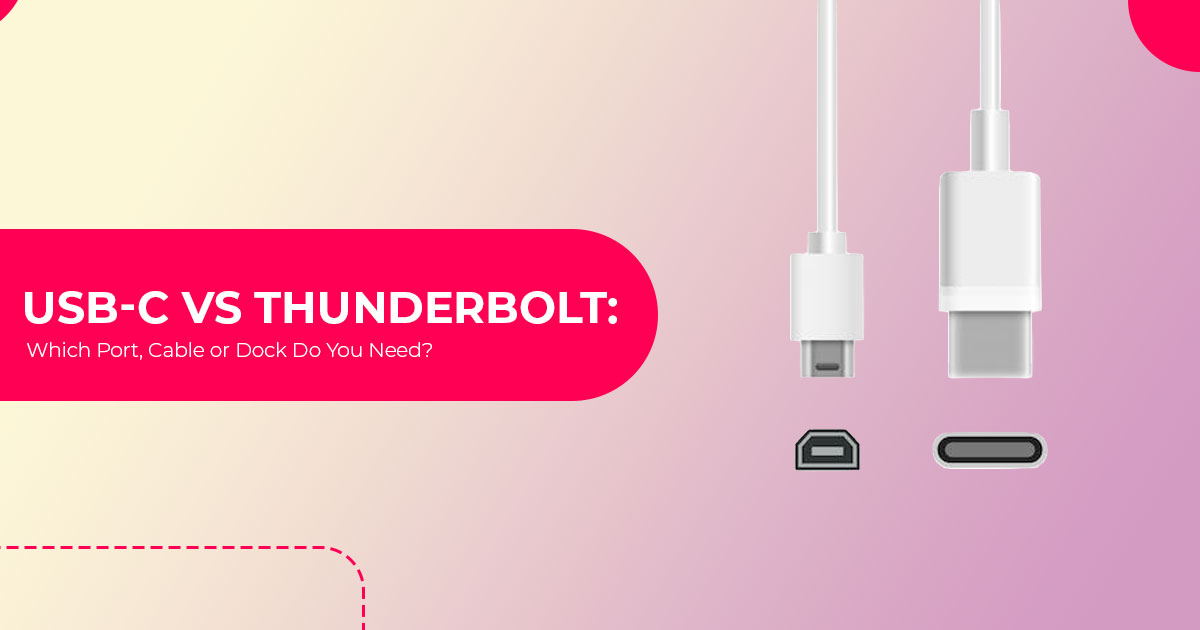
USB-C and Thunderbolt ports can look almost identical, but they are not the same thing. USB-C describes the connector, while Thunderbolt defines a set of connectivity standards that have used the USB-C connector since Thunderbolt 3. So, just because a cable or port fits does not mean it will support the data speeds, video output, charging, or docking features you expect.
That difference matters when you are buying a USB-C cable, Thunderbolt cable, dock, laptop, or monitor. Some USB-C cables are built mainly for charging, while others support fast data transfer and video. Even two USB-C ports on the same laptop can have different capabilities. The safest way to check compatibility is to look at the whole connection: host port → cable → dock or device → monitor or storage → charger.
We look beyond the specifications to understand how products perform in everyday use. Our goal is to help you choose the right product based on price, performance, reliability, and long-term value. If you are a student, professional, gamer, content creator, remote worker, or anyone building a multi-device setup, this guide will help you understand what USB-C and Thunderbolt can actually do and what to look for before you spend your money. We base our recommendations on product specifications, component details, real-world usability, and industry documentation.
Key takeaways for USB-C vs Thunderbolt
-
USB-C alone does not identify a data USB-IF treats USB Type-C separately from USB 3.2, USB4 and USB Power Delivery. USB-IF guidance.
- Thunderbolt generations define different minimum Intel lists a 40 Gbps PC speed requirement for Thunderbolt 4 and higher bandwidth requirements for Thunderbolt 5. Intel’s Thunderbolt 5 brief.
- Video support must be checked A USB-C port needs a supported display path, such as DisplayPort Alternate Mode (DisplayPort Alt Mode), USB4 display tunneling or Thunderbolt.
- Charging wattage and data speed are different cable A cable can support high-power charging while carrying only USB 2.0 data.
- A verified USB-C setup can handle charging, USB peripherals and a supported single Thunderbolt is relevant when the setup requires its certified bandwidth, PCIe path or generation-specific display and data requirements.
USB-C vs Thunderbolt at a glance
| Feature | USB-C / USB 3.2 | USB4 | Thunderbolt 4 | Thunderbolt 5 |
|---|---|---|---|---|
| What the Name Describes | USB-C describes the connector, while USB 3.2 describes data signaling. | USB data and protocol architecture operating over USB-C. | Certified connectivity standard operating over USB-C. | Newer certified Thunderbolt generation operating over USB-C. |
| Data Capability | The connector alone does not establish speed. USB 3.2 products may be labeled USB 5Gbps, USB 10Gbps, or USB 20Gbps. | 20 Gbps minimum PC speed requirement. | 40 Gbps minimum PC bandwidth requirement. | 80 Gbps bidirectional bandwidth, with up to 120 Gbps transmit and 40 Gbps in the opposite direction using Bandwidth Boost. |
| Display Capability | Not implied by the connector. Video requires DisplayPort Alt Mode or another supported display path. | Product-specific; verify the capabilities of both the host and connected device. | Intel lists support for dual 4K monitors as a PC requirement; exact resolutions and display counts remain system-dependent. | Intel lists support for dual 6K monitors on compatible systems; exact resolutions and display counts remain system-dependent. |
| Charging | Depends on the USB Power Delivery implementation, charger, cable, and receiving device. | Also depends on the specific USB Power Delivery implementation. | Charging capability varies depending on the exact computer, dock, charger, and cable. | Charging capability varies depending on the exact computer, dock, charger, and cable. |
| PCIe Path | PCIe connectivity is not implied by USB-C. | PCIe capability must be verified on the exact product. | Intel lists 32 Gbps PCIe data capability as a PC requirement. | Intel lists 64 Gbps PCIe data capability as a PC requirement. |
| Certification | USB-IF certification and performance logos are available, but the USB-C connector name alone does not guarantee a specific performance tier. | Check for certified speed branding and the manufacturer’s stated feature set. | Thunderbolt-branded shipping products are subject to Thunderbolt certification. | Thunderbolt-branded shipping products are subject to Thunderbolt certification. |
| Use Case to Verify | Charging, USB storage, peripherals, and supported single-display configurations. | USB storage and docks operating at the manufacturer’s stated data tier and feature set. | Compatible docks, PCIe peripherals, and storage devices requiring Thunderbolt 4. | High-bandwidth storage, capture, and display configurations that specifically document a Thunderbolt 5 requirement. |
The table compares standards, not individual products. USB data entries follow USB-IF performance language; Thunderbolt bandwidth, PCIe and PC display entries follow Intel’s Thunderbolt 5 Technology Brief. Intel’s brief lists dual 6K as the Thunderbolt 5 PC video requirement and dual 4K for Thunderbolt 4; Intel’s current guidance also documents up to dual 8K with Display Stream Compression on compatible systems. A particular laptop or dock can expose fewer practical capabilities because the GPU, operating system, firmware and port routing also matter.
USB-C is the connector, not the feature list
USB Type-C is a connector and cable specification for the small, reversible plug and receptacle. The connector name alone does not tell a buyer whether a port supports video, a particular charging wattage, USB4 or Thunderbolt.
USB-IF’s current consumer performance language includes USB 5Gbps, USB 10Gbps, USB 20Gbps, USB 40Gbps and USB 80Gbps. These labels identify a signaling tier; wording such as “high-speed USB” does not identify one performance tier. USB-IF guidance.
For the buyer, this means a product listing should answer four separate questions:
- What is the data rate? Look for a stated USB or Thunderbolt rate.
- Does the port carry video? Look for DisplayPort Alt Mode, USB4 display support or Thunderbolt.
- What charging level is supported? Check the output of the charger or dock and the cable’s power rating.
- Does the accessory require a specific protocol? A Thunderbolt storage enclosure may need a Thunderbolt host even though its plug fits a non-Thunderbolt USB-C port.
Treating those as separate checks reduces cable and dock compatibility mistakes.
Thunderbolt 3, Thunderbolt 4 and Thunderbolt 5 explained
Thunderbolt 3
Intel introduced Thunderbolt 3 as the generation that brought Thunderbolt to the USB-C connector, with speeds up to 40 Gbps. Intel’s Thunderbolt 3 overview. It can carry USB, DisplayPort and PCIe traffic, but actual results still depend on the computer, cable and peripheral.
Cable capabilities vary by product. Buyers replacing a cable should check the dock or device manufacturer’s cable requirements rather than relying only on connector shape.
Thunderbolt 4 vs USB-C
A USB4 product can also support a 40 Gbps tier, so Thunderbolt 4 vs USB-C is not simply a fast-versus-slow comparison. Thunderbolt 4 instead sets defined minimums: Intel lists 40 Gbps PC bandwidth, dual-4K PC video capability and 32 Gbps PCIe data capability among its requirements. Intel’s Thunderbolt 5 brief.
That does not mean every Thunderbolt 4 computer drives every dual-monitor arrangement. The host GPU, operating system and manufacturer implementation remain part of the display path. This is particularly important with laptops whose external-display limits vary by model.
Thunderbolt 5 vs USB-C
In Thunderbolt 5 vs USB-C, the USB-C connector still looks the same, but Thunderbolt 5 raises the minimum PC bandwidth requirement. Intel documents up to 80 Gbps bidirectional bandwidth. When display traffic needs more outbound bandwidth, Bandwidth Boost can provide up to 120 Gbps for transmit traffic while preserving 40 Gbps in the other direction. Intel’s Thunderbolt 5 brief. Thunderbolt 5 bandwidth requires a Thunderbolt 5 host, a compatible device and a suitable cable. A Thunderbolt 5 device may support a prior-generation host, but that connection cannot use Thunderbolt 5 bandwidth; confirm the device’s compatibility specification.
USB4 vs Thunderbolt 4 and USB4 vs Thunderbolt 5
Intel states that Thunderbolt 5 builds on USB4 Version 2.0, DisplayPort 2.1 and PCI Express Gen 4, while applying Thunderbolt certification requirements. Intel’s Thunderbolt 5 brief.
In USB4 vs Thunderbolt 4, both can support 40 Gbps products. A practical difference is that a USB4 label does not, by itself, establish the complete Thunderbolt 4 feature set. Buyers must check the USB4 product’s stated display, PCIe and charging capabilities.
The USB4 vs Thunderbolt 5 comparison is similar at higher bandwidth. USB4 Version 2.0 defines operation up to 80 Gbps and permits an optional asymmetric 120/40 Gbps configuration. USB-IF’s USB 80Gbps announcement.
Thunderbolt 5 applies its own certification requirements around the same broader standards foundation.
The buying implication is that a headline bandwidth figure does not replace a complete feature check. A USB4 product can meet the requirement when its needed functions are documented; a USB-C connector and a 40 Gbps claim alone do not establish equivalence to a Thunderbolt product.
Link bandwidth and measured performance
A link rate is the capacity of the connection, not a guaranteed file-copy result. Protocol overhead, the storage controller, the drive, the dock and simultaneous display traffic all affect measured throughput.
External storage
An external SSD is limited by the slowest relevant part of the chain. A higher-rate enclosure connected through a lower-rate port or cable uses the mutually supported mode. A host limited to USB 10Gbps cannot establish a USB 40Gbps or USB 80Gbps link with the enclosure.
For large media libraries, virtual machines or frequent project transfers, a documented USB4 or Thunderbolt storage path can reduce the chance that the connection becomes the main bottleneck. Ordinary backups to a slower SATA SSD or hard drive may not need that bandwidth.
Docks under combined load
Display, storage and networking traffic can share the same upstream dock connection. A setup that looks fine with only a keyboard attached may behave differently while driving monitors and copying a large file.
Because we have not benchmarked every dock, this guide does not state a universal throughput figure. Product-specific tests are most useful when they use the buyer’s host platform, monitor arrangement and storage class.
External graphics and PCIe devices
Thunderbolt supports PCIe tunneling, which is relevant to external graphics enclosures, capture devices and PCIe-based storage. Support is not automatic across every computer or operating system. Before buying an external graphics enclosure, verify the exact host, operating system, enclosure, GPU and cable combination.
Displays: do all USB-C ports support video?
No. If you’re asking whether all USB-C ports support video, USB-C shape alone does not establish display support.
VESA confirms that DisplayPort can travel through USB Type-C using DisplayPort Alt Mode. DisplayPort can also be tunneled through USB4 and Thunderbolt. VESA guidance.
For a monitor connection to work, the source port, cable or adapter, dock if present, and monitor input must support the same path. A passive USB-C-to-HDMI adapter cannot provide video if the laptop’s USB-C port does not support a compatible video output mode such as DisplayPort Alt Mode.
When standard USB-C may be enough
A verified USB-C port with DisplayPort Alt Mode can support a single office monitor when every component supports the required mode. Available resolution and refresh rate depend on the computer’s documented display output, DisplayPort mode, cable and any adapter or dock.
This route makes sense when the buyer needs:
- One external display
- Keyboards, mice and other supported USB peripherals
- Laptop charging at a documented wattage
- A dock or monitor hub with documented host compatibility
When Thunderbolt becomes more relevant
Thunderbolt can carry display, storage and networking traffic over one compatible connection. Its generation-specific requirements help define that connection, but they do not override the computer’s GPU, operating-system or model limits.
Before paying for a multi-display dock, confirm:
- The exact laptop model’s supported external-display count
- Resolution and refresh rate for each display
- Whether the dock uses native DisplayPort paths or a software-based USB graphics solution
- Whether the operating system supports the intended arrangement
- Whether the included host cable is required
Charging: does Thunderbolt charge faster than USB-C?
Not inherently. Whether Thunderbolt charges faster than USB-C depends on the implemented USB Power Delivery profiles and the complete power path, not the Thunderbolt name alone.
USB-IF’s document library lists USB Power Delivery Specification Revision 3.2 Version 1.2, dated 20 May 2026 (checked 26 August 2026). USB-IF document library. Revision 3.1 introduced Extended Power Range capability up to 240W. USB-IF’s PD 3.1 announcement.
“Up to 240W” is a ceiling for compatible implementations, not a promise for every cable or port. The charger or dock must offer the required power profile, the cable must carry it, and the laptop must accept it.
For buyers, the useful comparison is:
- Original laptop adapter wattage
- Dock’s stated host-charging output
- Cable’s power rating
- Whether the laptop accepts charging through that specific port
- Whether the dock reserves some adapter power for its own ports and attached devices
A dock that supplies less power than the laptop consumes under load may charge slowly or allow the battery to drain while connected, even though displays and USB devices continue working.
USB-C vs Thunderbolt cable: what to check before buying
For a USB-C vs Thunderbolt cable decision, data, video and charging must be checked separately. The cable needs to match the task rather than merely fit the port.
| Cable Category | What to Verify | Possible Use When Supported | Main Limitation to Watch |
|---|---|---|---|
| USB 2.0 Type-C Cable | Power rating and 480 Mbps data-speed limit | Charging and basic data transfers | Does not provide USB 3.x / USB4 signaling or DisplayPort Alt Mode. |
| USB 5Gbps, USB 10Gbps or USB 20Gbps Type-C Cable | Advertised data rate, power rating, and video support | Compatible external SSDs, USB-C hubs, docks, and monitors | A high wattage rating alone does not confirm the cable’s data speed or video capabilities. |
| USB 40Gbps or USB 80Gbps Cable | Certified performance logo, supported data rate, power rating, and device compatibility | Compatible USB4 storage, high-bandwidth docks, and other demanding USB-C devices | Both the host and connected device must support the same high-speed operating mode to achieve its full capability. |
| Certified Thunderbolt Cable | Thunderbolt generation, cable length, certification, and power rating | Compatible Thunderbolt docks, external storage, and displays | Mixed-generation connections operate according to the capabilities mutually supported by the host, cable, and connected device. |
Apple provides a model-specific example. The current Apple India listing for 240W USB-C Charge Cable (2m), product reference MYQT3ZM/A (checked 26 August 2026), states support for charging up to 240W and USB 2 data transfer; Apple also states that this charge cable does not support video Apple India product page Apple Support cable comparison. The separate Apple Thunderbolt 3 (USB-C) Cable (0.8m) supports Thunderbolt 3 data transfer up to 40 Gbps and USB 3.1 Gen 2 data transfer up to 10 Gbps Apple Support cable comparison. These claims apply to those exact Apple products, not to every USB-C charge cable or Thunderbolt cable.
Cable buying checklist
- Match the data rate to the host and
- Match the power rating to the charger and
- Confirm video support when connecting a monitor or
- For a Thunderbolt device, use the supplied cable or a cable certified for the required Thunderbolt
- Choose a length for which the manufacturer states the required data, video and power
- Look for separate USB-IF performance and wattage markings where USB-IF cable-logo guidelines.
Buying shortcut: If replacing a lost dock cable, start with the dock manufacturer's specification. A generic charging cable may power the dock while leaving displays or high-speed data unavailable.
USB-C dock vs Thunderbolt dock
A USB-C dock vs Thunderbolt dock comparison should begin with the host computer, not the accessory listing. A dock cannot add Thunderbolt to a laptop that lacks it, and it cannot create DisplayPort Alt Mode on a data-only USB-C port.
Names such as “hub” and “dock” are not a complete specification. Some compact hubs provide HDMI and pass-through charging. Some desktop docks use USB4 or Thunderbolt and include their own power supply. Others rely on a separate USB graphics system. Check the host-facing protocol before comparing features.
| Dock Type | Host Requirement | Possible Use When Supported | Questions to Answer Before Purchase |
|---|---|---|---|
| USB-C Docking Station Using DisplayPort Alt Mode | USB-C port with supported DisplayPort Alt Mode; USB Power Delivery (PD) support is also required if host charging is needed. | Suitable for single-display desk setups and compatible USB peripherals when supported by the host. | Check the exact display resolution and refresh rate, host charging output, and available USB data speed. |
| USB4 Dock | Depending on the dock, compatibility may include USB4, Thunderbolt 4, or Thunderbolt 5 hosts. Thunderbolt 3 compatibility is product-specific and should be verified. | Supports USB4 storage, displays, and docking functions according to the capabilities documented by the dock and host manufacturers. | Verify whether the dock supports USB 20Gbps, 40Gbps, or 80Gbps, along with display capabilities, PCIe tunneling support, and fallback behavior. |
| Thunderbolt Docking Station | Requires a compatible Thunderbolt host to access the dock’s full capabilities. | Can connect supported displays, high-speed storage, and PCIe devices through a single cable. | Confirm the Thunderbolt generation, host display limitations, charging output, and specifications of the included cable. |
| USB Graphics Dock | Requires a compatible operating system plus any software or driver specified by the dock manufacturer. | Useful for adding extra office displays when the computer’s native display outputs are limited. | Check driver availability, operating-system compatibility, and whether the technology is suitable for your intended workload. |
Which dock offers better value?
Value depends on whether the extra capability is used.
A verified USB-C dock can meet a laptop’s requirements for one supported monitor, Ethernet, keyboard, mouse and documented charging output. Thunderbolt bandwidth cannot improve a workload that remains within the USB-C dock’s documented data and display limits.
A Thunderbolt dock may be justified when the desk combines compatible high-rate storage, several peripherals and multiple displays, or when a required PCIe device depends on Thunderbolt. The host must support the same feature set; otherwise, the dock may use a reduced fallback mode or lose functions.
Compatibility matrix: what works with what?
| Connection | Expected Result | What Still Needs Verification |
|---|---|---|
| USB-C Device → Modern Thunderbolt Port | Can operate using a USB mode supported by the host, device, and cable. | Check the supported data rate, video mode, charging capability, and any device-specific requirements. |
| Thunderbolt Device → Basic USB-C Host | May not operate unless the Thunderbolt device provides a documented USB fallback mode. | Verify the manufacturer’s documented USB fallback support. |
| Thunderbolt 4 Device → Thunderbolt 5 Host | Thunderbolt 5 is designed for compatibility with prior Thunderbolt generations, although available functions remain product-specific. | Confirm the capabilities supported by the exact device, cable, and host. |
| Thunderbolt 5 Device → Thunderbolt 4 Host | Many Thunderbolt 5 accessories are backward-compatible with Thunderbolt 4 systems, but compatibility must be checked for the specific product. Performance is limited to the mutually supported capability. | Verify the exact device, cable, and host. Thunderbolt 5-only capabilities will not be available over a Thunderbolt 4 connection. |
| USB4 Device → Thunderbolt 4 / 5 Host | May operate using a mutually supported USB mode. | Check the exact device’s supported data rate, PCIe tunneling, display output, and charging features. |
| Thunderbolt Dock → USB-C-Only Laptop | The connector may physically fit, but functionality can range from a documented USB-C fallback mode to no operation at all. | Check the dock’s documented USB-C fallback support, including available display outputs and other limitations. |
Intel describes Thunderbolt products as designed for compatibility with earlier Thunderbolt generations and USB 3/USB4 devices, but the shared operating mode still depends on every component in the connection. Intel’s Thunderbolt overview. The key rule is that physical compatibility is not the same as functional compatibility.
How to identify a Thunderbolt port and cable
The most reliable answer to how to identify a Thunderbolt port is to check the exact computer’s technical specifications. A Thunderbolt mark can help identify a port, but the model specification is needed to confirm the generation and each port’s capabilities.
Use this order:
- Find the exact model and configuration—not only the laptop family name.
- Read the official port specification for that model.
- Look for “Thunderbolt 3,” “Thunderbolt 4” or “Thunderbolt 5.”
- Check whether every USB-C-shaped port has the same capability.
- Inspect the cable for a Thunderbolt generation mark or a USB performance-and-power logo.
- Confirm the accessory’s host requirements before
The computer manufacturer’s specification for the exact model and configuration remains the primary reference.
Troubleshooting common USB-C and Thunderbolt problems
USB-C charges but no video
When USB-C charges but no video, charging proves only that a power path exists. The host port may lack DisplayPort Alt Mode, or the cable may be intended for charging and USB 2.0 data.
Check the host specification, use a video-capable cable, connect the monitor directly and select the correct monitor input before adding a dock.
USB-C dock not detecting monitor
For a USB-C dock not detecting monitor, work through the complete path before replacing parts.
| Symptom | Likely Causes | First Checks |
|---|---|---|
| Dock powers USB devices, but the monitor shows “No Signal” | Host port lacks native video support, the wrong dock host port is being used, or the cable does not support the required connection. | Confirm DisplayPort Alt Mode or Thunderbolt support, connect through the dock’s designated host port, and use the supplied cable. |
| One monitor works, but the second does not | Host display limit, insufficient bandwidth, or an unsupported multi-display configuration. | Check the exact laptop model, operating system, dock specifications, supported display count, resolution, and refresh rate. |
| SSD is much slower than expected | The connection may have fallen back to USB 2.0, USB 5Gbps, or USB 10Gbps, or the SSD/enclosure itself may be the bottleneck. | Check the rated speeds of the host port, cable, dock, SSD, and enclosure separately to identify the limiting link. |
| Laptop charges slowly through the dock | The dock’s power output may be below the laptop’s requirements, or the cable or power adapter may limit the available charging profile. | Compare the laptop’s original charger wattage with the dock’s host power output and verify the cable’s power rating. |
| Dock fails after the laptop wakes from sleep | Firmware, driver, cable, or link-negotiation issue. | Update the host drivers and dock firmware, test with the supplied cable, and perform a complete power reset. |
| Display works when connected directly, but not through the dock | Dock display-output path, bandwidth allocation, or host compatibility issue. | Test one display at a time and review the dock manufacturer’s host-specific resolution, refresh-rate, and display-count limitations. |
Driver or firmware updates may correct software and link-negotiation problems, but they cannot add a display path that the USB-C port does not implement.
Advantages and limitations
USB-C setup
Advantages
- Can cover charging, data and video when every required feature is documented
- Allows buyers to choose only the performance tier their workload needs
- Can support a single display and USB peripherals when the complete path is documented
Limitations
- Connector shape does not reveal speed, charging or video support
- Product implementations vary widely
- Multi-display and PCIe features require careful verification
- A cable’s power marking does not identify its data rate or video capability
Thunderbolt setup
Advantages
- Intel publishes minimum PC bandwidth and PCIe data requirements for Thunderbolt 4 and Thunderbolt 5
- Supports DisplayPort and PCIe tunneling for compatible displays, storage and specialist peripherals
- Can carry supported display, storage and networking traffic through one link
- Thunderbolt is designed for compatibility across generations, subject to the exact products and shared operating mode
Limitations
- Full capability requires a compatible Thunderbolt host, device and cable
- The computer’s GPU and operating system can still limit display arrangements
- Link bandwidth does not raise performance above the limits of attached devices
- Mixed-generation setups use mutually supported capabilities
Who should buy USB-C, USB4, Thunderbolt 4 or Thunderbolt 5?
Choose a verified USB-C setup when:
- The main tasks are charging and supported USB peripherals
- One external display meets the workspace requirement
- The host documents DisplayPort Alt Mode and sufficient USB Power Delivery
- Storage devices use USB 5Gbps, USB 10Gbps or USB 20Gbps rather than Thunderbolt
Consider USB4 when:
- The product clearly states its USB 20Gbps, USB 40Gbps or USB 80Gbps tier
- The required display and charging features are documented
- The buyer needs the product’s documented USB storage or docking functions without assuming Thunderbolt-specific features
Consider Thunderbolt 4 when:
- The host already has Thunderbolt 4
- The dock must carry supported displays while storage, networking and other peripherals are active
- A required device uses a Thunderbolt PCIe path
- The required dock and peripheral functions are documented for the host
Consider Thunderbolt 5 when:
- Both the computer and important accessories support Thunderbolt 5
- 80 Gbps bidirectional bandwidth or display-oriented Bandwidth Boost addresses a documented requirement
- The workload includes storage, capture or display configurations whose documented requirements exceed Thunderbolt 4 capabilities
Thunderbolt 5 bandwidth can remain unused in an office setup that does not exceed Thunderbolt 4 or verified USB capabilities. The stated bandwidth should correspond to a documented device or workflow requirement.
Pricing: compare the complete setup, not only the dock
Static price comparisons age quickly and vary between the US and India, so this guide does not quote a universal price.
When comparing current listings, include:
- Dock or hub price
- Included power adapter
- Included certified host cable
- Cost of replacement or longer cables
- Required video adapters
- Ports that can replace separate Ethernet, card-reader or display adapters
- Return policy if the exact host compatibility remains uncertain
Compare the total cost of the dock, required cables, adapters and power supply. A dock’s added bandwidth or display outputs remain unused when the laptop does not support them.
Frequently asked questions
Can USB-C plug into a Thunderbolt port?
For Thunderbolt 3, Thunderbolt 4 and Thunderbolt 5 ports, the USB-C connectors fit. The device can operate only through a USB mode supported by the host, device and cable; data rate, video and charging remain separate checks.
Can a Thunderbolt cable work with a USB-C port?
It can when the cable specification includes a USB mode supported by the host and device. Check the exact certified Thunderbolt cable specification rather than assuming that connector fit establishes USB capability.
Is USB-C the same as Thunderbolt?
No. USB Type-C identifies the connector and cable specification. Thunderbolt 3, 4 and 5 use the USB-C connector but define additional connectivity requirements.
Is Thunderbolt 4 vs USB-C mainly a speed comparison?
No. A USB4 connection can also support 40 Gbps. The more useful comparison involves certification, PCIe capability, display requirements and documented dock behavior.
Do you need a Thunderbolt cable for a Thunderbolt dock?
For full Thunderbolt operation, use the dock’s supplied cable or a certified Thunderbolt cable for the required generation. A charging-focused USB-C cable may supply power while failing to carry the necessary data or video.
Is a USB-C docking station enough for one 4K monitor?
It can be, provided the laptop supports the required DisplayPort Alt Mode, the cable and dock support the intended mode, and the GPU can drive the target resolution and refresh rate. USB-C shape alone is not enough evidence.
Does Thunderbolt guarantee two external displays?
No single display promise applies to every system. Intel’s Thunderbolt 4 and Thunderbolt 5 briefs list PC video requirements, but a computer’s output still depends on the GPU, operating system and manufacturer implementation. Verify the exact model and configuration before buying a multi-display dock.
Is Thunderbolt worth it?
For the question “Is Thunderbolt worth it?”, compare the workload with the documented connection requirements. Thunderbolt can be justified for compatible storage, PCIe peripherals or docks that need its functions. A setup using only charging, low-rate USB peripherals and one display within a verified DisplayPort Alt Mode path does not require Thunderbolt.
Can a Thunderbolt dock work with a USB-C-only laptop?
Some docks include a documented USB-C fallback mode; others lose features or do not operate. Confirm the exact dock’s fallback table before purchase.
Why is an external SSD slower through a dock?
The dock, cable or host may have negotiated a lower data rate, or display and network traffic may share the upstream link. The drive and enclosure can also be the bottleneck. Check each component separately.
Final verdict on USB-C vs Thunderbolt
The correct choice depends on the workload. USB-C is the connector and cable specification, and its data, display and power features must be checked. Thunderbolt 4 and Thunderbolt 5 add certified bandwidth, display and PCIe data requirements, but they cannot add capabilities that the host, GPU, operating system, cable or peripheral lacks.
Use this decision rule:
- Choose a verified USB-C or USB4 product when its documented capabilities meet the job.
- Choose Thunderbolt when a compatible host and a documented bandwidth, display, PCIe or docking requirement calls for it.
- Buy the cable by data rate, video capability and power rating, not by connector shape.
If you still have questions about USB-C, Thunderbolt, cables, docks, or compatibility, drop them in the comments. We’ll be happy to help clear things up. And if you found this guide useful, follow us for more practical tech guides, comparisons, and buying advice.
***Disclaimer***
This blog post reflects our research, analysis, and opinions based on available product information, user feedback, and industry knowledge. It should not be taken as the official position of any brand, manufacturer, or company mentioned here. We make every effort to keep this guide accurate, but product specifications, pricing, and availability may change after publication. We recommend double-checking important details before making a purchase.
Some links in this article may be affiliate links. If you choose to buy through these links, we may earn a small commission at no extra cost to you. This helps support our work and keep publishing in-depth guides.
Opinions expressed by readers are their own and do not necessarily reflect ours. The information here is provided for general informational purposes and may not fit every setup. For specialist or high-stakes decisions, consult the relevant manufacturer or qualified professional.
All product names, logos, and brands mentioned are the property of their respective owners. These names are used for identification and informational purposes only and do not imply endorsement.
